Admin Panel Overview
Power BI Connector gives Jira administrators control over what data can be exported and who can use the connector. The Admin Panel includes four tools to support your organization's data governance: Project Restrictions, Field Restrictions, User Access, and Connector Privacy.
Recommended: Configure the Admin Panel immediately after installation. Project and field restrictions only apply to connectors created after the settings are saved and do not affect existing connectors.
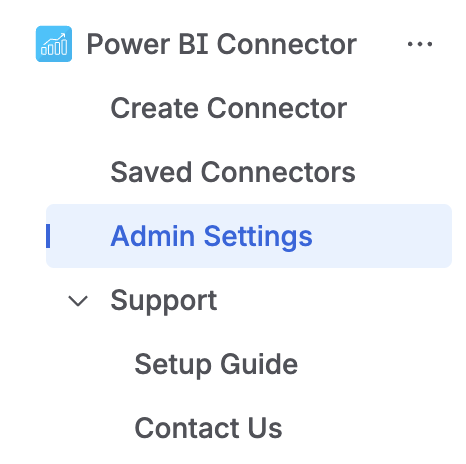
Open the Admin Panel from the app navigation menu under Admin Settings.
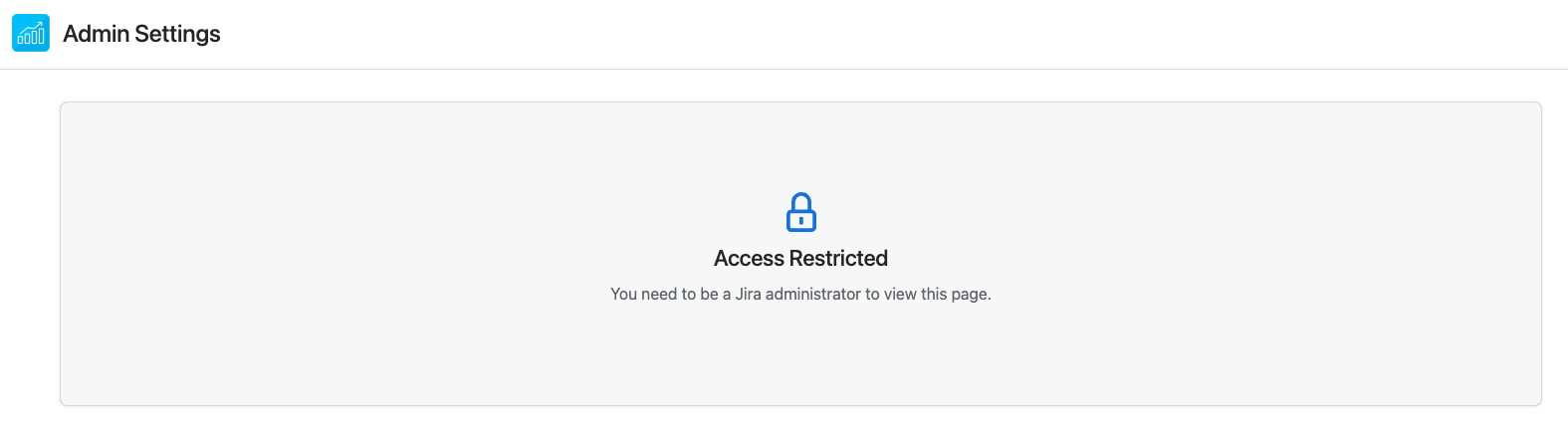
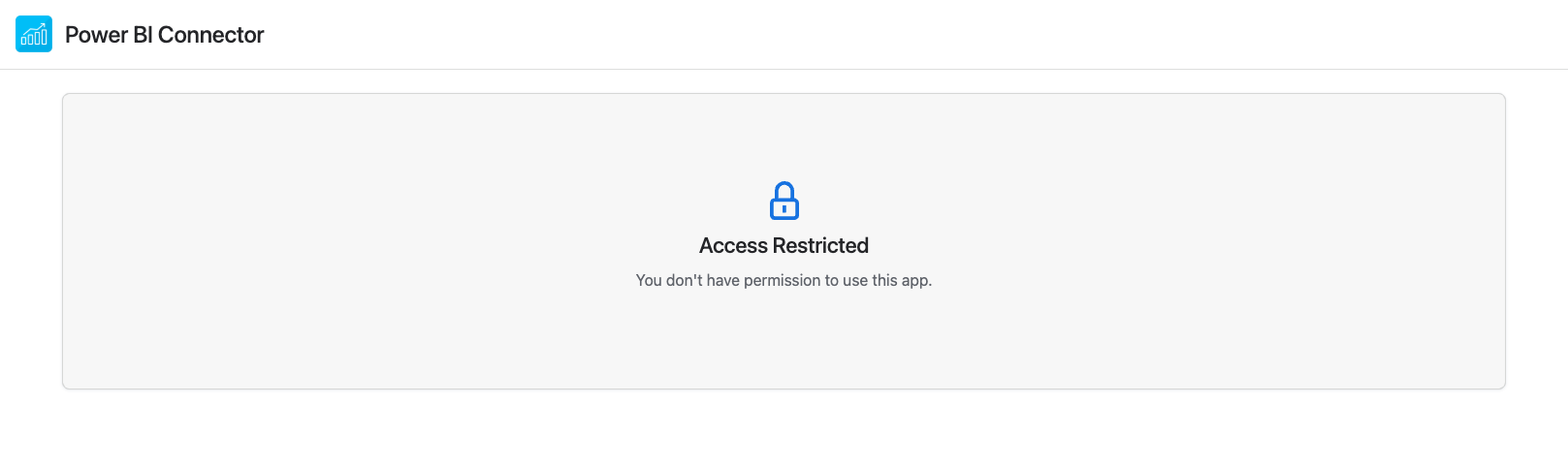
This page is only visible to Jira administrators. Other users will see an access denied message:
Project Restrictions
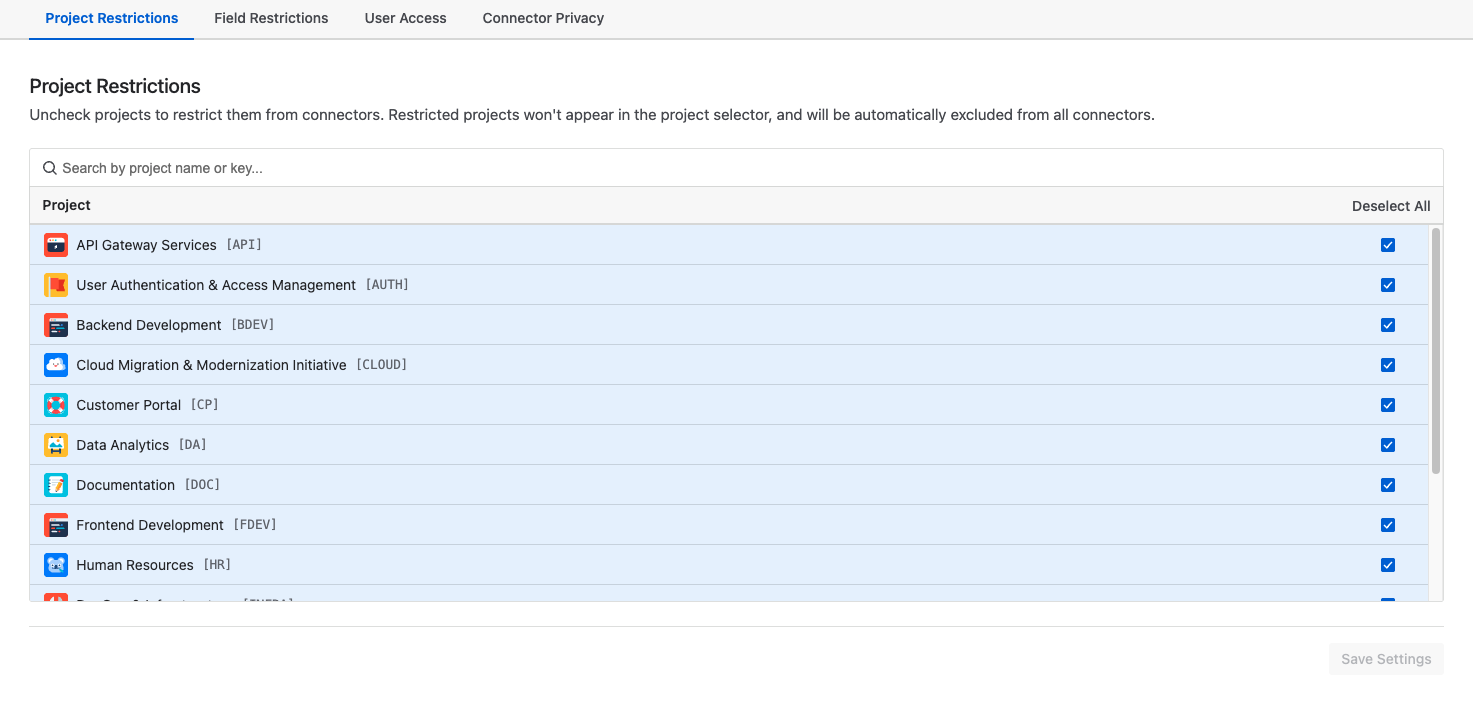
Project Restrictions control which Jira projects can be exported to Power BI. By default, all projects are enabled. Administrators can uncheck any project to prevent it from being used in connectors.
If a user does not have access to a project in Jira they will not be able to select it in Power BI Connector. All Jira permissions are respected. Project Restrictions are optional and let admins enforce organization-wide rules. For example, blocking a project from being exported even if a user normally has access to it.
Example
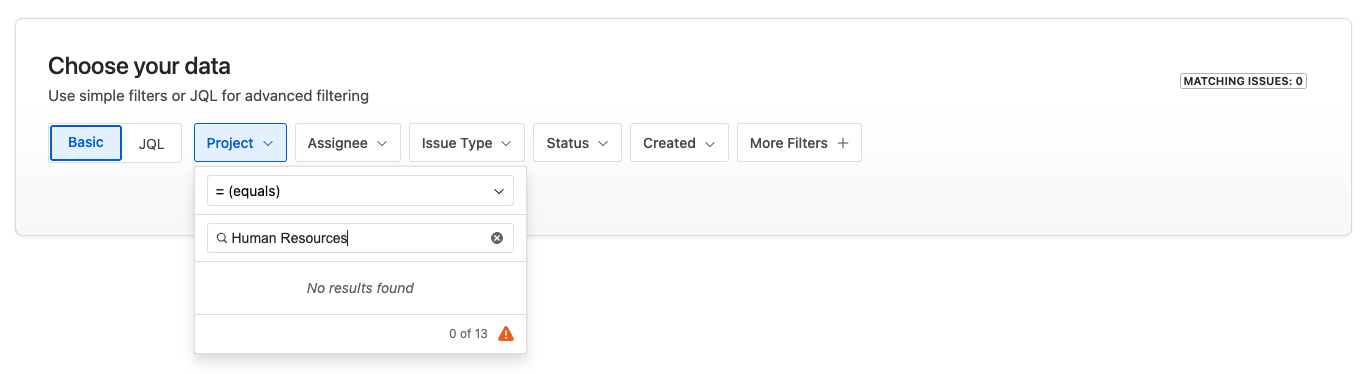
Suppose your organization has a sensitive Human Resources project that should never be exported. Unchecking it in the Project Restrictions tab ensures it is excluded from all connectors, regardless of user permissions.
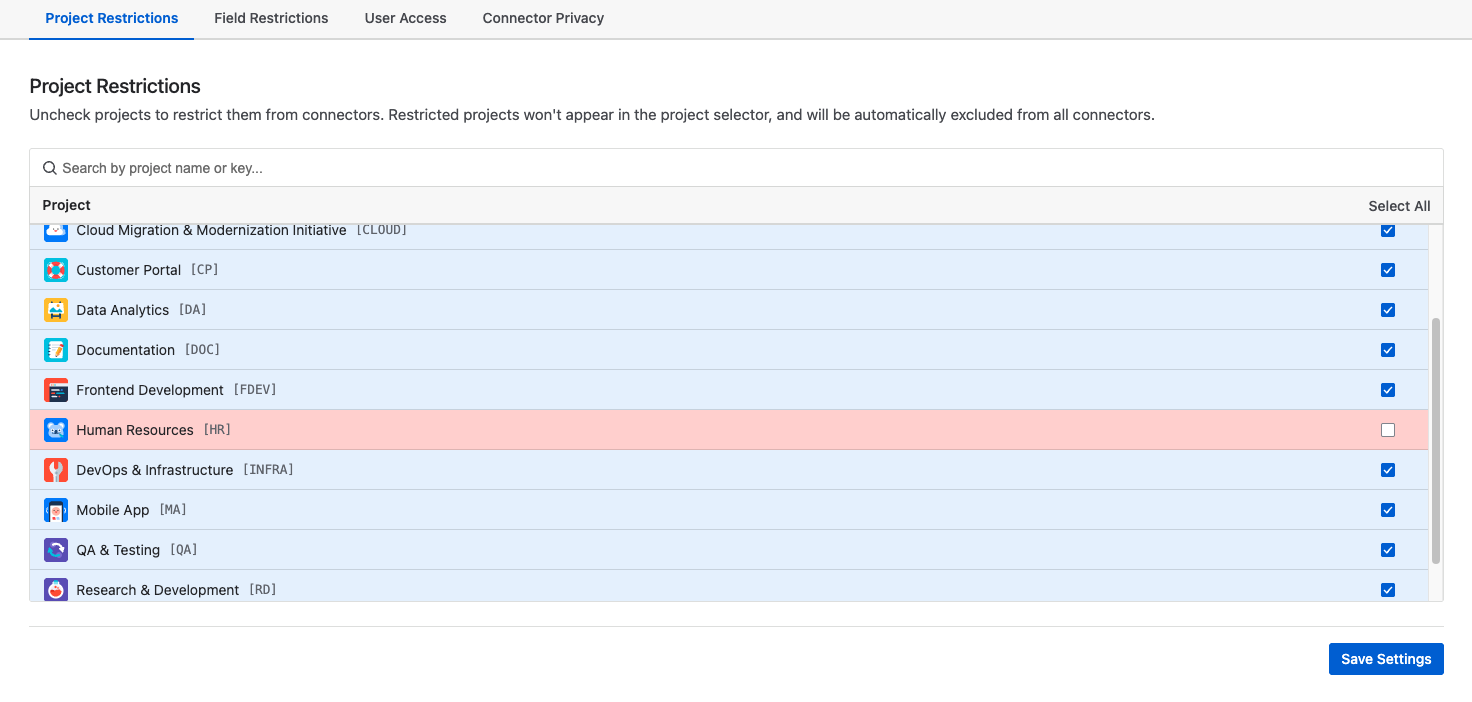
Restricted projects do not appear in the project selector during connector setup. If a JQL query or Jira filter includes them, they are automatically removed server-side.
Field Restrictions
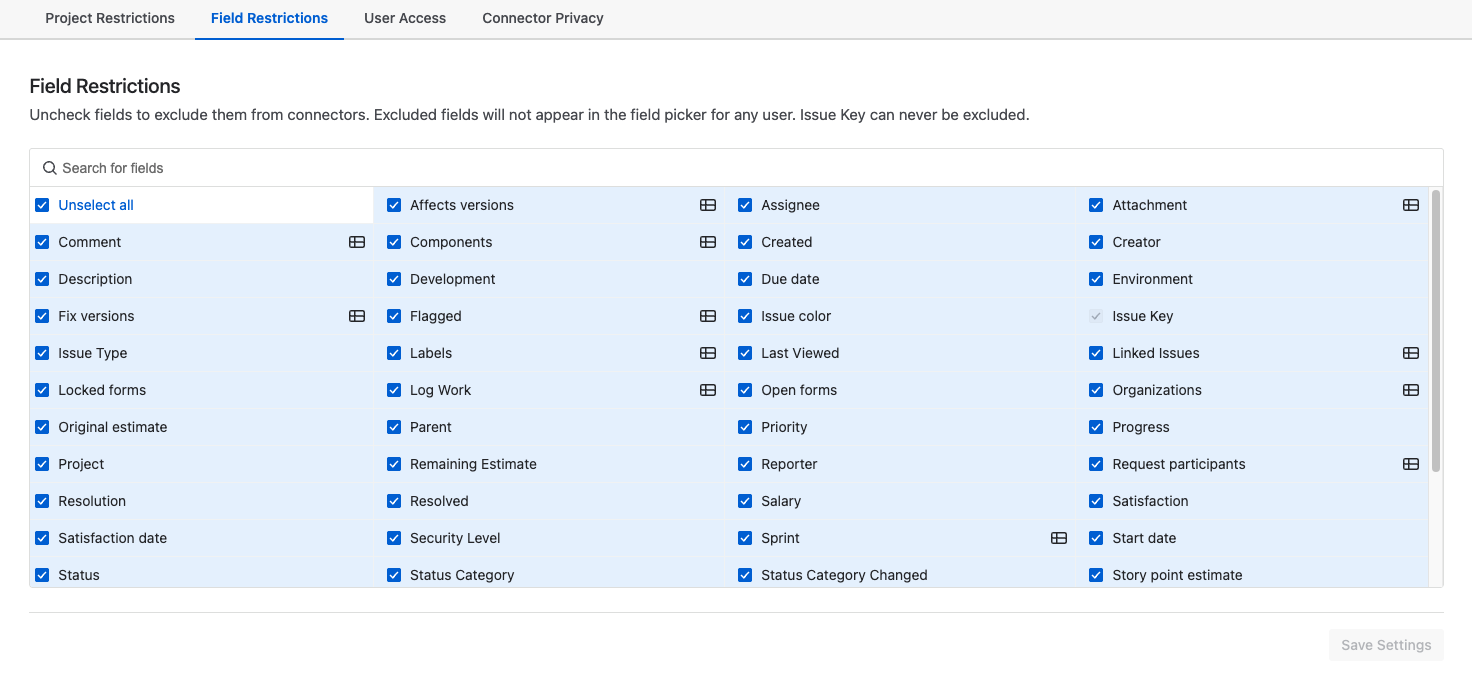
Field Restrictions allow administrators to prevent specific Jira fields from being included in connectors. Restricted fields are hidden from the field picker and will never appear in Power BI exports. By default, all fields are allowed.
Example
Your Jira instance contains a custom field called Salary. Unchecking it in the Field Restrictions tab ensures no connector can include it.
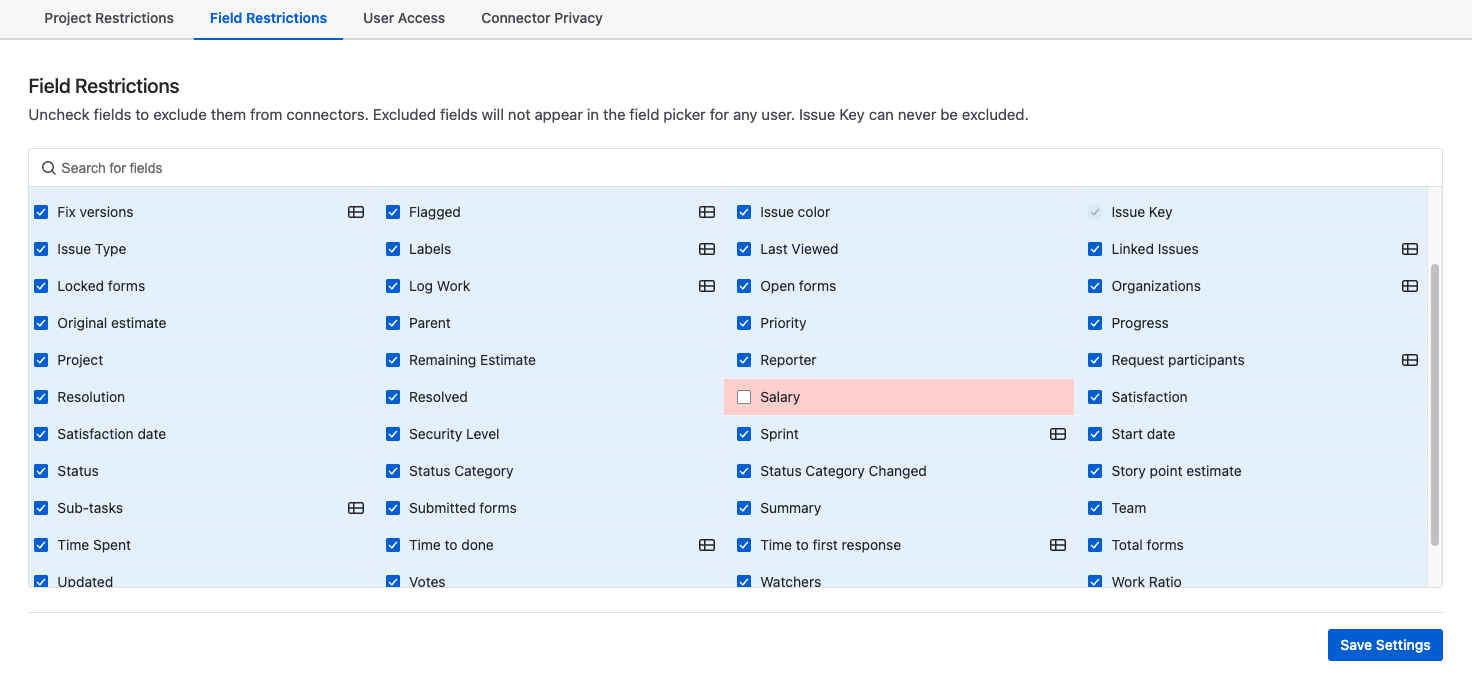
If users search for the field when creating a connector, it will not appear.
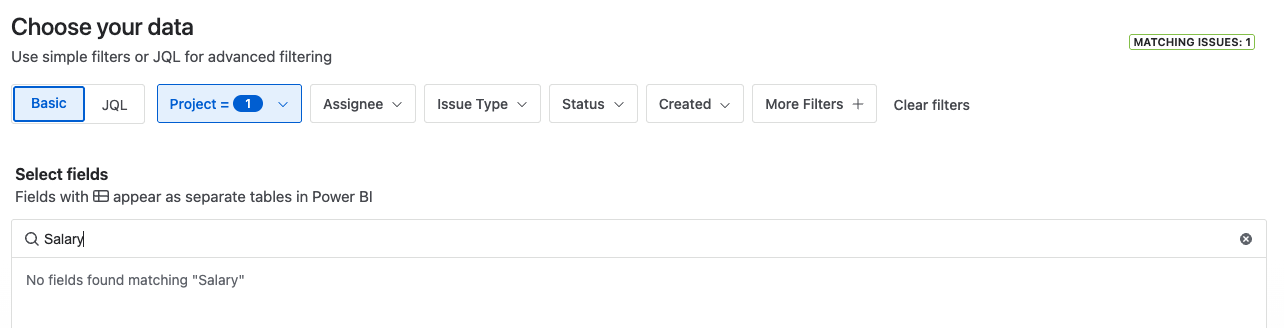
Note: Restrictions apply only to new connectors. Existing connectors that include the field should be deleted.
User Access
User Access controls which Jira groups can use the Power BI Connector. By default, all users have access. After configuring this setting, only users in at least one selected group can use the app. Jira administrators always retain access.
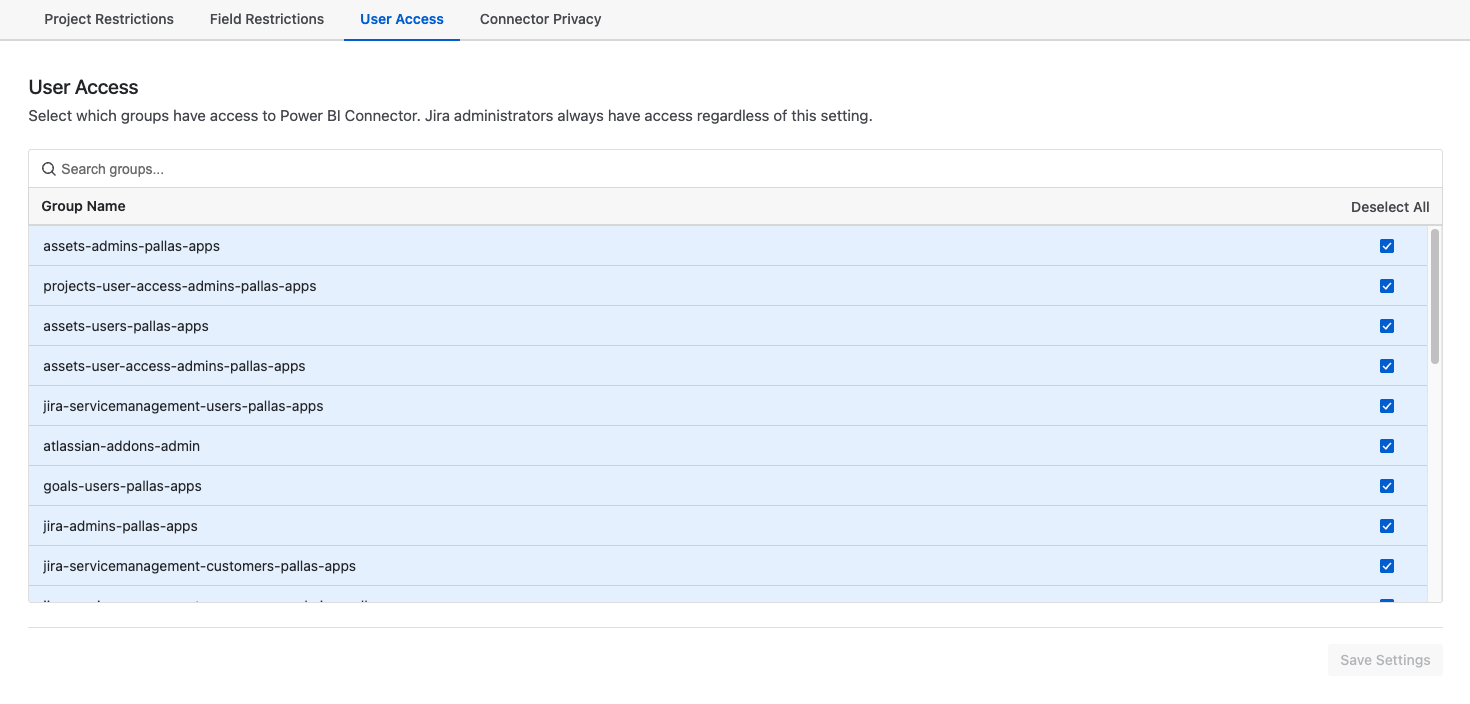
Example
Say you have a group called powerbi-connector-users and you want to restrict the app to only those group members. You would deselect all groups except for that one.
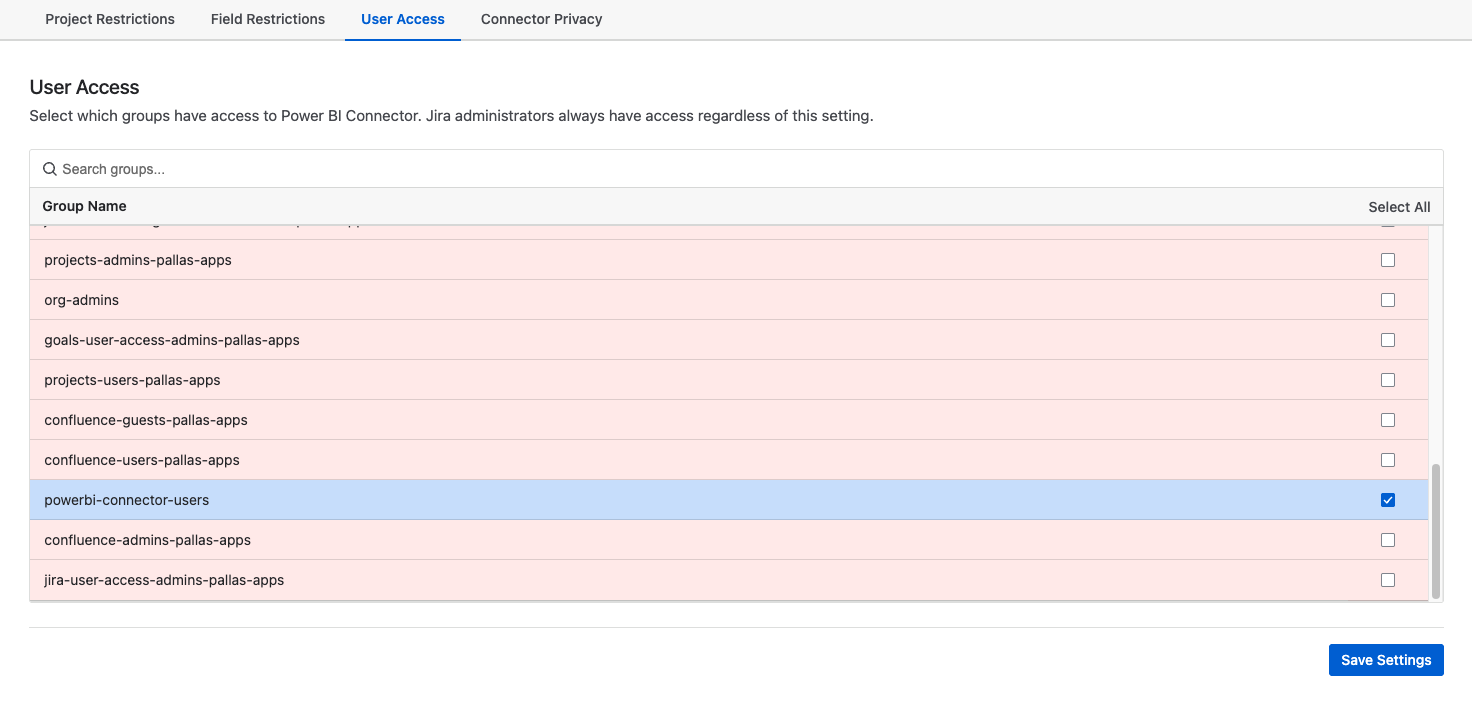
Users who are not part of this group will see the following restricted message.
Connector Privacy
Connector Privacy controls whether users can see connectors created by others on the same Jira instance. There are two options:
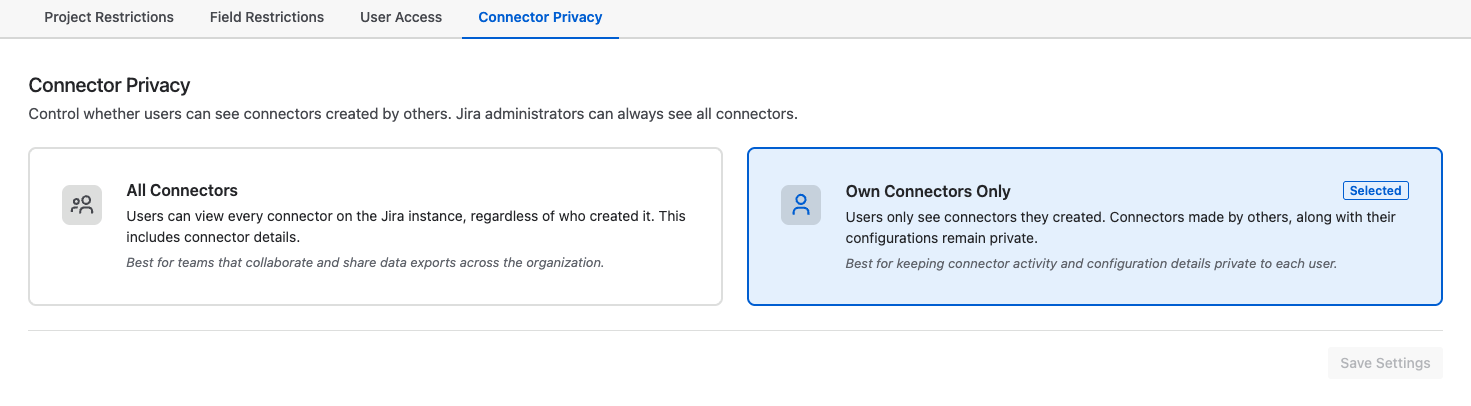
- All Connectors — Users can view every connector on the instance, including those created by others. This is the default and works best for teams that collaborate and share data exports.
- Own Connectors Only — Users can only see connectors they created. Other users' connectors and their configurations remain private.
Jira administrators can always see all connectors regardless of this setting.
Example
The default setting All Connectors is selected:
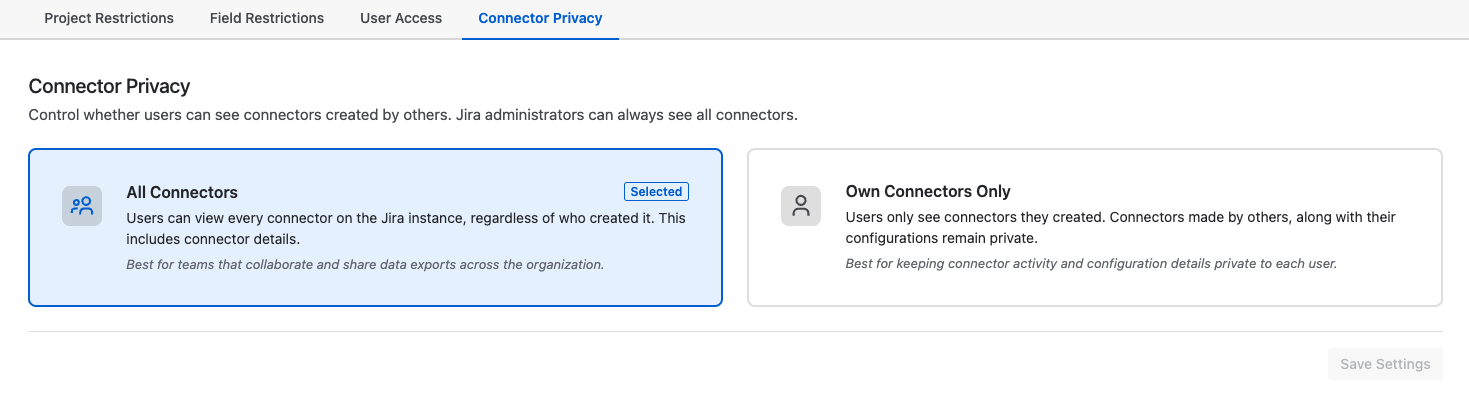
All users can access every connector on the Jira instance.
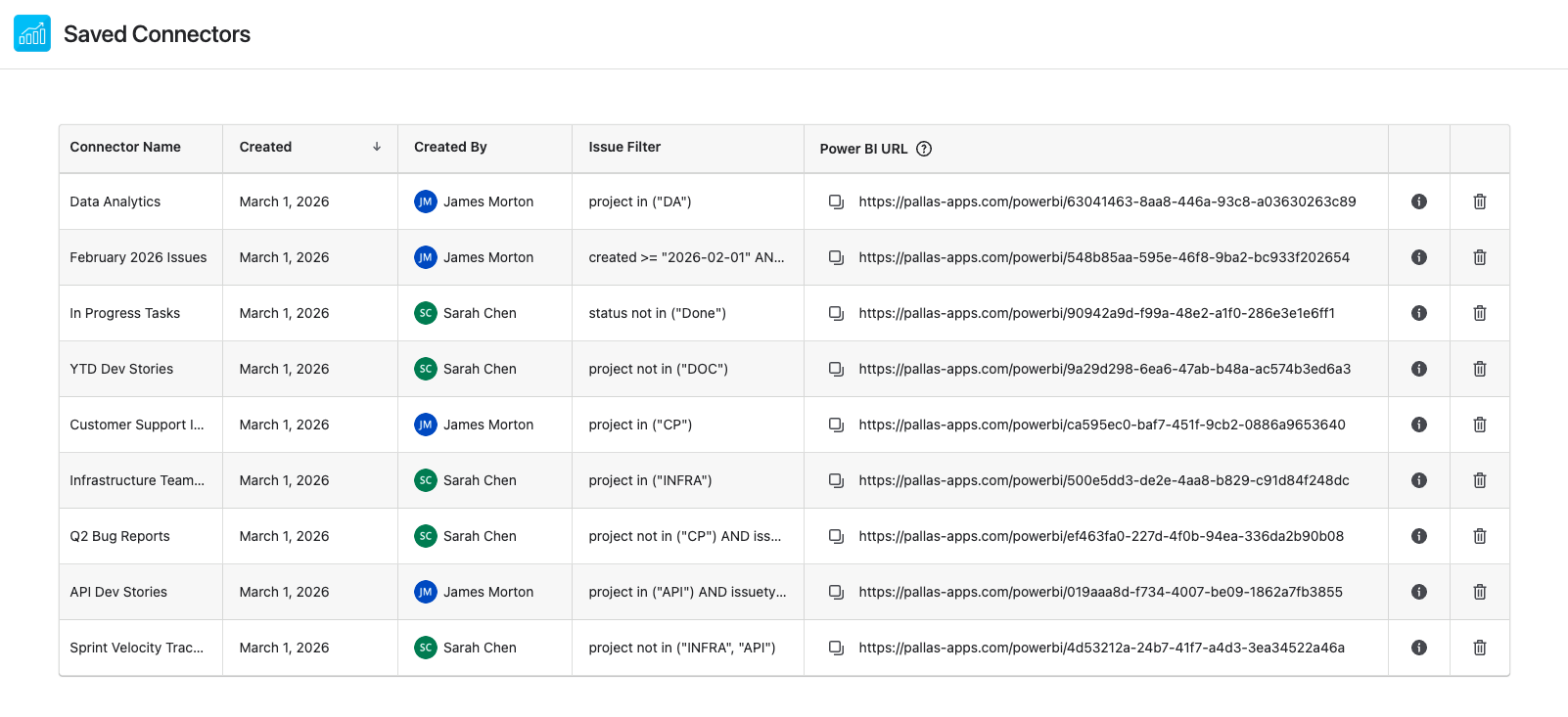
If the admin selects Own Connectors Only:
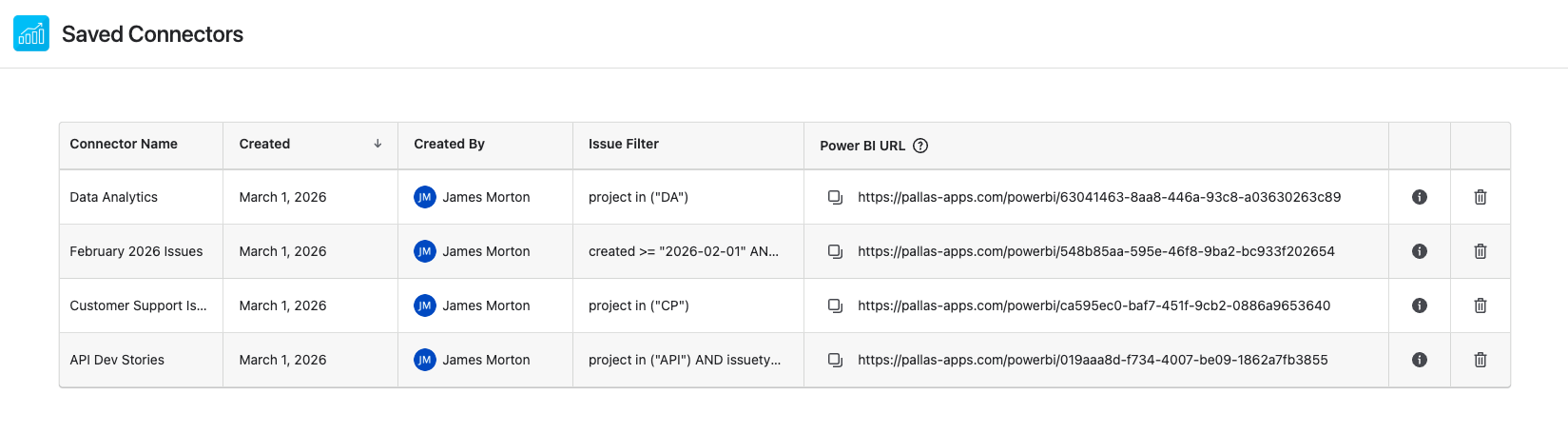
Now when users view the Saved Connectors table, they will only see connectors they created. For example, the Jira instance shown below contains connectors from multiple users, but James Morton would only see his own.
Data Residency
Power BI Connector does not store Jira data, just metadata about the connector. Data Residency controls which region the metadata is stored in. The default region is United States.
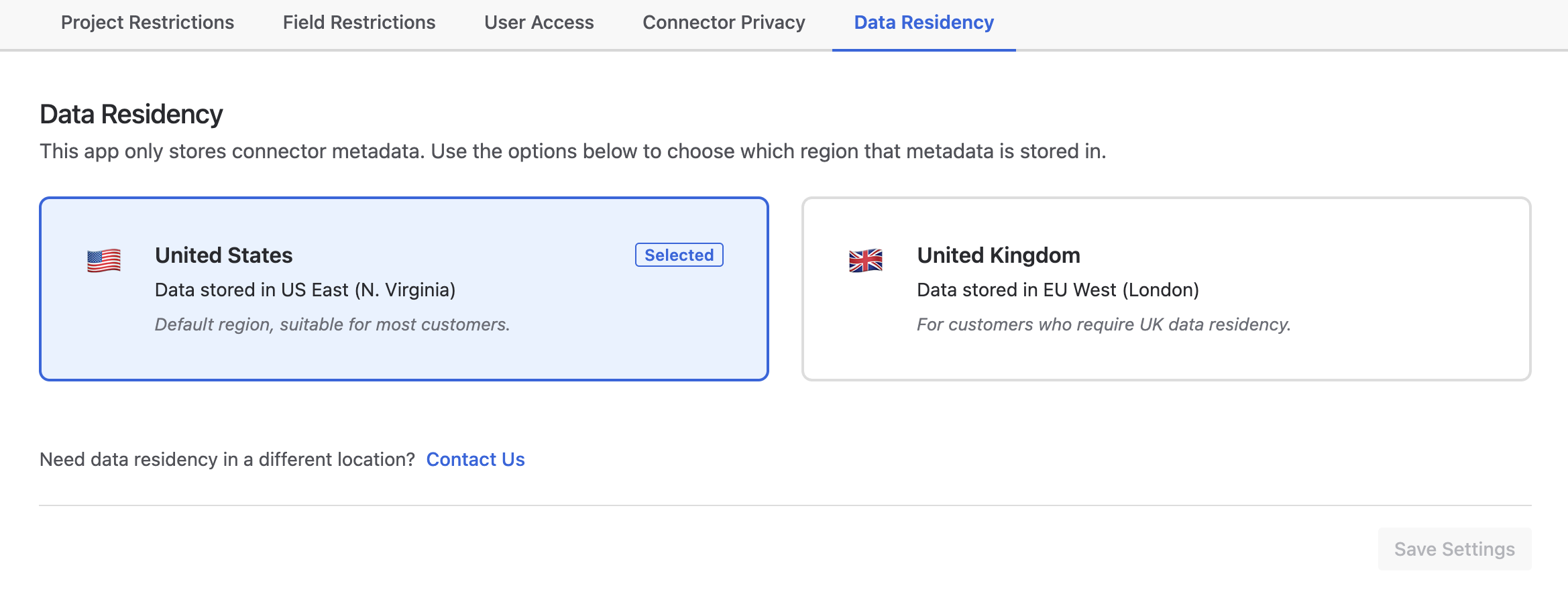
The data residency region should be chosen at the time of installation. If you switch regions after connectors have already been created, those existing connectors will be hidden but not deleted. To access them again, change back to the original region. The app cannot operate across two regions simultaneously.
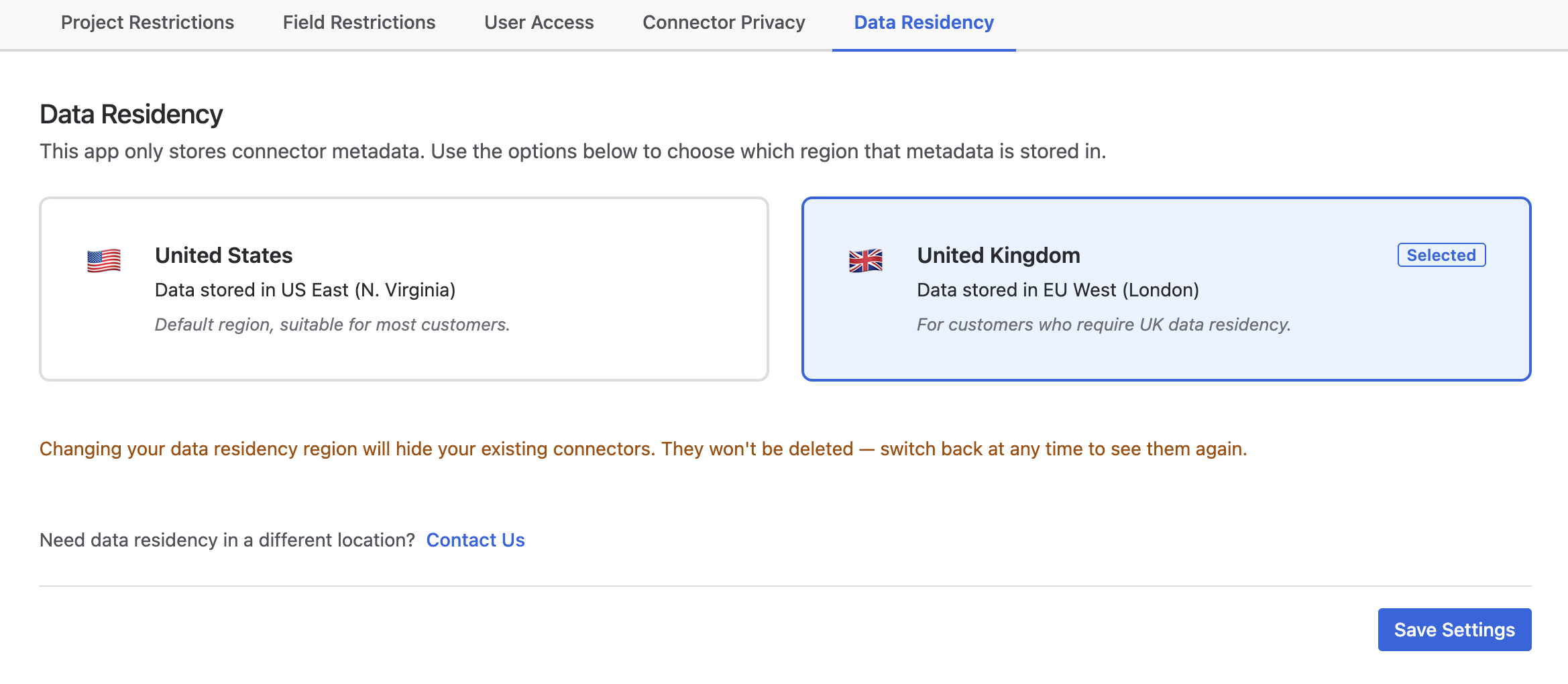
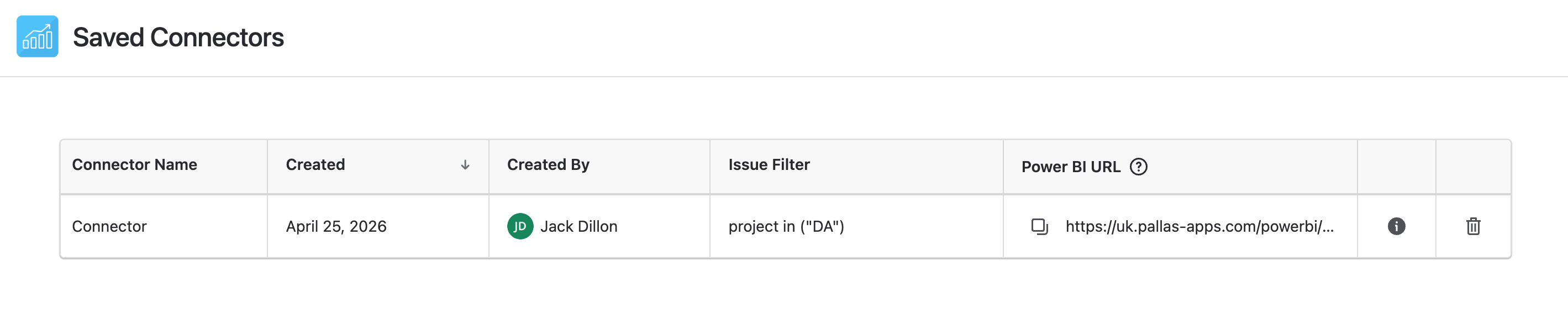
When the United Kingdom region is selected, all connector URLs will use the UK subdomain and traffic will be routed exclusively through the UK.
Need a different region? Additional regions are available for teams of 250 or more. Contact us at support@pallas-apps.com to request one.
Need Additional Help?
If you have any questions about the Admin Panel or would like to see a new feature please reach out.