Data Refresh Behavior
How Refreshing Works
When you first connect to Power BI, fresh data is fetched from Jira. After the initial load completes, there is a 5-minute cooldown period before new data can be retrieved. If you click refresh during this window, you'll receive the same cached data and the 5-minute timer will reset.
Why This Exists
Power BI sends hundreds of requests while you arrange and configure your reports. Without this cooldown period, each request would trigger a new fetch from Jira's API, which would cause performance issues and violate Atlassian's Terms of Service.
Getting Fresh Data
To ensure you're receiving the latest updates from Jira:
- Wait at least 5 minutes after your last data load before refreshing
- After 5 minutes, any refresh will fetch the current data from Jira
- You can reuse the same connector daily (or as often as needed) without creating new ones - each refresh after the cooldown period fetches updated data
Your feedback helps us make the connector better. If you encounter any issues or have suggestions, reach out at support@pallas-apps.com.
Multi-Table Data
When you import your Jira data into Power BI, you'll always get an Issues table as your primary table. This table serves as the central table for all analysis and contains all the basic (single-value) fields that you selected.
The Challenge with Multi-Value Fields
Some Jira fields can contain multiple values for a single issue. For example, one issue might belong to multiple sprints, have several linked issues, or contain dozens of comments. Storing these multi-value fields directly in the Issues table would require either:
- Concatenating values into a single text string (e.g., "Sprint 1, Sprint 2, Sprint 3"), which makes analysis nearly impossible
- Creating duplicate rows for each value, which would break the one-issue-per-row structure
Our Solution: Related Tables
To preserve the structure of multi-value fields, we create separate related tables. Each related table has the Issue Key as its foreign key, which links back to the main Issues table. This allows you to maintain proper relationships in Power BI and perform accurate analysis.
For example, if you select these five fields when creating your connector, this is what the Power BI data model will look like:
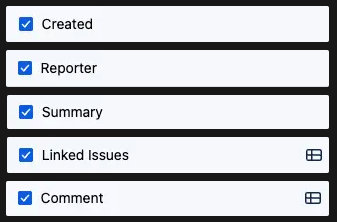
Fields selected
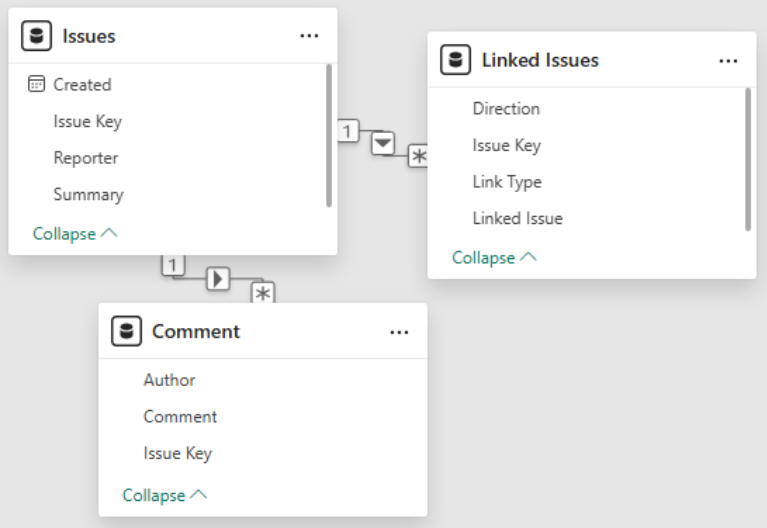
Resulting data model in Power BI
Which Fields Become Tables
Fields that support multiple values become separate tables in Power BI. For example, Linked Issues, Labels, and Components. The easiest way to identify which fields will become tables is to look for the table icon when creating your connector. Any field marked with the table icon will be exported as a separate table rather than a column in the Issues table.
Field Formatting
Special Characters in Field Names
Power BI does not support field names containing the @ or # characters. To prevent errors during import, these characters are automatically replaced with asterisks (*). For example, a custom field named User@Email would appear as User*Email in Power BI.
Special Characters in Table Names
For multi-value fields that become separate tables, certain characters are replaced with underscores to ensure compatibility with Power BI. The affected characters are: @, #, %, ?, $, ., :, /, \, and &. Additionally, if a table name starts or ends with a non-alphanumeric character, an underscore will be added. For example, a table named #My-Table! would appear as _My-Table!_ in Power BI.
Custom Field Numbering
Jira has two types of fields: system fields (built-in fields like "Priority" and "Status") and custom fields (fields you create). Each custom field has a human-readable name and a unique identifier like customfield_10474.
// System field example
{
  "id": "issuelinks",
  "name": "Linked Issues",
  "custom": false
}

// Custom field example
{
  "id": "customfield_10474",
  "name": "Customer Impact",
  "custom": true
}
When multiple fields share the same name, we append the custom field number to prevent conflicts in Power BI:
- System field vs. Custom field: The system field keeps its clean name, while the custom field gets its number appended. For example, a system "Priority" field and a custom "Priority" field (
customfield_10001) appear asPriorityandPriority 10001. - Custom field vs. Custom field: The first custom field keeps the clean name, and all others get their numbers appended. For example, three custom fields named "Score" would appear as
Score,Score 10002, andScore 10003.
These same rules apply to multi-value fields that become separate tables. For example, a system "Issue Links" table and a custom "Issue Links" table (customfield_10071) would appear as Issue Links and Issue Links 10071.
Enhanced Field Representations
For improved usability, we enhance certain fields by providing multiple representations in Power BI:
Time in Status fields display data as formatted strings in Jira (e.g., "2d 1h 23m"). To make this more useful for analysis, we provide two versions:
- The original string format (e.g.,
Time in Status) - A numeric format in hours (e.g.,
Time in Status (Hours))
This allows you to display the human-readable format while performing calculations and comparisons using the numeric field.
Unsupported Field Types
A small number of specialized custom field types cannot be included in your Power BI data because Jira does not make this data available through their API. For example, emoji fields in Jira Product Discovery projects cannot be synced to Power BI due to this API limitation.
Enabling Dark Mode
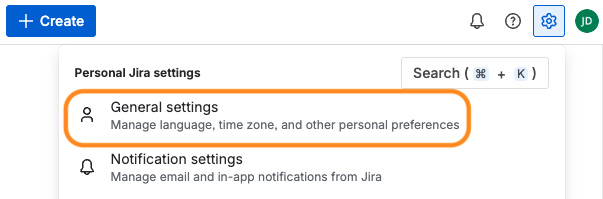
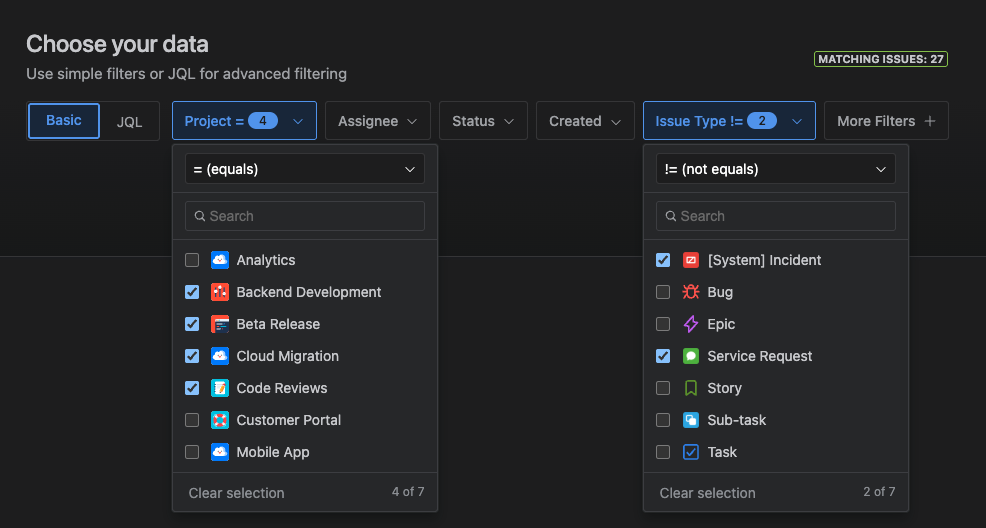
Power BI Connector for Jira supports both dark and light mode and will automatically apply the theme based on your Jira settings. Dark mode can help reduce eye strain during extended use. To enable dark mode all you need to do is enable it in Jira. Click the settings icon and then select General Settings:
Towards the bottom of the page you'll see a Theme section. Select Dark:
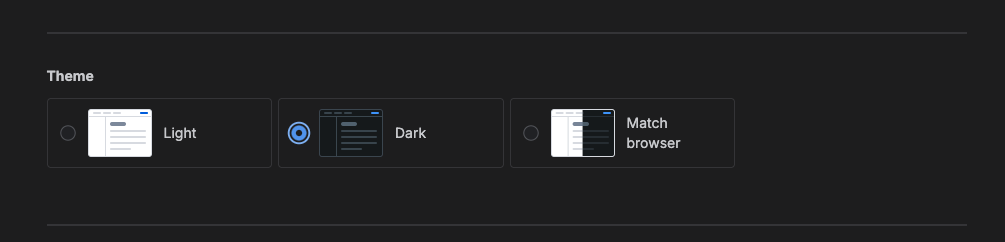
Now go back to the Power BI Connector app and the UI will be in Dark Mode:
Language
Power BI Connector for Jira supports all 26 languages that Jira supports. You can view the complete list of supported languages in Atlassian's documentation. The app automatically displays content in the language selected in your Jira settings. To change your language preference, visit your Atlassian account preferences.
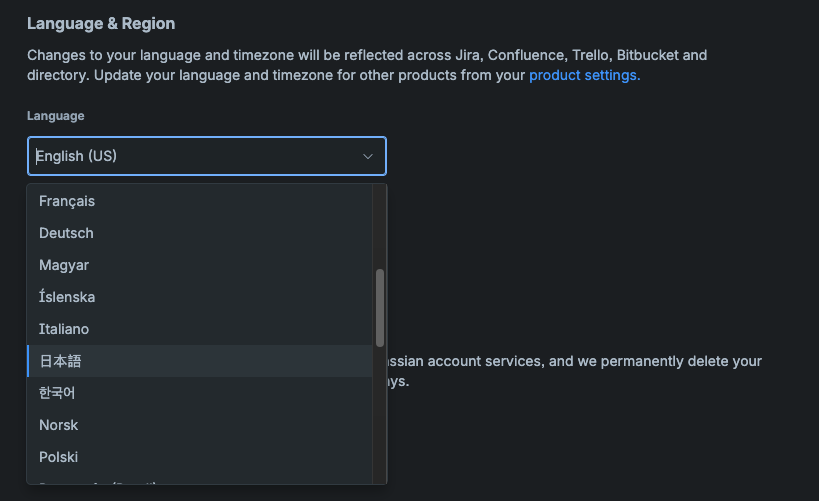
The Power BI Connector app will automatically detect the changes:

Need Additional Help?
If you have any questions or need assistance, our support team is here to help