Install PyRunner
PyRunner installs from the Atlassian Marketplace. You need to be a Jira administrator.
1. Find the app
Install it straight from its Marketplace listing.
2. Install it
Click Try it free and confirm. Jira will ask you to approve the permissions the app needs to read and update your data.
3. Open it
Once installed, PyRunner appears under Apps in the top navigation.
The first time you open the app you'll be asked to allow access. This is Atlassian confirming the app can act on your behalf. Click Allow, then Accept.
What is PyRunner
PyRunner lets you write Python to read and update your Jira data, and to automate the things Jira can't do on its own, like enforcing rules, calculating fields, and running scripts on a schedule.
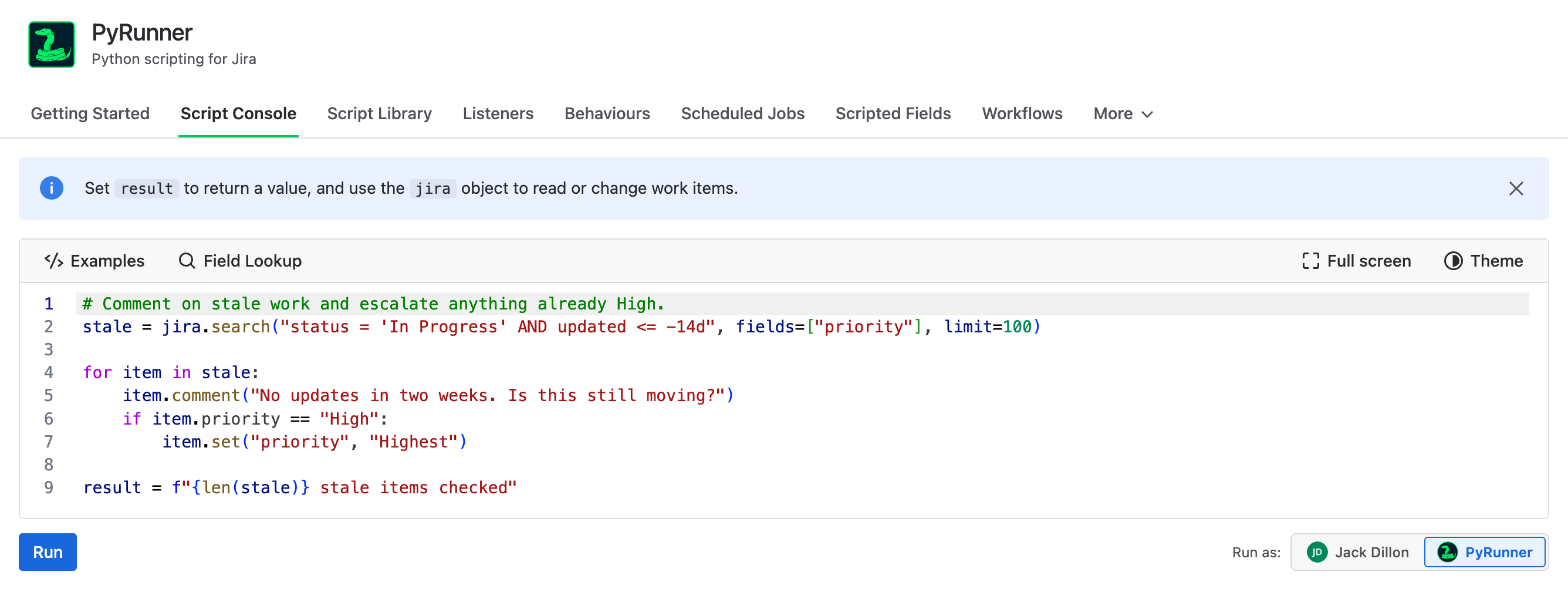
A script that comments on stale work and escalates what's already High
You can run a script once from the Script Console, or set it to run on its own:
- Listeners run a script when something happens in Jira, like a work item being created.
- Scheduled jobs run a script on a schedule, like a report every Monday morning.
- Behaviours change how fields act on a screen: hide one, require another, set a default, or look something up in Jira before deciding.
- Scripted fields calculate a custom field's value from each work item.
- Workflows add a rule to a transition, to block it or to act after it happens. Common actions come as forms, so a lot of this needs no Python at all.
PyRunner is only available to Jira administrators. Everyone else won't see it in their Apps menu.
New to Python? You don't need to know much to get started. Every page in the app has an Examples button with ready-made scripts you can use as a starting point.
The PyRunner User

Every script runs as somebody. You choose who with the Run as setting, and there are two options.
Your own account. The script sees exactly what you see in Jira, and any changes it makes are attributed to you.
PyRunner. When you install the app, a PyRunner user is added to your Jira site. Choose this and the script runs as that user instead, so changes show PyRunner as the author rather than a person.
The choice matters because it decides two things: what the script can see, and whose name ends up on the changes.
- A script run as you is held to your Jira permissions, and every change it makes is recorded under your name.
- A script run as PyRunner is held to the app's permissions instead, which don't change when someone leaves or their access does.
For a script you're running yourself, your own account is usually what you want. For something that runs on its own, like a nightly job or a listener, PyRunner is often the better choice, because it keeps working regardless of what happens to any one person's account.
Note: You'll see the Run as setting on the Script Console, listeners, scheduled jobs, and workflow action rules. New ones default to your own account.
Upgrading to a New Version
Most new versions apply automatically the next time you open the app in Jira. A major version usually adds a permission, so Jira asks an admin to approve it before it takes effect.
1. Go to your Atlassian Admin page
Navigate to admin.atlassian.com and select your organization, if you have more than one.
2. Navigate to your Atlassian site
Expand the Apps section in the sidebar, then expand Sites and select your Atlassian site.
3. Find PyRunner
Click Connected apps in the side nav and locate PyRunner in the list. An update pill next to the name means a new major version is waiting.
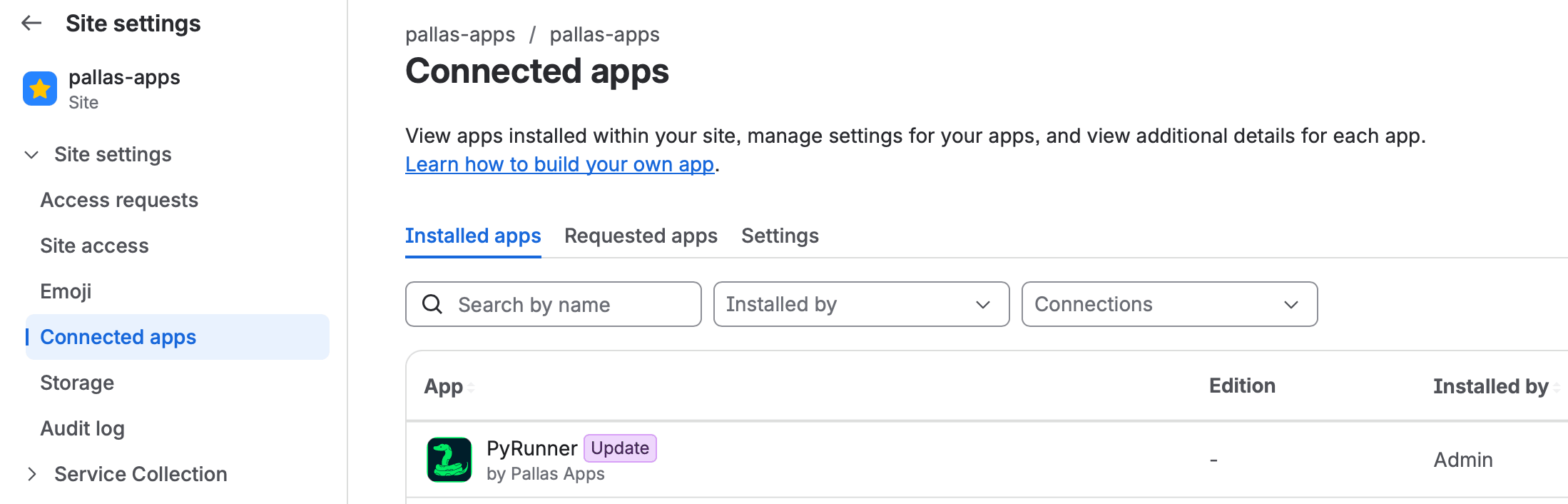
PyRunner in Connected apps, with an update waiting
4. Apply the update
Click View app details. If you're not on the latest major version, an Update button appears in the top right corner. Click it, review the new permissions, and approve.
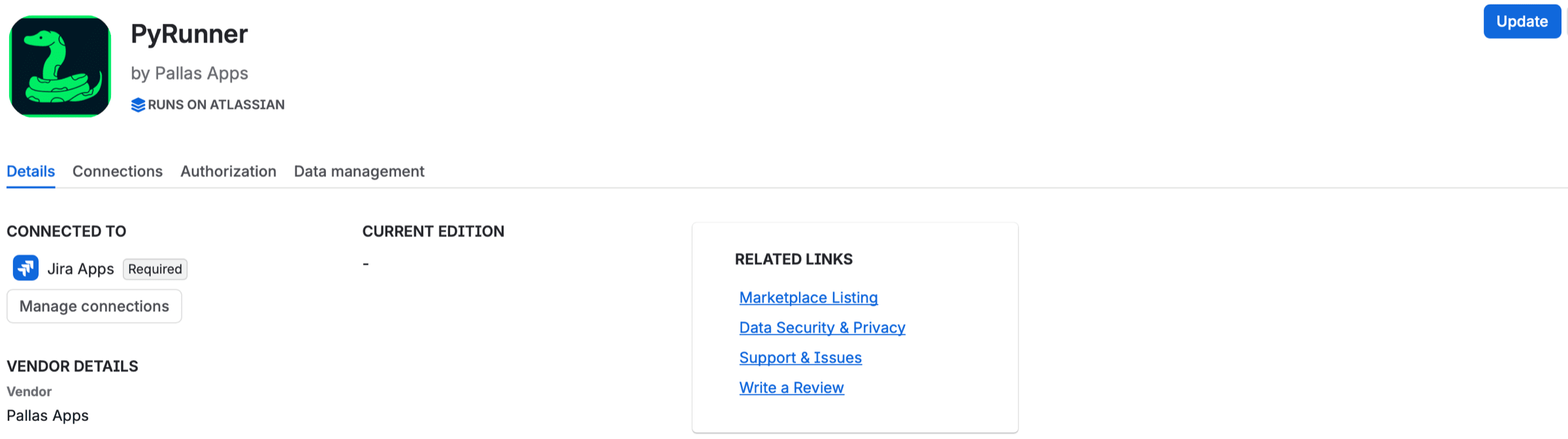
The app details page, with the Update button top right
Need Additional Help?
If you have any questions or need assistance, our support team is here to help