Background
Power BI and Jira are industry-leading tools for data visualization and project management, and organizations naturally want to leverage both to gain deeper insights from their project data. When combined, they allow teams to transform raw Jira issues into meaningful dashboards and reports that reveal progress, performance, and trends.
But connecting these platforms isn't always simple. It often demands technical expertise or complex configuration that can be a barrier for many teams. Through our own experience with existing solutions, we've learned that even something as simple as selecting the right Jira data and getting it into Power BI can become a frustrating process.
A Simpler Approach
That's why we built a no-code connector designed to make Power BI and Jira work together effortlessly. With just a few clicks, you can turn your Jira data into dynamic Power BI dashboards that drive real business decisions. The connector is built for everyone — non-technical users can easily create exports using intuitive filters, while teams with technical experience can still take advantage of JQL for greater flexibility.
In this article, we'll walk through how it works, highlight its key features, and share a preview of the new capabilities coming soon.
Selecting Data
The first step in creating a Power BI connection is to specify the data you want to include. On the Create Export page, you can do this in two ways:
- JQL — Write your own custom query or choose from one of our examples.
- Basic Filters — A simple, no-code way to select issues using common fields. This is the most popular option among our users, and it's the one we'll focus on in this article.
We've designed the basic filters with simplicity in mind, so users can specify exactly the data they want in seconds. You can mix and match filters to fine-tune your results, or use the dropdown to exclude options — for example, you might want to include all issues in a group of projects, while excluding certain issue types.
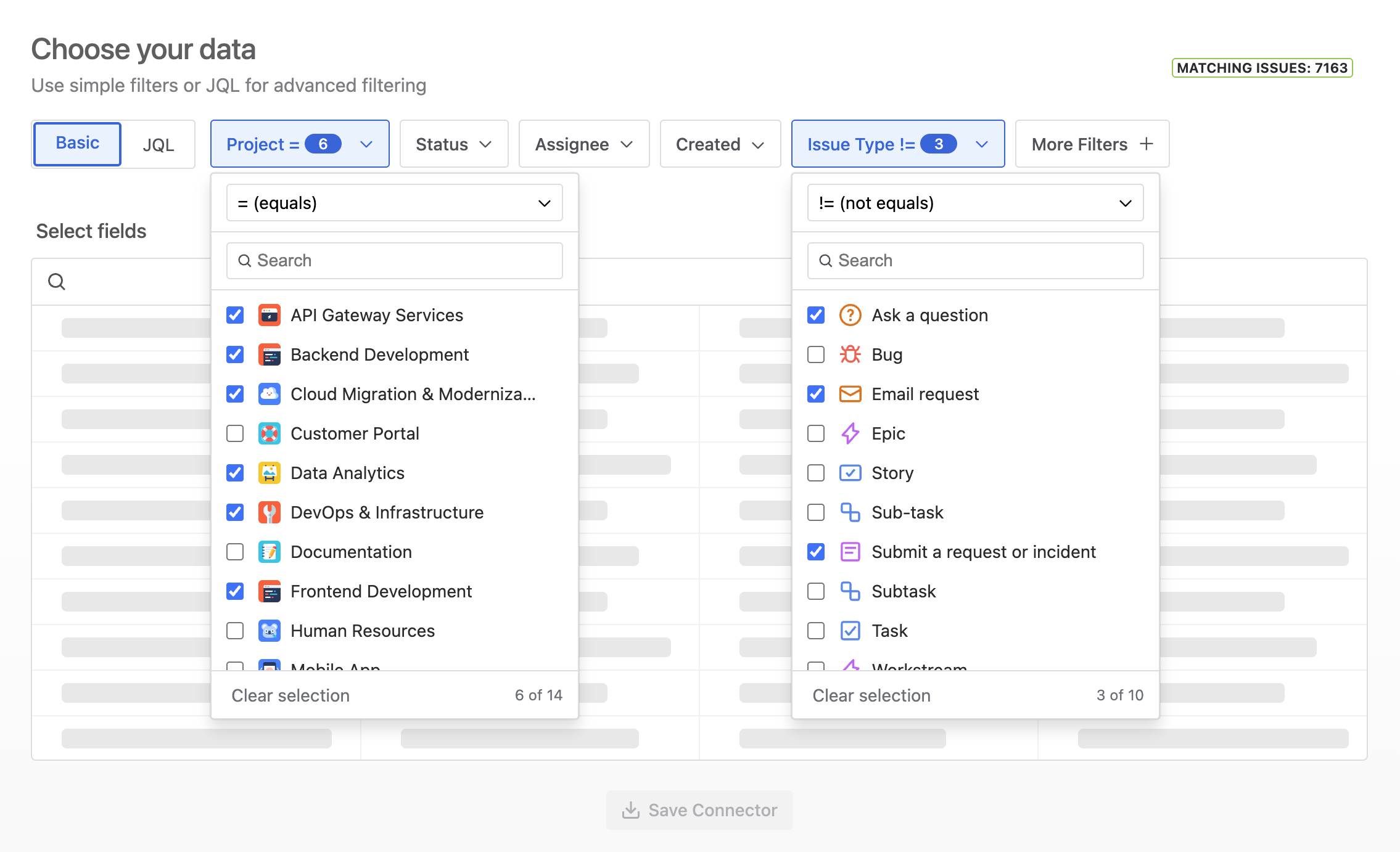
Note: Your connector acts like a smart filter, not a one-time snapshot. It remembers what data to fetch (like "all issues assigned to me in Project X"), but doesn't store the actual Jira data. This means every time you refresh in Power BI, it automatically pulls in the latest issues — no need to create a new connector when your Jira data changes.
Once your filters return one or more issues, you'll see a list of the available fields, including both system and custom fields. Fields marked with the table icon will become separate tables in Power BI. These are fields that contain multiple values per issue (such as Linked Issues, Sprints, and Comments). Learn more about multi-table data →
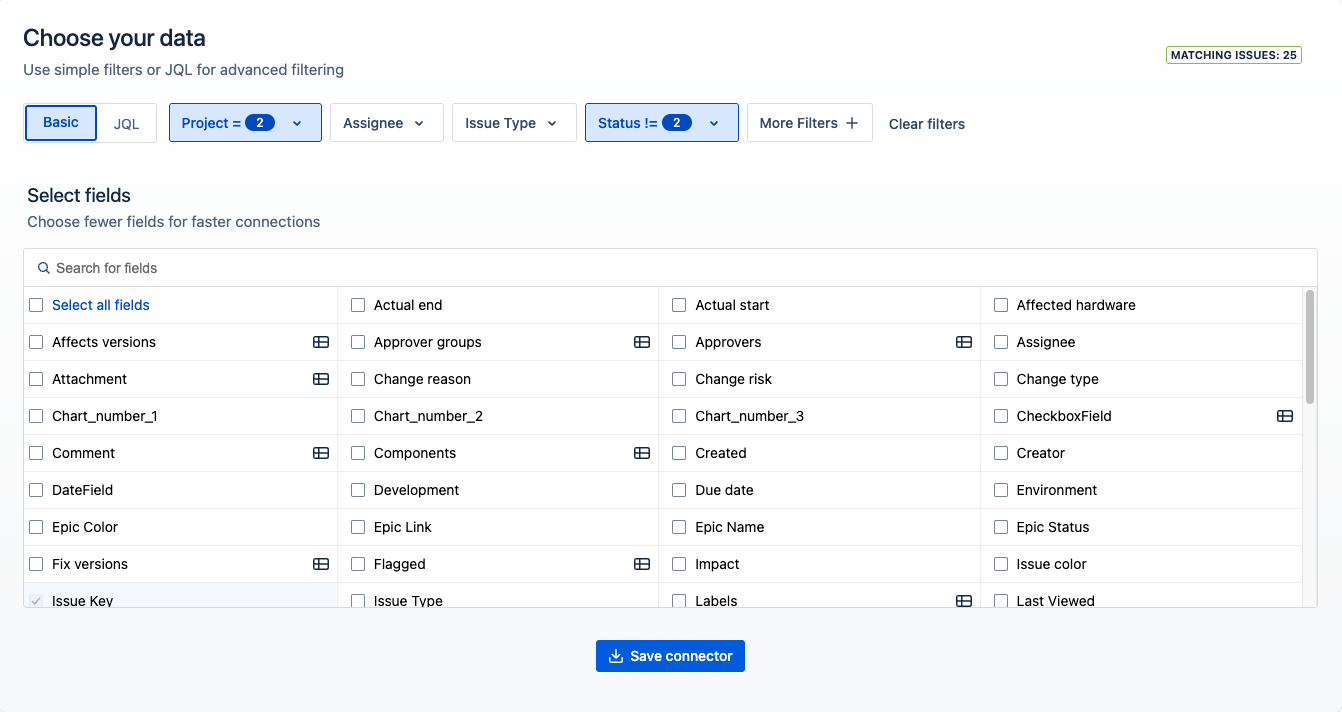
Note: Selecting all fields will slow down connections. We recommend only including the fields you need for your Power BI visualizations.
After you save the connector you'll be brought to the Saved Connectors page which includes all the connectors for your Jira instance.
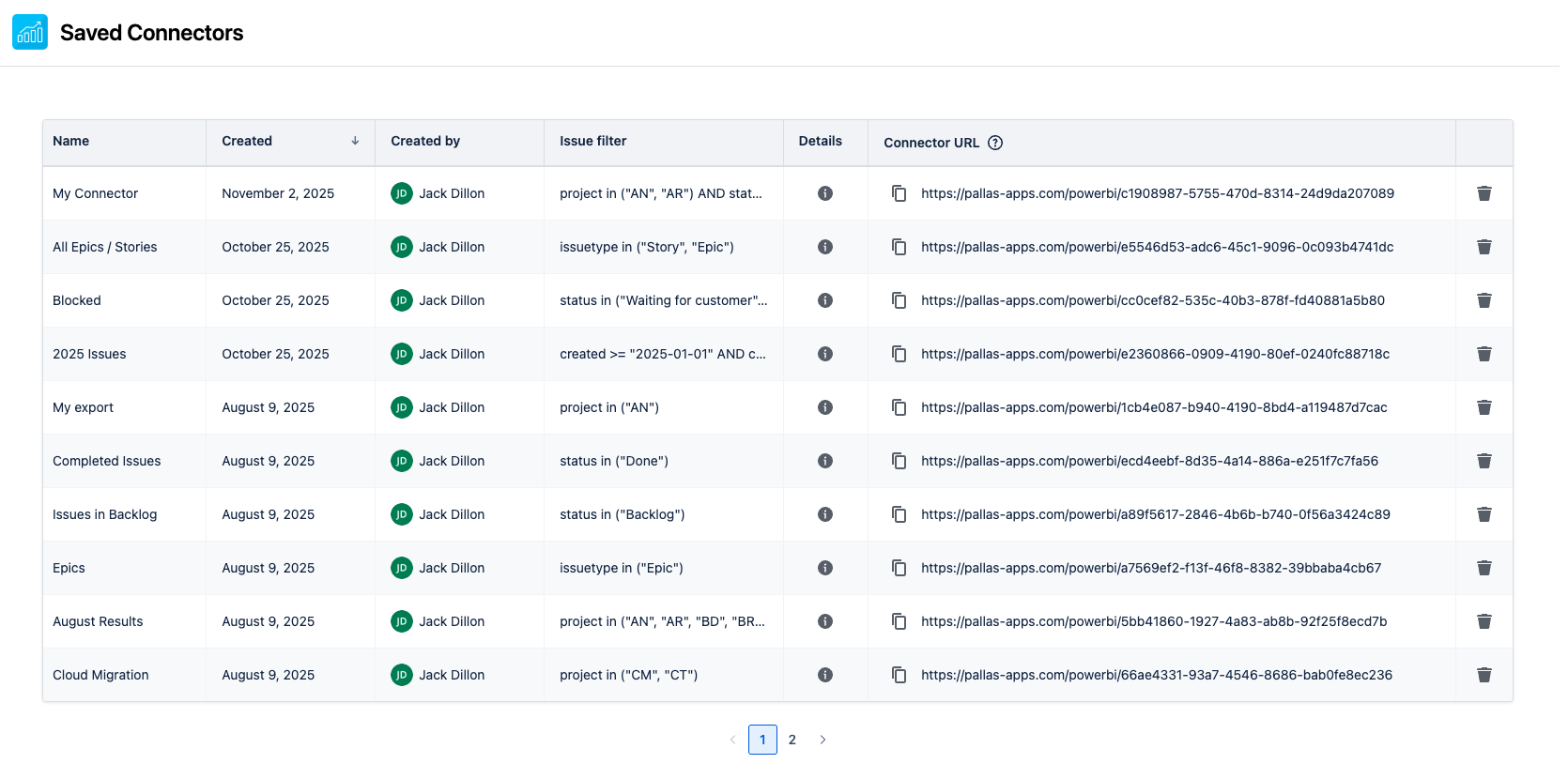
Now you have a connector URL that you can use in Power BI to visualize your Jira data. Our documentation walks through how to connect to the URL in Power BI, as well as setting up scheduled refreshes.
What's Coming
- Support for third-party apps — We're adding the ability to export data from popular Marketplace apps such as Xray and BigPicture, making it easier to bring all your project data into one report.
- Power BI dashboard templates — You'll be able to choose a pre-configured dashboard layout along with the data you want included. A ready-to-use Power BI template file will be generated automatically, saving the manual effort of building visualizations from scratch.
- Additional basic filters — With no-code filtering becoming increasingly popular, we plan to expand our data selector component to include even more fields, giving users greater control over which issues are included in each export.
Conclusion
Connecting Power BI and Jira shouldn't require deep technical knowledge or hours of manual setup. Our connector was built to make the process simple, reliable, and accessible to everyone. Whether you're exploring data for the first time or maintaining large-scale reports, it helps turn Jira issues into actionable insights with just a few clicks.
We're continuing to add new features based on feedback from our users, so if there's functionality you'd like to see, we'd love to hear from you.