Frequently Asked Questions
Do I need to create a new connector when my Jira data changes?
No. Your connector acts like a smart filter that remembers what data to fetch, not a one-time snapshot. Each time you refresh in Power BI, it automatically retrieves the latest data based on your filter criteria. You only need to create a new connector if you want to change your filters (like switching to a different project) or add different fields.
If I delete issues in Jira will they disappear from Power BI?
Yes. Deleted issues will be removed from your Power BI data on the next refresh. The connector always reflects the current state of your Jira instance.
What permissions does the Access Token need?
Your Access Token needs permission to view all the Jira data you plan to bring into Power BI. The token inherits the permissions of the user who created it, so if you can see it in Jira, the token can access it as long as you didn't create it with limited scope. If you do want to limit what data the connector can access, create an Access Token with limited scope when generating it in your Atlassian account settings.
Why do some fields become separate tables?
Fields that can contain multiple values per issue (like Linked Issues, Sprints, or Comments) become separate tables to maintain proper data structure in Power BI. This prevents issues like duplicate rows or concatenated values that would make analysis difficult. Each related table links back to the main Issues table using the Issue Key. Learn more about multi-table data →
What's the maximum number of issues I can pull into Power BI?
We don't enforce a hard limit on the number of issues. However, extremely large datasets (especially those with many fields selected) may fail due to request timeouts or Atlassian's rate limits. If you're working with tens of thousands of issues, we recommend selecting only the fields you actually need for your reports to improve performance and reliability.
Troubleshooting
Custom Domain Issues
If your organization uses a custom domain for Jira (any domain that doesn't contain atlassian.net), our connector will not work properly without additional configuration.

According to Atlassian's documentation, custom domains are not guaranteed to work with marketplace apps. However, we can fix this for you!
Solution: Email us at support@pallas-apps.com with your original Atlassian URL (your Jira admin can find this in your organization settings). We'll create a mapping from your custom domain to your Atlassian domain so our app can properly access your Jira API.
Invalid Credentials Error
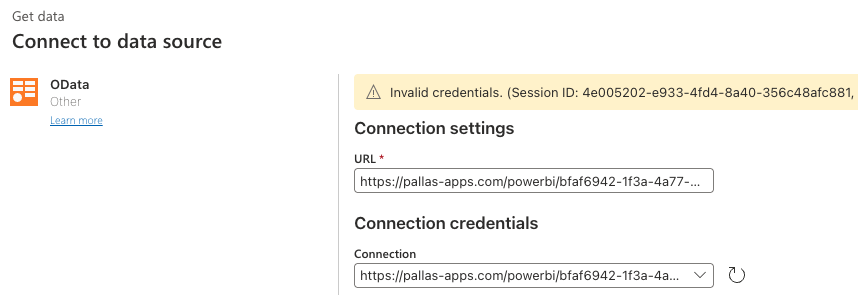
If you're seeing an "Invalid Credentials" error even though you believe your credentials are correct, it's usually one of two issues:
- You're using your Jira password instead of an Access Token: The connector requires an Atlassian API Access Token, not your regular Jira password. You need to generate an Access Token from your Atlassian account settings.
- Your Access Token has expired: Access Tokens can expire or be revoked. Try generating a new Access Token and updating your credentials in Power BI.
Access Forbidden Error
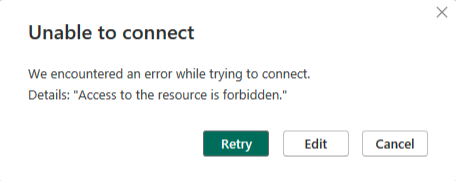
If you're seeing an "Access to the resource is forbidden" error when trying to connect or refresh data, it's typically caused by one of the following:
Saved credentials are incorrect
If you didn't select Basic authentication when first connecting, or entered incorrect credentials, Power BI may have saved the wrong authentication method. To fix this, clear the saved credentials and re-authenticate:
- At the top-left corner of Power BI Desktop, select the File tab.
- Select Options and settings, then select Data source settings.
- Select the data source the error is occurring for.
- Select Clear Permissions.
- Select Close.
After clearing permissions, reconnect using Basic authentication with your Jira email address as the username and your Atlassian Access Token as the password.
Firewall or network restrictions
Your organization's firewall may be blocking outbound connections to our servers. Contact your IT team to check if there are any network policies preventing connections. If a whitelist is required, email us at support@pallas-apps.com and we'll provide the server IP addresses your IT team needs to allow.
App Not Loading
If the connector is stuck on a loading spinner and never displays any data, it's likely caused by corrupted app permissions. Resetting access between your Atlassian account and the Power BI Connector usually resolves this.
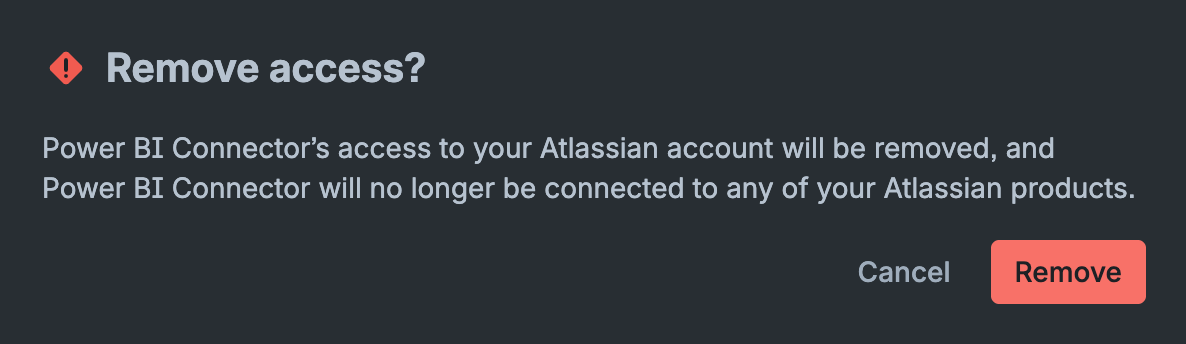
Go to id.atlassian.com/manage-profile/apps, find Power BI Connector in the list, and click Remove access.

Click Remove on the confirmation prompt.
3. Re-authorize the app
Return to the Power BI Connector app in Jira. You will be prompted to allow access again. Click Allow.

Click Accept on the following screen.
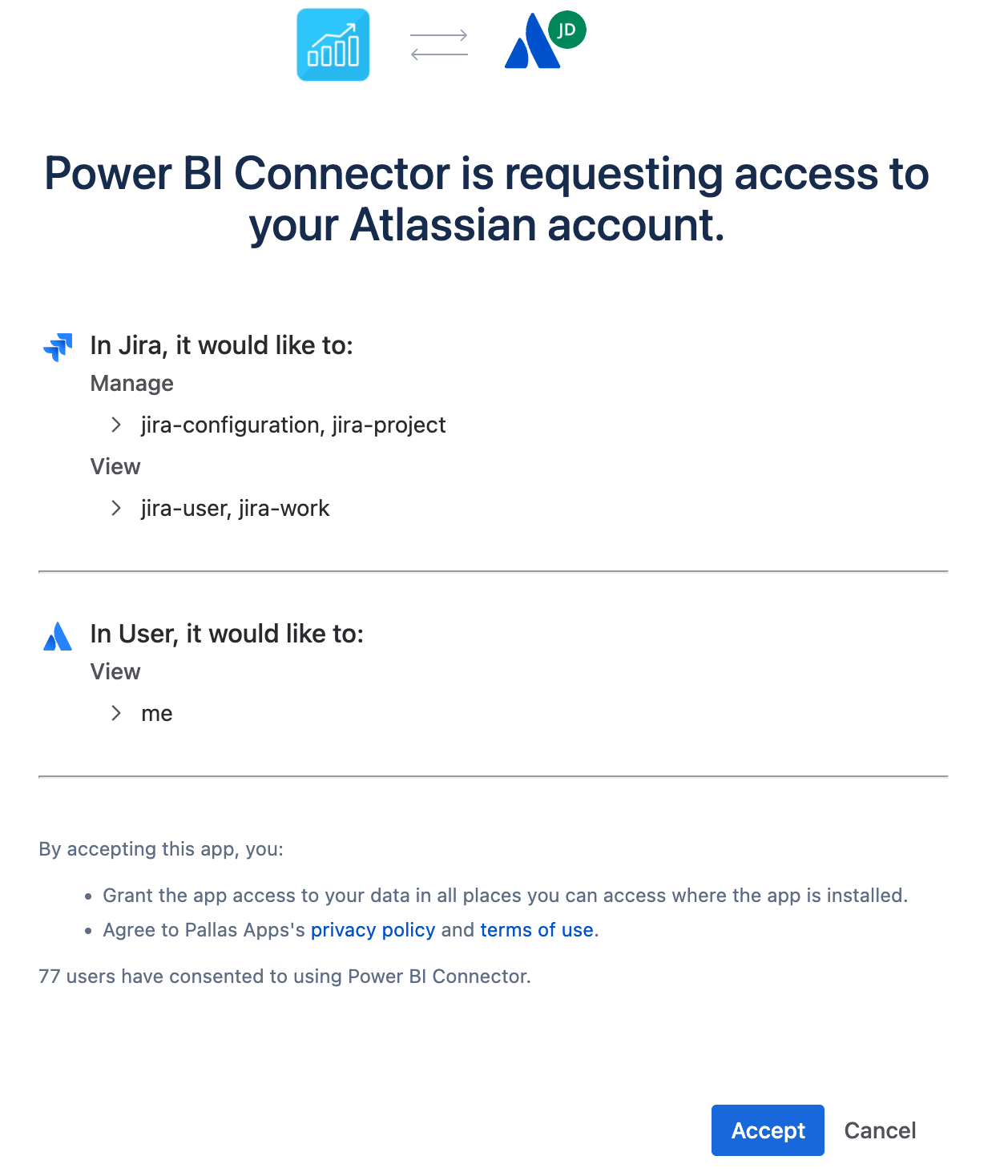
Once you accept, the app should load normally. If it doesn't, refresh the page.
Still Need Help?
Our support team is here to assist you with any issues you're experiencing.