Scripting in Jira
Scripts are standard Python. On top of that, we've added two helper objects, work_item and jira, to make reading and updating your Jira data straightforward. The five points below cover everything that's specific to running inside Jira.
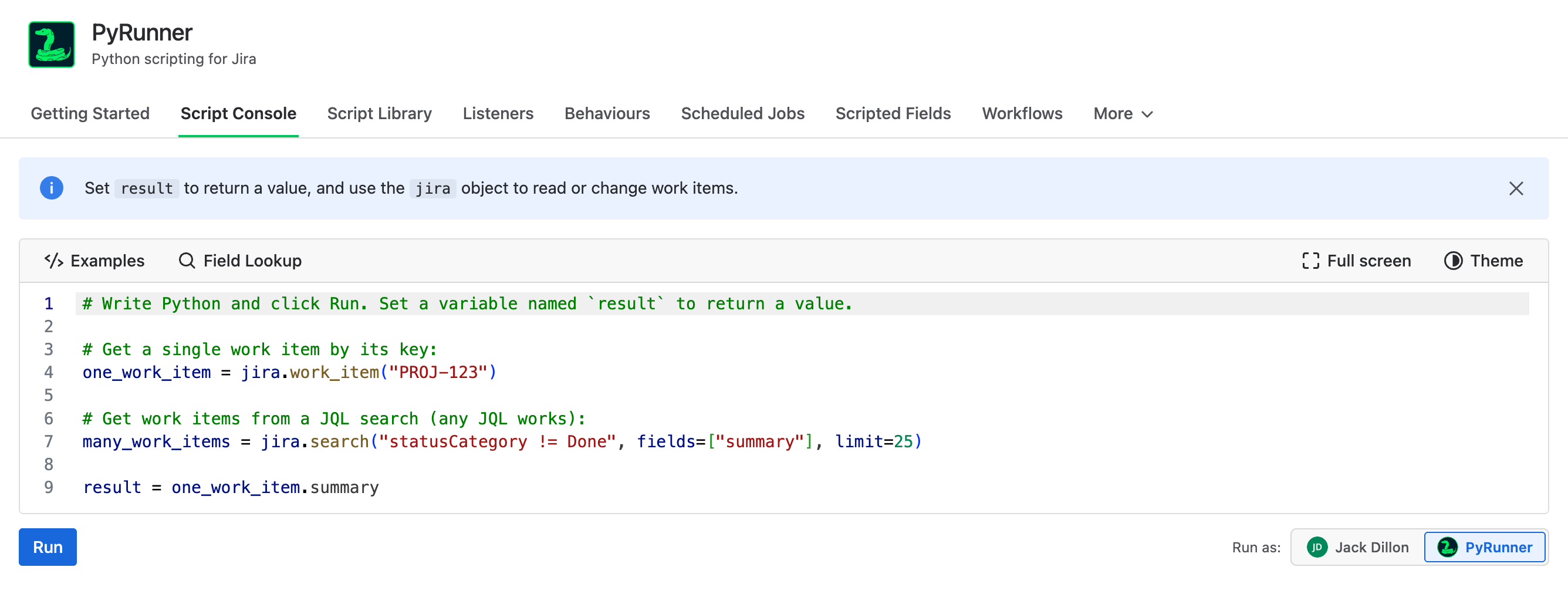
The Script Console, where the examples below run
1. result is what comes back
A script returns whatever you assign to a variable named result. Some features need it: a scripted field takes its value from result. In the Script Console it's what gets displayed when the script finishes.
# result is the value the script hands back.
result = 2 + 242. Read a work item
jira.work_item("KEY") fetches a single work item. Its properties are that item's Jira fields, so item.summary reads the Summary field.
item = jira.work_item("PROJ-123")

result = {
    "summary": item.summary,
    "status": item.status,
    "priority": item.priority,
    "assignee": item.assignee or "Unassigned",
}{
"summary": "Add SSO support for
enterprise accounts",
"status": "In Progress",
"priority": "High",
"assignee": "Priya Raman"
}There's a lot more on a work item than these four fields. Reading Jira Data covers the full list.
3. Libraries
Nothing needs an import. pandas (pd), numpy (np), datetime, and the standard library are all loaded before your script starts.
item = jira.work_item("PROJ-123")

# datetime is pre-loaded: item.created is a real datetime.
age_days = (datetime.now(item.created.tzinfo) - item.created).days

# Total time logged on this item, broken down by person.
hours_by_person = {}
for w in item.worklogs:
    name = w["author"]
    hours = (w["time_spent_seconds"] or 0) / 3600
    hours_by_person[name] = round(hours_by_person.get(name, 0) + hours, 1)

logged = list(hours_by_person.values())

result = {
    "age_days": age_days,
    "hours_by_person": hours_by_person,
    "total_hours": round(float(np.sum(logged)), 1),
    "avg_per_person": round(statistics.mean(logged), 1),
}{
"age_days": 34,
"hours_by_person": {
"Priya Raman": 12.5,
"Marcus Webb": 7.0,
"Dana Ortiz": 3.5
},
"total_hours": 23.0,
"avg_per_person": 7.7
}4. Search with JQL
jira.search() takes the same JQL you'd write in Jira and returns every match, whether that's three work items or twenty-five thousand. Name the fields your script reads with fields=. Each result is a full work item, read the same way as one you fetch by key.
# Every open bug assigned to me.
bugs = jira.search("type = Bug AND status != Done AND assignee = currentUser()",
                   fields=["summary"])

result = [b.key for b in bugs][
"PLAT-142",
"PLAT-137",
"WEB-88",
"WEB-61"
]The work item's key always comes back, so you never need to ask for it.
Search is covered in more detail in Reading Jira Data.
5. Four things worth knowing
Everything else is just Python. Only these are specific to running inside Jira, and the sections below cover each in more detail:
result to return a value.item.comment("hi") and other updates are held back, and only sent to Jira if the script finishes cleanly.Reading Jira Data
Scripts read Jira through the jira object. There are two ways to get work items: by key when you know it, and by search when you don't.
Getting work items
# One item, when you know its key
item = jira.work_item("PROJ-123")

# Every match for a JQL query, up to 25,000
items = jira.search(
    jql="project = PROJ AND statusCategory != Done",
    fields=["summary", "status", "assignee"],
)
One call handles any size of result. Pass limit= to stop early, and sort in the script when order matters, because results come back unordered.
Choosing fields
jira.search() requires a fields= list. Name the fields your script needs, up to 100 of them:
items = jira.search(
    jql="statusCategory != Done",
    fields=["summary", "assignee", "priority"],
    limit=2000,
)
It's required because asking for every field is around a hundred times more data per work item, and a large query then becomes too big for one run to hold. Naming a few fields keeps even a 25,000-item search small. The editor marks a missing fields= as an error before you run it.
Name fields the way Jira shows them: system names like summary, or a custom field's display name, like Story point estimate. We swap the name for the field id for you. The only time you need the id itself is when two custom fields share a name, and the error says so and lists the ids.
The work item's key always comes back, so you never need to ask for it.
What's on a work item
Work items come back with their Jira fields as properties, so you read item.summary for the Summary field.
item = jira.work_item("PROJ-123")Every system field is supported:
| Field | Example | Field | Example |
|---|---|---|---|
| key | "PROJ-123" | linked_work_items | list of work items |
| summary | "Add SSO support" | links | [{type, direction, work_item}] |
| description | "Customers have asked…" | parent | work item, or None |
| status | "In Progress" | children | list of work items |
| status_category | "In Progress" | sprints | [{name, state, …}] |
| assignee | "Priya Raman" | slas | service desk SLA info |
| assignee_id | "5b10a2…" | transitions | [{id, name, to}] |
| reporter | "Marcus Webb" | comments | [{author, body, created}] |
| reporter_id | "5b10a2…" | worklogs | [{author, time_spent_seconds, …}] |
| priority | "High" | attachments | [{id, filename, size, …}] |
| work_type | "Bug" | change_history | [{author, created, items}] |
| resolution | "Done", or None | time_tracking | {original_estimate_hours, …} |
| story_points | 5 | original_estimate_hours | 8.0 |
| labels | ["backend", "auth"] | remaining_estimate_hours | 2.5 |
| components | ["API"] | time_spent_hours | 5.5 |
| fix_versions | ["2.4.0"] | watch_count | 3 |
| space_key | "PROJ" | is_watching | True |
| created | datetime(2026, 6, 4, …) | vote_count | 1 |
| updated | datetime(2026, 7, 2, …) | has_voted | False |
| due_date | date(2026, 8, 1) | security_level | "Internal", or None |
| resolution_date | datetime, or None | environment | "Production", or None |
You don't need to memorize these. Type item. in the editor and it will show you what's available, with the type each one returns.
For custom fields, use item.field() with the field's name or id:
item.field("Story point estimate")
item.field("customfield_10016")
Note: If two fields share a name, field() can't tell them apart and will say so. Read those by id. The Field Lookup button in the editor lists every field on your site with its id, its type, and the exact line to copy.
Beyond work items
The jira object also reaches the rest of your site:
| Call | Returns | Call | Returns |
|---|---|---|---|
| jira.myself() | the run-as user | jira.boards() | every board |
| jira.user(id) | one user | jira.sprints(board_id) | sprints on a board |
| jira.search_users(q) | find users by name | jira.filters() | saved filters |
| jira.group_members(g) | who's in a group | jira.fields() | every field |
| jira.spaces() | every space | jira.statuses() | every status |
| jira.space(key) | one space's config | jira.work_types() | every work type |
| jira.versions(key) | releases | jira.priorities() | every priority |
| jira.components(key) | components | jira.space_roles(key) | role names |
Run a saved filter with its id in the JQL: jira.search("filter = 12345", fields=["summary"]).
Reading anything else
The helpers above cover what most scripts need, but they aren't the limit. jira.get() calls any Jira API endpoint directly, and jira.paginate() does the same for endpoints that return results a page at a time, following every page and handing back one list.
# Any endpoint in Jira's REST API
data = jira.get("/rest/api/3/project/PROJ/role")

# Follows every page for you
projects = jira.paginate("/rest/api/3/project/search")
You don't need to handle authentication for these. The script is already running as whoever you picked in Run as, and PyRunner signs the request for you. There's no token to manage and nothing to configure.
Example
This one counts every unfinished work item by assignee and priority, a question Jira can't answer on its own.

The script
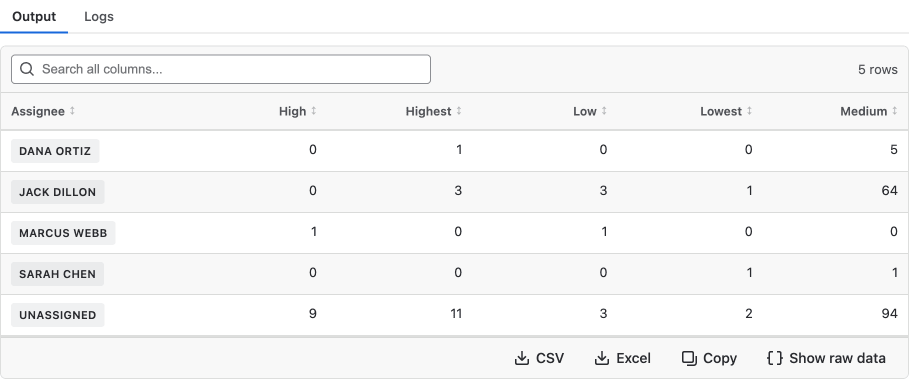
What comes back
Any result that's a table, either a DataFrame or a list of dictionaries, renders like this. You can sort it by clicking a column, search across every column, and download it as CSV or Excel to carry on working with it outside Jira. More on the smart table →
Updating Jira Data
Every change you make is held back while the script runs, then sent to Jira together when it finishes. If the script hits an error partway through, nothing is changed at all.
This is what makes a bulk update safe to run: if the script fails partway, your data is left exactly as it was.
These calls work on any work item, so you can loop over the results of a jira.search() and make the same change to every item it found. That's how you update hundreds of work items at once.
Making changes
item = jira.work_item("PROJ-123")

# Set a field by friendly name, display name, or id
item.set("summary", "A clearer title")
item.set("Story point estimate", 8)
item.set("assignee", "priya@example.com")

# Comment
item.comment("Picked this up for the current sprint.")

# Move it through the workflow
item.transition("In Progress")
item.transition("Done", comment="Shipped in 2.4.0.")

# Labels and components
item.add_label("needs-review")
item.remove_label("blocked")
item.add_component("API")

# Watchers and work
item.add_watcher("marcus@example.com")
item.log_work("2h 30m", comment="Pairing on the migration")
item.set_estimate(remaining="4h")
To create a new work item (issue), use jira.create_work_item():
new_item = jira.create_work_item(
    project="PROJ",
    work_type="Task",
    summary="Roll the signing keys",
    fields={"priority": "High", "labels": ["security"]},
)
Note: Your script always sees its own changes. If you set a field and read it again further down, you'll get the value you just set, even though Jira hasn't been updated yet.
What landed
Every script that modifies Jira reports exactly what it did, on the Output tab. Each change is one of three things:
| Status | What it means |
|---|---|
| Applied | The change is in Jira. |
| Partial | Part of one change landed and part didn't. A field was set, but a label add on the same item failed. |
| Failed | The change didn't happen, with the reason Jira gave. |
Changes are applied one item at a time, so a failure on one work item doesn't stop the rest. That's why a run can end up with a mix. The summary line reads something like 34 applied, 1 partial, 1 failed.
Writing anything else
The methods above cover the everyday changes, but as with reading, they aren't the limit. jira.post(), jira.put(), and jira.delete() call any Jira API endpoint directly, for the parts of the API that don't have a method of their own yet.
# Create a release
jira.post("/rest/api/3/version",
          {"name": "2.5.0", "projectId": 10001})

# Rename one (PUT replaces the object, so send every field you're keeping)
jira.put("/rest/api/3/version/10042",
         {"name": "2.5.1", "projectId": 10001})

# Remove a saved filter
jira.delete("/rest/api/3/filter/10200")
There's no authentication to set up for these either. The script runs as whoever you picked in Run as, and PyRunner signs the request, so the same permissions apply as everywhere else.
Example
This one finds unassigned work and flags it, labelling each item and leaving a comment asking someone to pick it up.
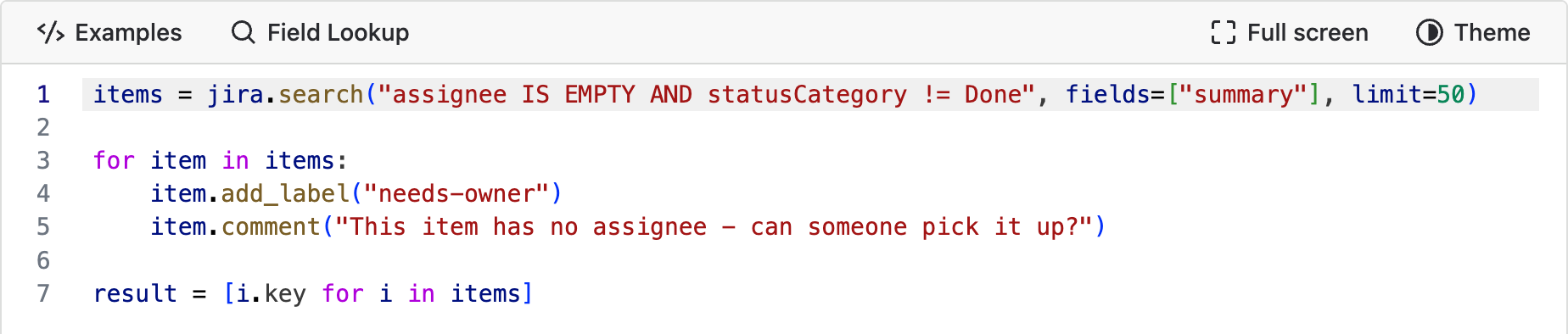
The script

Result
That's 100 changes across 50 work items, because each one gets two: the label and the comment. Every change is counted and reported separately, so you can see exactly what happened to each item. Expand the changes applied section to see the full list of changes.
Libraries
Scripts are ordinary Python, so most of what you already know works here. Better than ordinary in one way: nothing needs an import. pandas, numpy, dates, and the whole standard library below are ready in every script, so you just use them. They're loaded once when the scripting environment starts up rather than each time a script runs, so having them all within reach costs your script nothing. An import line still works if habit types one, and does no harm; it binds the same module.
1. The everyday helpers
| Name | What it is |
|---|---|
| pd | pandas, for tables and analysis |
| np | numpy, for numbers and maths |
| datetime | Python's date and time type |
| timedelta | a span of time, for date maths |
| today() | today's date, as a shortcut |
# No import needed for any of these
df = pd.DataFrame([{"key": "PROJ-1", "points": 5}])

average = np.mean([3, 5, 8])

age = (today() - item.created.date()).days
2. The standard library
These modules are ready the same way, with or without an import line:
# statistics and json are ready as they are
result = {
    "median": statistics.median([3, 5, 8, 13]),
    "as_json": json.dumps({"ok": True}),
}
The full list:
| Module | For | Module | For |
|---|---|---|---|
| statistics | averages, medians | re | text patterns |
| math | maths functions | string | text constants |
| decimal | exact decimals | textwrap | wrapping text |
| fractions | exact fractions | json | reading and writing JSON |
| random | random choices | base64 | encoding |
| collections | counters, groupings | hashlib | hashes |
| itertools | looping helpers | uuid | unique ids |
| functools | function helpers | secrets | secure random values |
| datetime | dates and times | enum | named constants |
| time | timestamps | abc | abstract classes |
| calendar | calendars | contextlib | context managers |
| urllib.parse | URL handling | pprint | readable printing |
| io | in-memory text | bisect | sorted-list searches |
| copy | copying nested data | dataclasses | structured records |
| heapq | priority queues | hmac | signed hashes |
| typing | type hints | binascii | hex and binary |
Note: Anything that reaches outside the script isn't available, so no os, sys, subprocess, or requests. See Limitations for why, and what to use instead.
Need something that isn't here? Email us at support@pallas-apps.com and we'll look at adding it.
3. Your own saved scripts
A script in your Script Library can be imported by another one, so you can write a helper once and reuse it everywhere. Folders become the import path: a script saved as helpers/dates.py is imported as helpers.dates.
from helpers.dates import working_days

result = working_days(item.created, today())
The Script Library's ⋯ menu has a Copy import path action that gives you the exact line.
Example
This one measures how long work takes to finish, using statistics and np together, neither of them imported.

The script
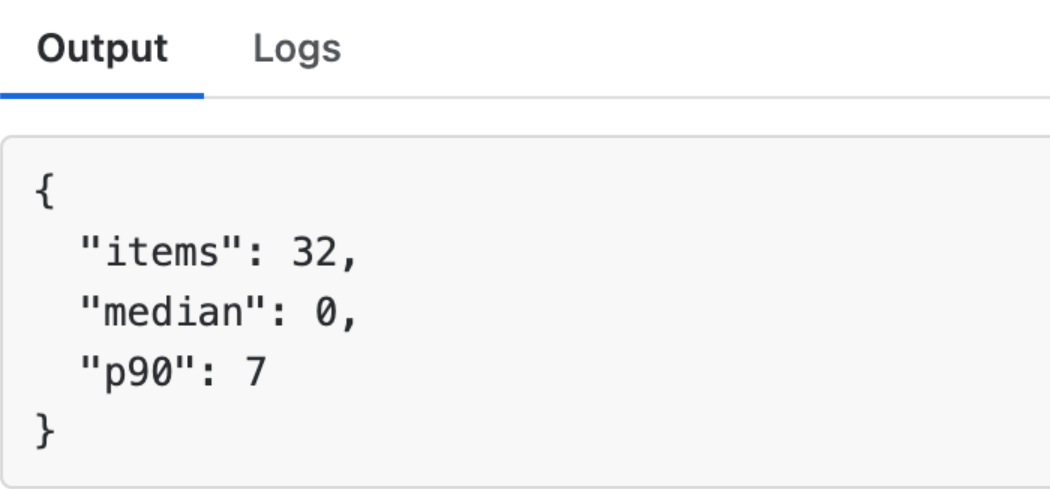
Result
Limitations
Scripts run inside a sandbox on Atlassian's infrastructure, which puts a few boundaries on what they can do. Most scripts never meet them.
How long a script can run
A script that passes its limit doesn't fail. It keeps going until it finishes, which is why a long run takes a while to show its result.
| What's running | Limit |
|---|---|
| Script Console | 22 seconds, then it keeps going, up to 14 minutes |
| Listeners, workflow actions | 60 seconds, then it keeps going, up to 14 minutes |
| Scheduled jobs | 14 minutes |
Fourteen minutes is the real ceiling. A script that can't finish in that time needs a narrower query, fewer fields, or splitting into a scheduled job that works through a batch at a time.
Size and volume
| Limit | Value |
|---|---|
| Work items per search | 25,000 |
| Fields per search | 50 |
| Memory per script | 640 MB, or 1,280 MB for a big read |
| Script size | 150 KB |
| Behaviour script size | 20,000 characters |
| Scripted fields per site | 50 |
| Scheduled job frequency | once every 5 minutes |
| Changes kept in a run's log entry | the first 20 |
| Run history kept for | 7 days, 200 runs, or 200 KB |
| Run output kept for | 7 days, 400 runs, or 3 MB |
Note: Whichever of those comes first wins, and the oldest runs are dropped. A site running scripts every few minutes will keep less than a week of history.
What the sandbox blocks
Scripts can't reach anything outside the run. There's no file system, no network, and no access to the machine the script runs on:
- No
open(), and no reading or saving files, includingpd.read_csv()anddf.to_csv("path") - No
os,sys,subprocess, orsocket - No outbound HTTP, so no
requestsorurllib.request - No
eval()orexec()
This is what keeps your Jira data from going anywhere it shouldn't. A script can read and change Jira, and return a result to you, and that's the whole surface. To get data out, return it as a table and use the CSV or Excel download.
To reach Jira endpoints the helpers don't cover, use jira.get() and jira.post(). See Reading Jira Data. Those go through PyRunner, so they're inside the boundary.
Where full Python isn't available
Two features don't run scripts on the backend, so they support a smaller subset of Python:
- Behaviours run in the browser on the work item screen, so they work with what's on that screen. A behaviour script can still call Jira's REST API when it needs to.
- Workflow conditions and validators are converted to a Jira expression when you save, so they evaluate instantly with no backend call.
Both tell you at save time if something isn't supported, rather than failing later. Workflow Perform actions rules are the exception, and run full Python like any other script.
Jira's own gaps
A few things aren't available because Jira doesn't expose them. Emoji fields in Jira Product Discovery projects are one example, and some specialised custom field types are another. If a field looks empty in a script but has a value in Jira, check it in Field Lookup, which tells you what the field actually returns.
Need Additional Help?
If you have any questions or need assistance, our support team is here to help