Script Library
The Script Library is where scripts you want to keep live. A folder tree on the left, the same editor you get in the Script Console on the right.
Saving a script does two things. It gives you somewhere to come back to and edit it, and it makes the script importable, so other scripts can call it instead of repeating the same code.
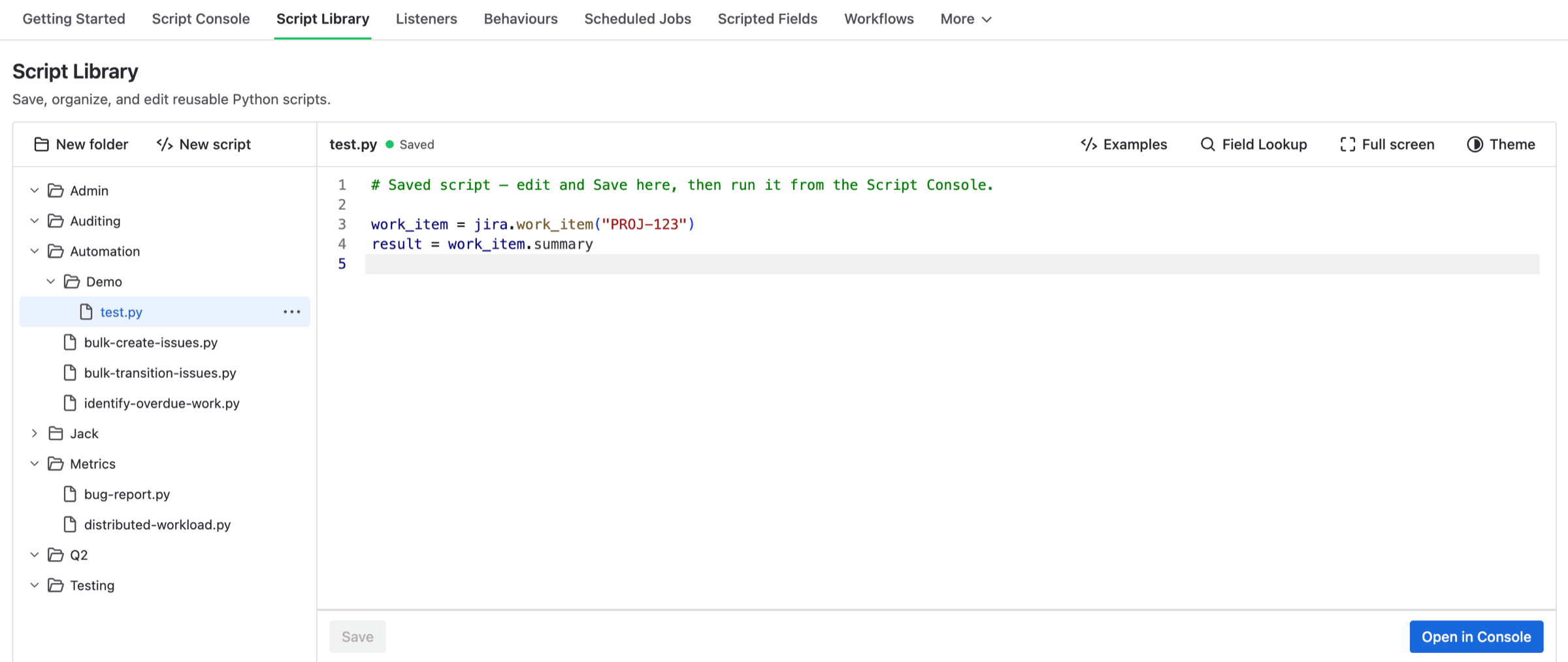
The Script Library, with a script open
Creating Scripts and Folders
New script and New folder sit at the top of the tree. Both create inside whichever folder you have selected, or at the top level when nothing is. Clicking empty space in the tree clears the selection, which is how you get back to the top level.
A name containing / creates the folders it needs. Naming a script reports/weekly makes a reports folder and puts weekly.py inside it. Scripts are saved with a .py ending, added for you if you don't type it.
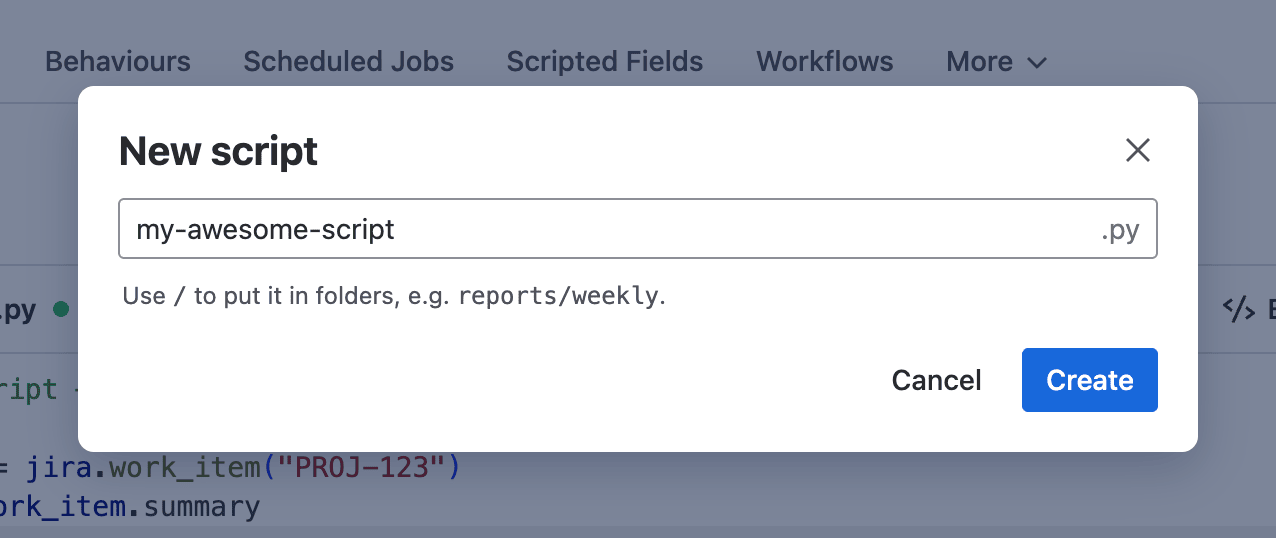
Naming a new script
Note: If you plan to import a script, name it and its folders the way you'd name a Python variable. Letters, numbers and underscores, never starting with a number. Anything else still saves and runs, it just can't be imported, and the library marks it for you.
Editing and Saving
Click a script in the tree to open it. Save sits under the editor, and Cmd/Ctrl-S does the same thing. The button is greyed out until there's an edit to save. A dot above the editor tracks where you are: Unsaved changes, then Saving…, then Saved. Leaving a script with unsaved edits asks you first.
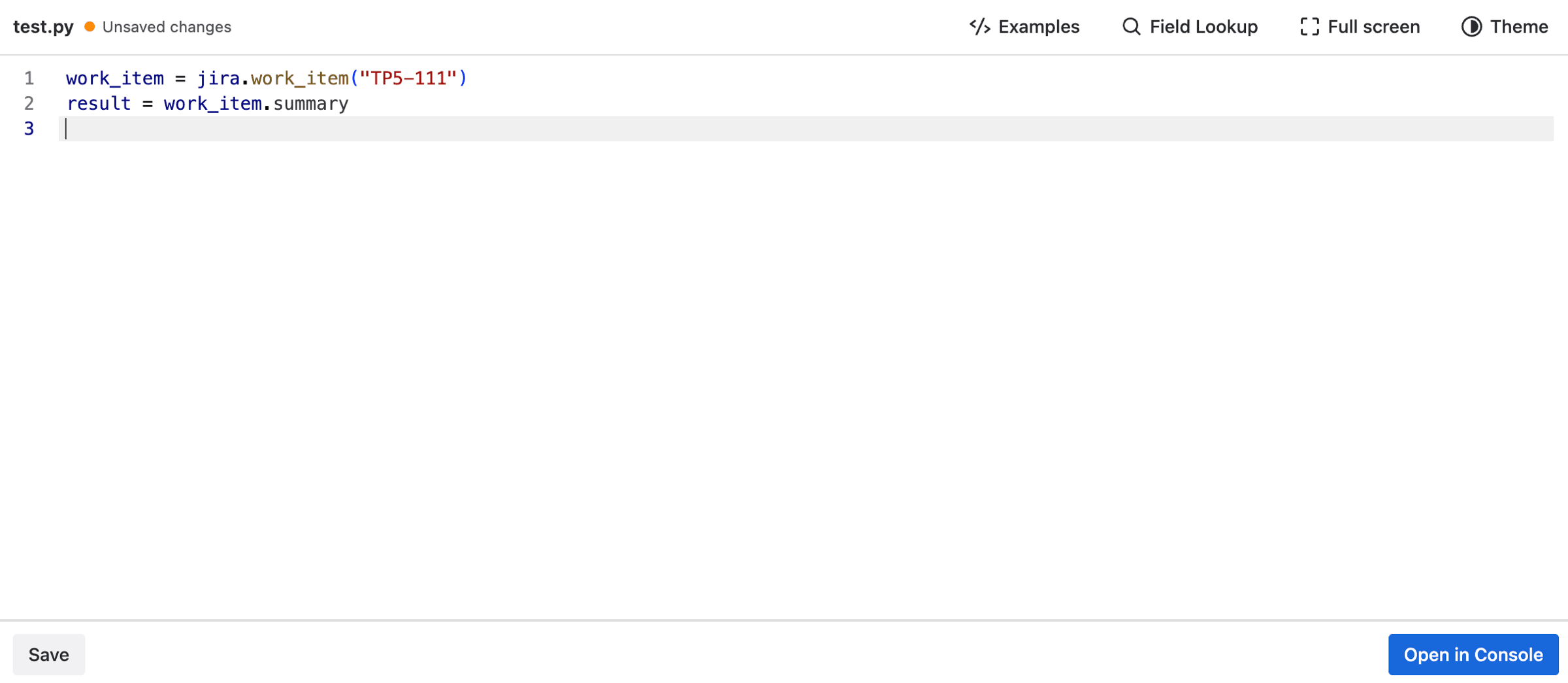
A script with edits waiting to be saved
Open in Console takes what's currently in the editor over to the Script Console so you can run it. It sends what you see, including edits you haven't saved yet.
Drag a script onto a folder to move it, or onto empty space to bring it back to the top level. Rename and Delete are in each row's ⋯ menu, and a script inside a folder also gets Copy import path. Deleting a folder deletes what's inside it, and the confirmation tells you how much.
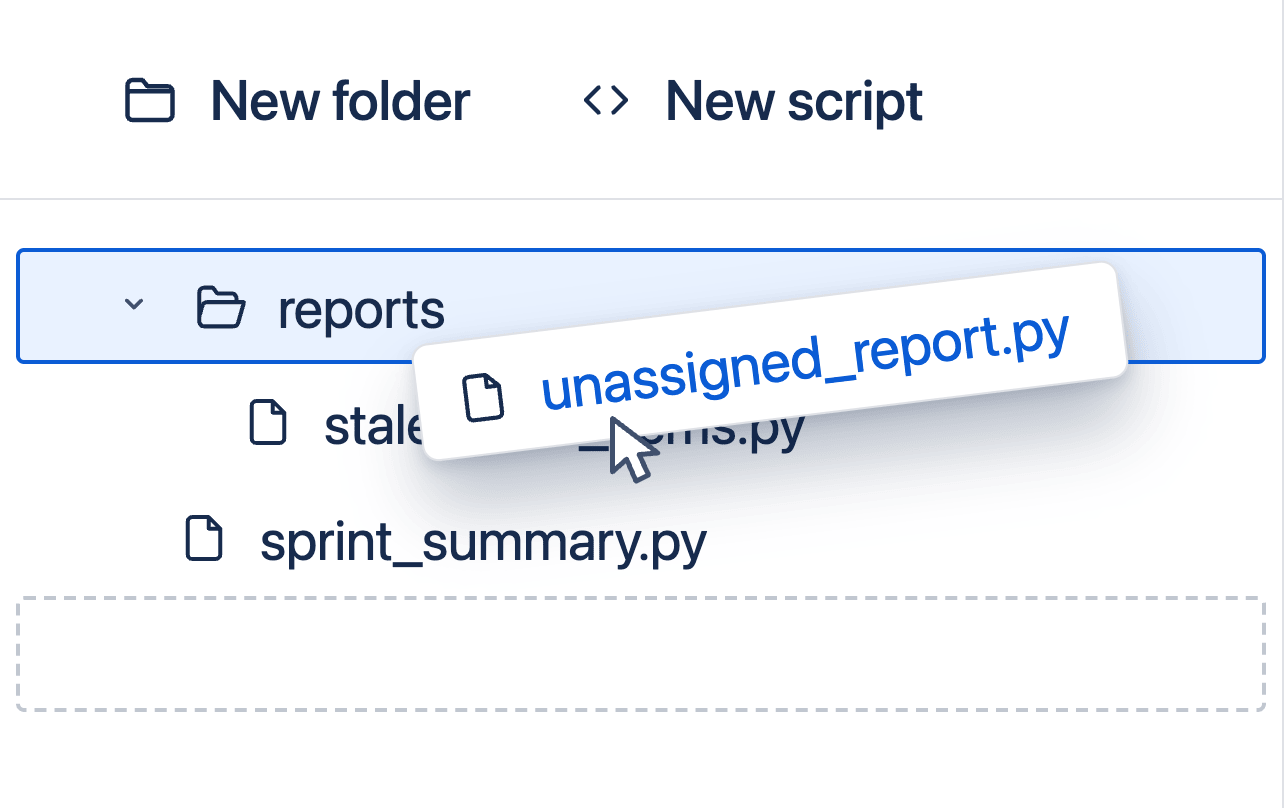
Dragging a script into a folder
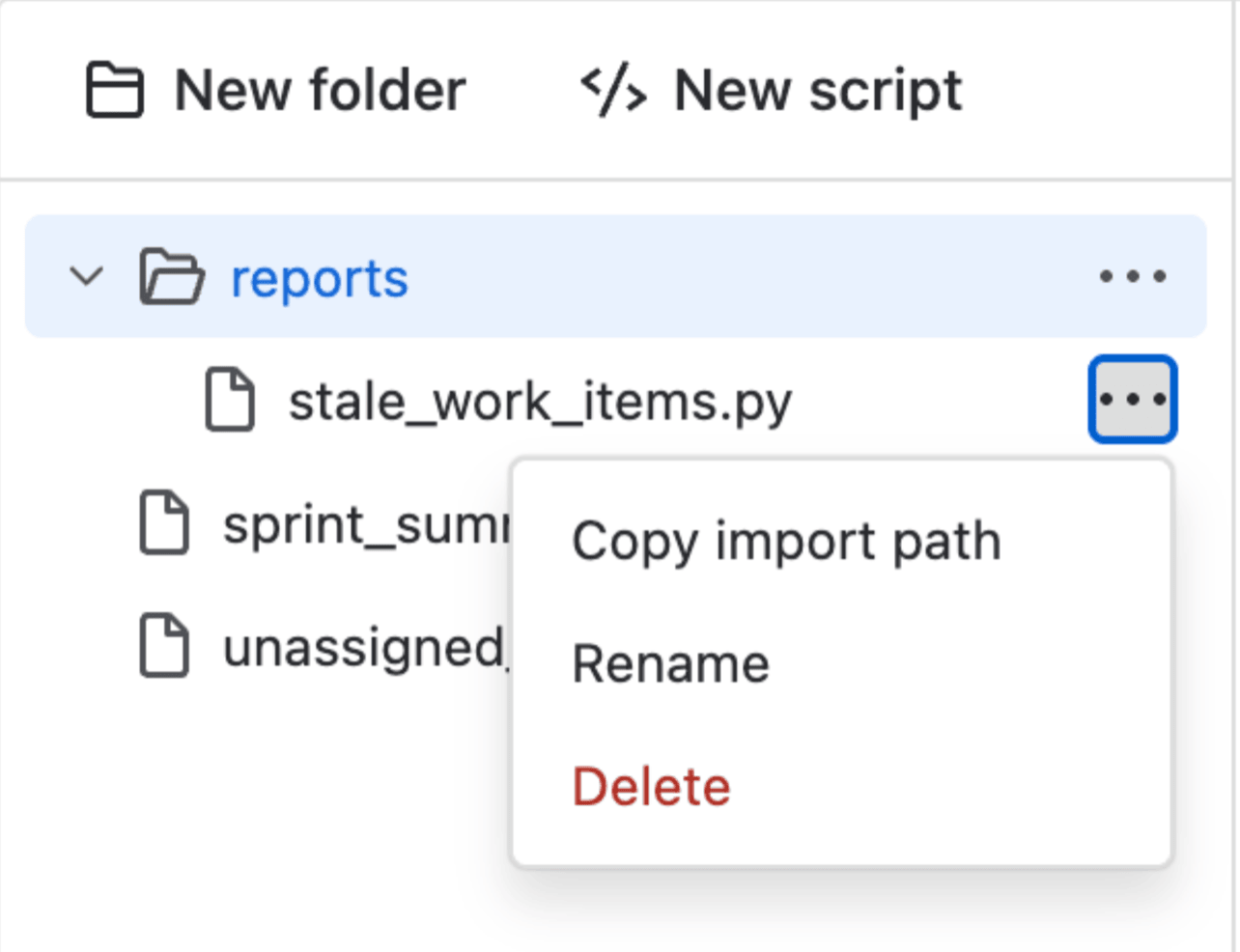
The row menu
Importing Saved Scripts
Any saved script can import another one. Write a function once, then use it from every script that needs it.
The import path follows the folder tree. Folders are separated by dots and the .py is dropped, so a script called dates.py inside a helpers folder is helpers.dates. A script at the top level is just its own name.
| Where the script lives | How to import it |
|---|---|
utils.py | from utils import clean_name |
helpers/dates.py | from helpers.dates import working_days |
team/reports/weekly.py | import team.reports.weekly |
You don't have to work the path out yourself. Copy import path in a script's ⋯ menu gives you the exact path to paste. It only appears for scripts inside a folder, since a script at the top level is just its filename.
Names that can't be imported
An import path is made of Python names, so every folder and script in it has to be one. Letters, numbers and underscores, never starting with a number. A folder called My scripts holds scripts and runs them perfectly well, but nothing inside it can be imported, because it contains a space. There's no way to write import My scripts.report as valid Python.
The library tells you rather than letting you find out at run time. A warning icon appears on anything that can't be imported, and hovering it explains which name is the problem.
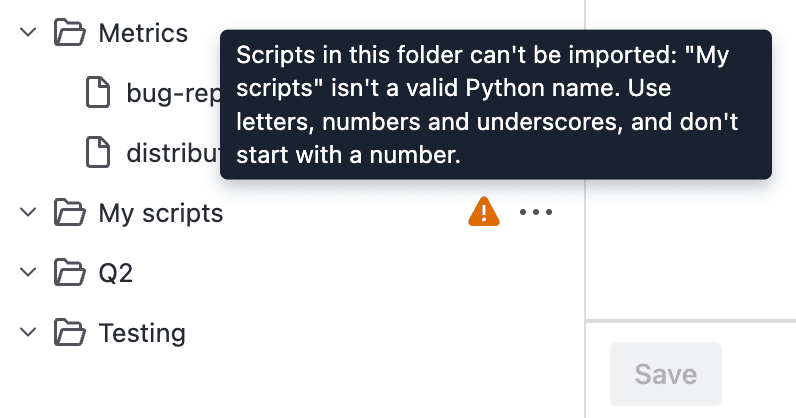
A folder that can't be part of an import path
The icon appears on the script too, whether it's the script's own name that's the problem or a folder above it. A perfectly named script inside My scripts still can't be imported, so it gets the warning as well, and the tooltip points at the folder instead. Renaming to my_scripts clears both.
The editor autocompletes import paths as you type them, and imports resolve live, so a script you saved a moment ago is immediately importable. Renaming or moving a script changes its import path, so anything importing it needs updating to match.
Example
Say several of your scripts need to know how long a work item took to resolve. Save that calculation once, as days_to_resolve.py inside a helpers folder.
def days_to_resolve(item):
    """Days between created and resolved, or None if still open."""
    if not item.resolution_date:
        return None
    return (item.resolution_date - item.created).days
Any other script can now import it. This one summarises last month's resolved work, and never has to repeat the calculation.
from helpers.days_to_resolve import days_to_resolve

items = jira.search(
    "resolved >= -30d",
    fields=["summary", "created", "resolutiondate"],
    limit=100,
)

rows = [
    {"key": i.key, "days": days_to_resolve(i)}
    for i in items
]
result = pd.DataFrame(rows)
Change the calculation in one place and every script that imports it picks up the change.
Need Additional Help?
If you have any questions or need assistance, our support team is here to help