Script Console
The Script Console has an intelligent code editor with knowledge of your Jira instance. It's designed for running one-off scripts.
It's where you try things out. Most scripts start here, get adjusted until they do the right thing, and only then get saved to the Script Library or attached to a listener, a scheduled job, or a workflow rule.
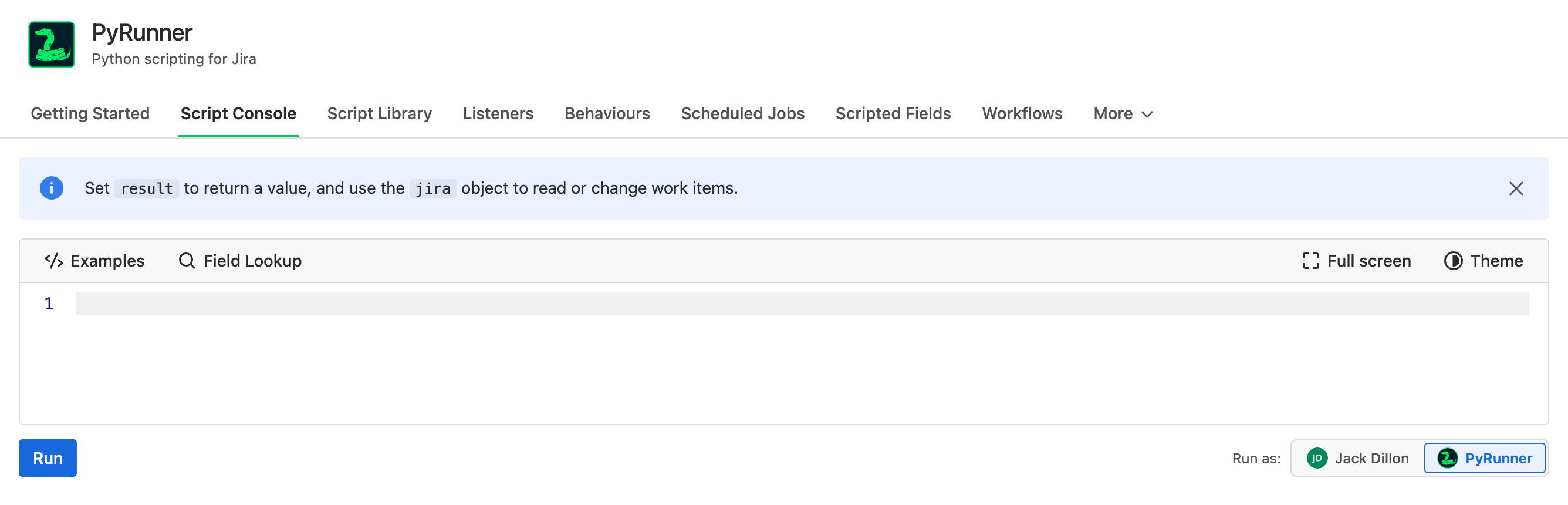
The Script Console, ready for a script
What you write is covered in How It Works. This page is about the console itself.
Running a Script
Write your script, choose who it runs as, and click Run. Output appears while the script is still running, so a long job shows you where it has got to instead of sitting silent. Every line you print() arrives as it happens. Changes are still held back until the script finishes, and you'll see a running count as they're then applied to Jira. The finished result replaces the live view when the run ends.
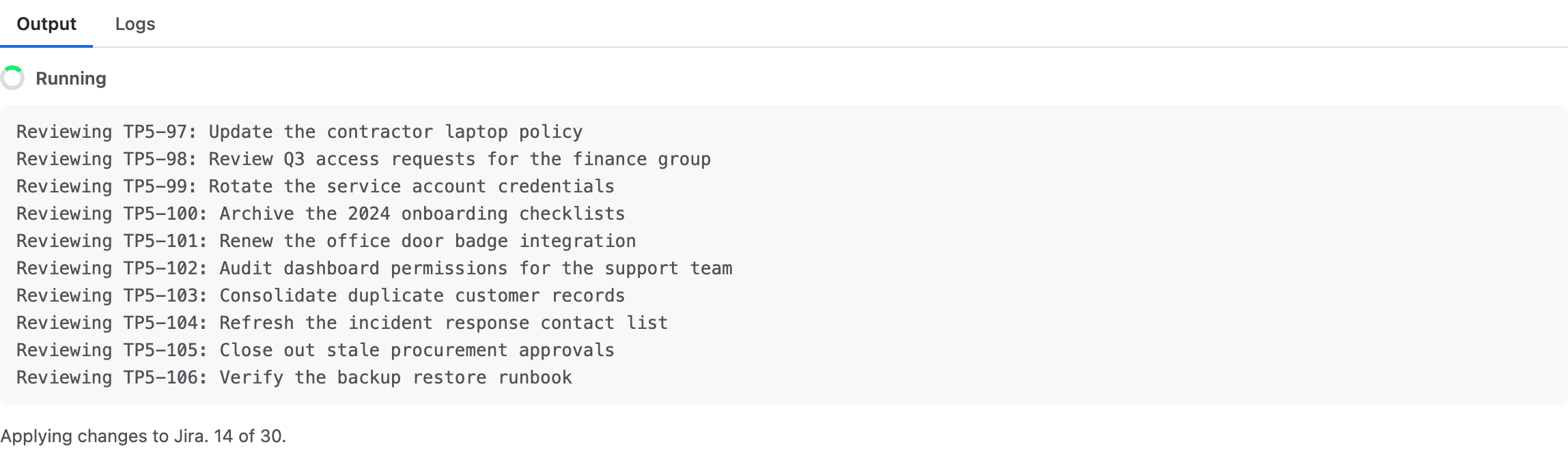
A script mid-run: output as it's printed, then the count of changes landing in Jira
The Run as setting decides whose permissions the script has and whose name lands on any changes. New scripts default to your own account. Learn more about the PyRunner user →

Run, and who the script runs as
Stopping a run
Cancel appears while a script is running and stops it. Nothing is written to Jira, because changes apply only when a script finishes cleanly. A cancelled run leaves Jira untouched.

Cancel, while the script is still running
Note: Cancel stays available for as long as the script is running, however long that turns out to be.
Saving the script
The console is for one-off scripts. Anything you want to keep belongs in the Script Library, which is where scripts are created, organized into folders, and edited.
You can also save straight from the console with Cmd/Ctrl-S. Give the script a name and it's added to the library, and you're taken to the Script Library with it open, ready to keep working on.
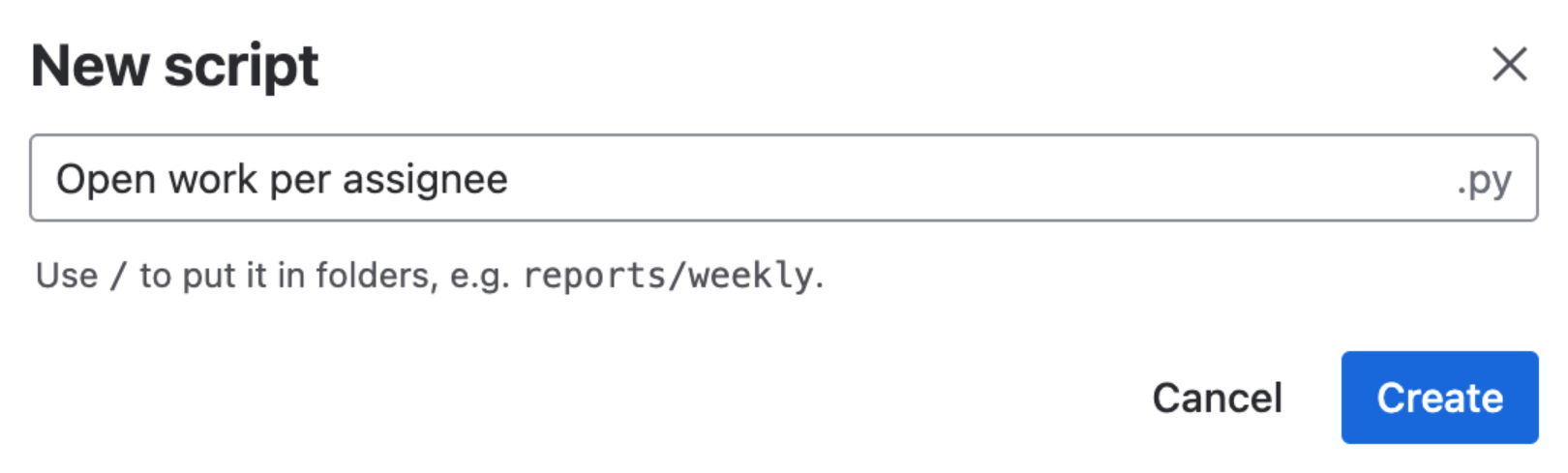
Naming the script on save
The shortcut works anywhere on the console page, not just inside the editor, so you don't have to click back into your code first.
Reading the Results
Results appear below the editor, on two tabs.
Output
Everything the script produced, in the order it happened: anything you print()ed, then the value of result. A DataFrame or a list of dictionaries renders as a table you can sort, search and export, covered in Smart Table. If the script changed anything in Jira, those changes are summarised underneath.
Here's an example that counts the open work items per assignee, which the Output tab renders as the sortable table on the right.

The script
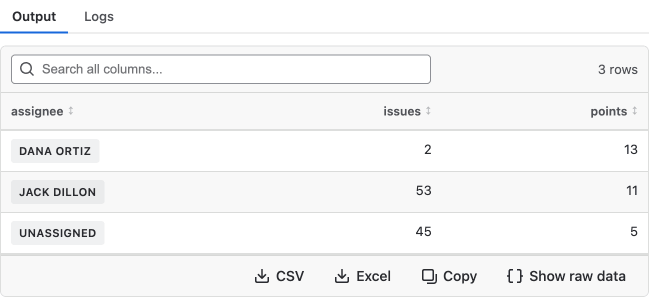
What comes back
Logs
When a script fails, the error is here: the message and the line it happened on. The panel switches to this tab on its own, so you don't have to go looking, and the editor marks the failing line so you can see it in place.
On a run that worked, the Logs tab confirms it and shows how long the script took.
Note: Applied changes are on the Output tab, not Logs. Logs is for what went wrong.
Editor Tools
Four buttons sit above the editor. You'll find the same four wherever you write a script in PyRunner, since listeners, scheduled jobs, workflow rules, and behaviours all use this editor.
| Button | What it's for |
|---|---|
| Examples | Ready-made scripts to start from |
| Field Lookup | Every field on your site, with its id and the line to copy |
| Full screen | The editor fills the window, toolbar included |
| Theme | The editor's color scheme |
Examples is useful if you're not sure where to start. The scripts vary in complexity and cover a wide range of automated tasks. Choose one and it replaces what's in the editor.
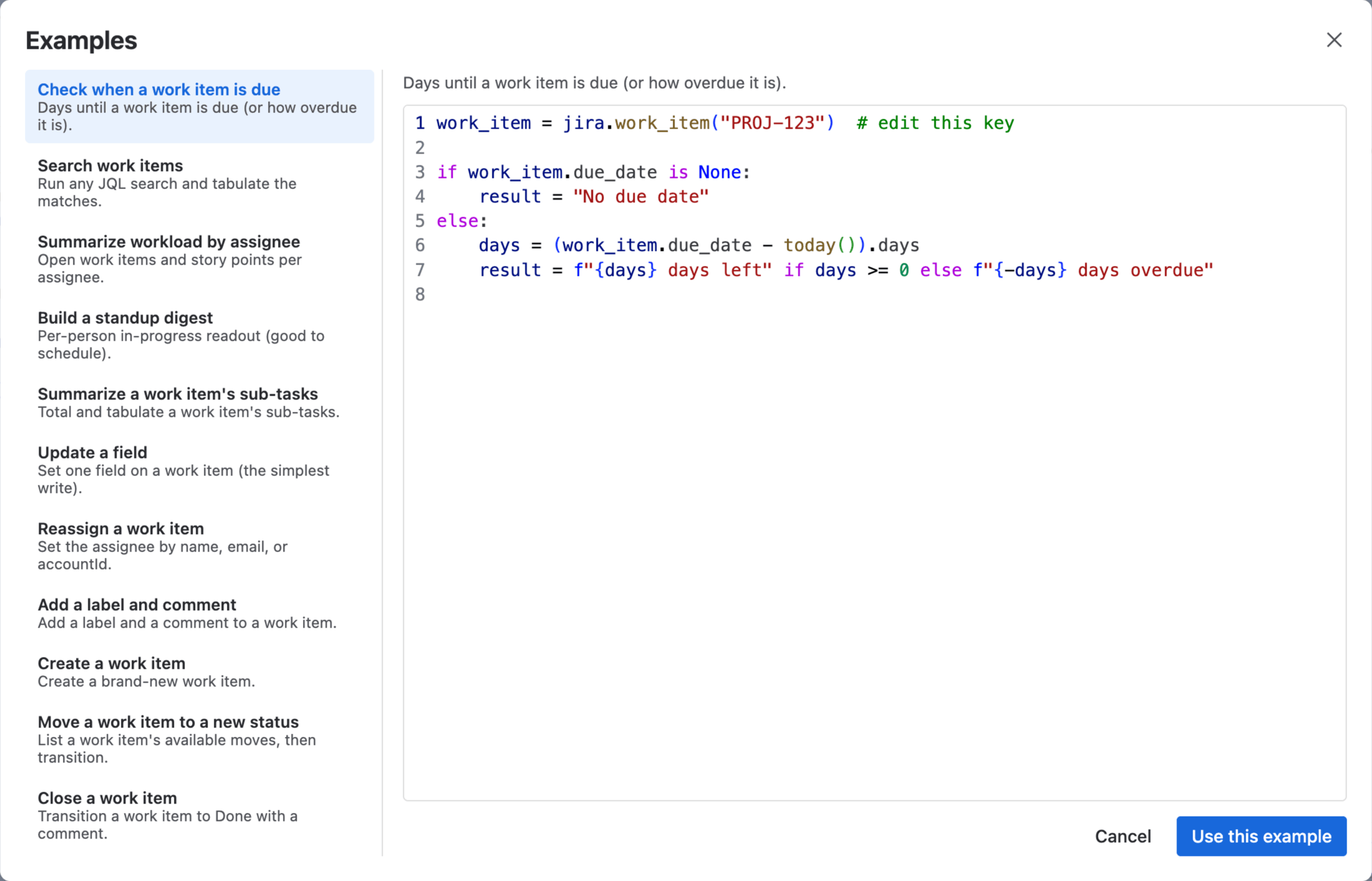
Examples, with one script previewed
Field Lookup lists every field on your site with its id, its type, and the exact line to read it in Python. Most fields read by name, but if two share a name you'll need the field id instead. The line it gives you already accounts for that.
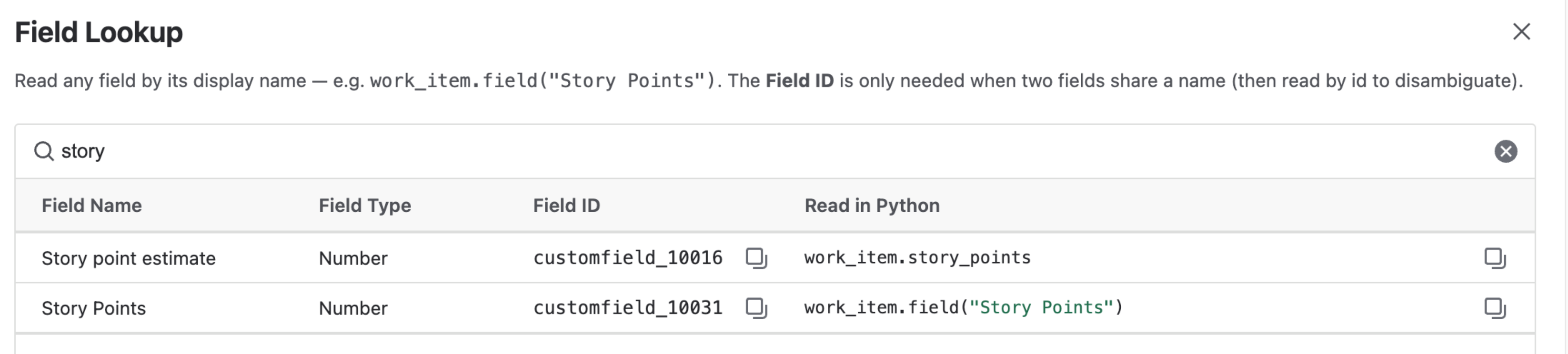
Field Lookup, with the line to copy for each field
Theme changes the editor's color scheme. There are six to choose from, ported from the VS Code themes of the same names, with a tick against the one you're using.
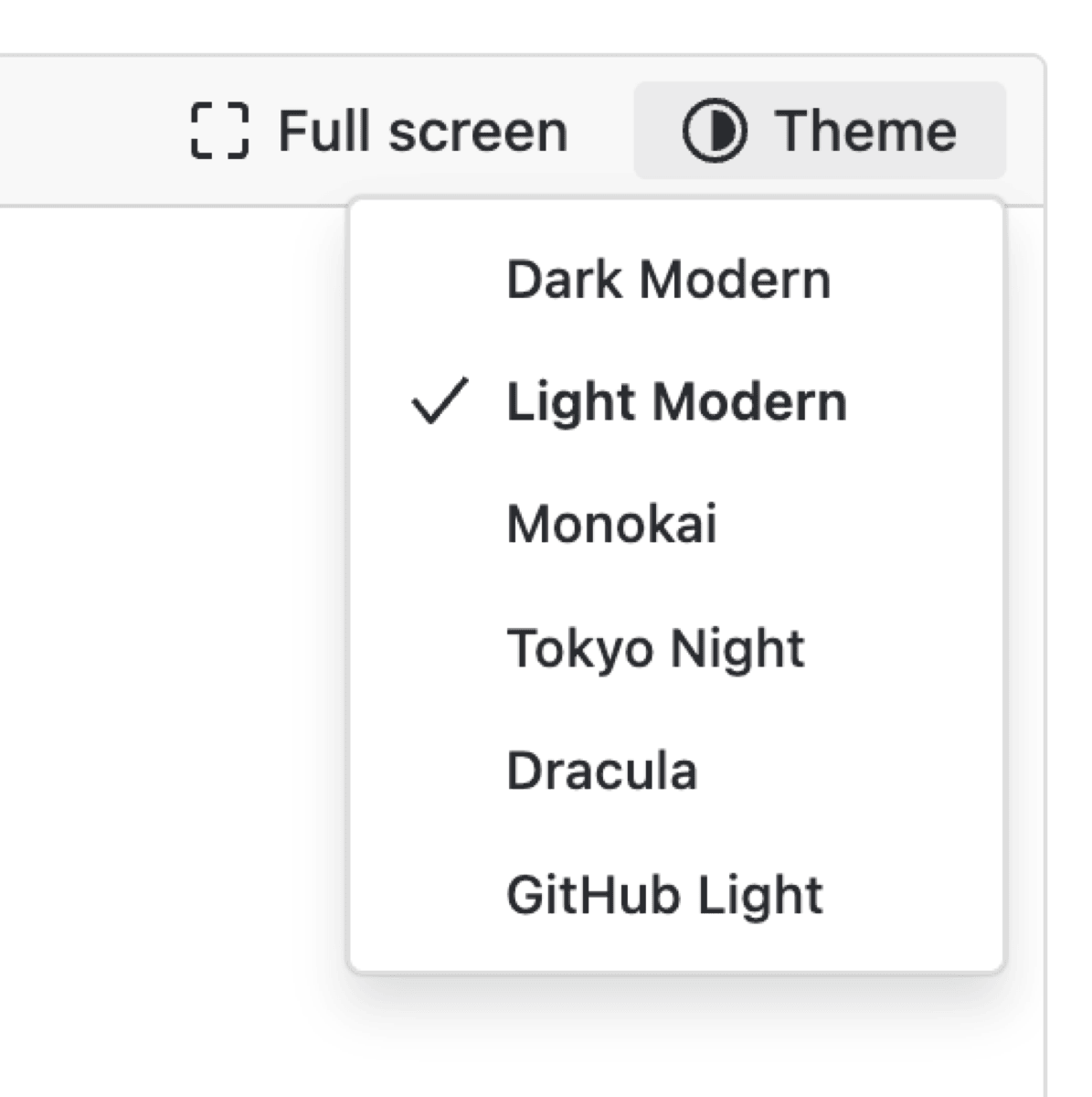
The theme you pick here applies to every editor in the app, including the Script Library and the example previews, and it's remembered between visits.
Smart Table
Any result that's a table, either a DataFrame or a list of dictionaries, comes back as one you can work with rather than text you have to read. This script pulls every unfinished work item into one:
items = jira.search(
    "statusCategory != Done",
    fields=["summary", "status", "assignee", "priority", "duedate", "story_points"],
    limit=200,
)

result = pd.DataFrame([{
    "Key": i.key,
    "Summary": i.summary,
    "Status": i.status,
    "Assignee": i.assignee or "Unassigned",
    "Priority": i.priority,
    "Points": i.story_points,
    "Due": i.due_date,
} for i in items])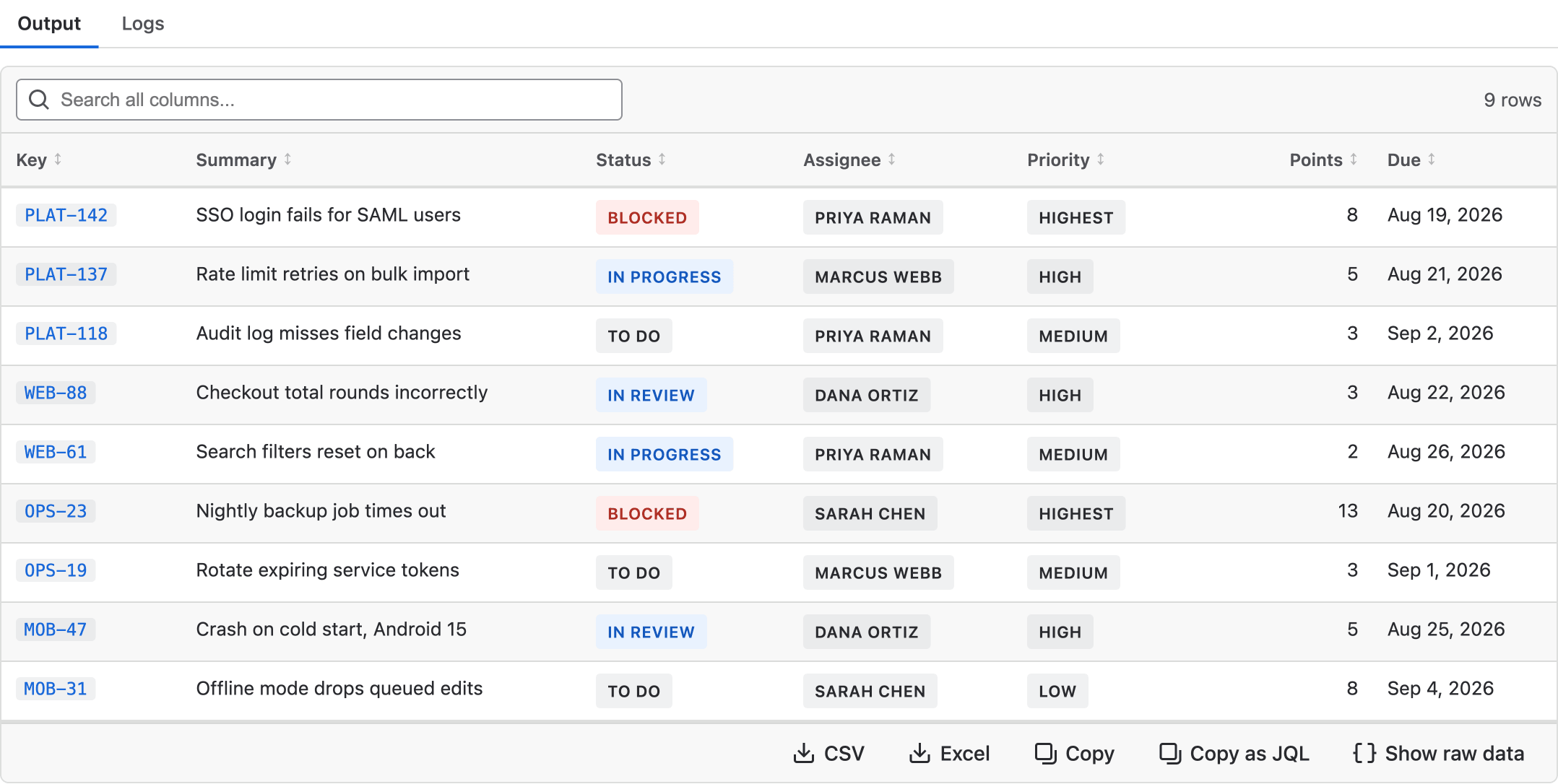
Keys link to their work item, and the buttons take the result with you
none to find the rows missing a value.key in (…). It earns its place when the script chose the rows rather than the query: filter in pandas, then open exactly those items where bulk edit lives.Need Additional Help?
If you have any questions or need assistance, our support team is here to help