Sync NinjaOne tickets
New tickets on a NinjaOne board become work items. Comments and status go both ways.
1. Turn it on
On Settings, under More features, turn it on.
2. Add the redirect URI in NinjaOne
On Settings, under More features, click Copy beside Redirect URI for NinjaOne. It’s shown just below Sync NinjaOne tickets once that’s on.
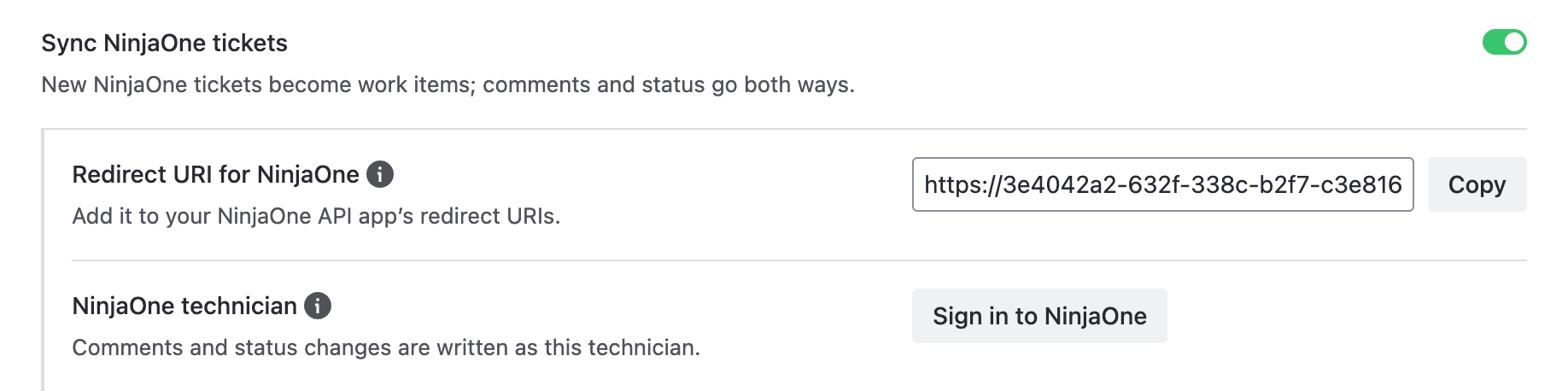
In NinjaOne, go to Administration → Apps → API and open your API app. Under Redirect URIs, replace https://localhost with the copied URI and save.
3. Sign in
Click Sign in to NinjaOne and sign in as a NinjaOne technician. Comments and status changes made in Jira appear in NinjaOne under this technician’s name, so a dedicated one, for example named Jira, is best.
4. Choose the board
Choose the board (and forms, if you like) and save. New tickets sync from then on.
| What | NinjaOne to Jira | Jira to NinjaOne |
|---|---|---|
| New tickets | Become work items | Not synced |
| Comments | Public stays public on JSM requests; internal stays internal | Internal notes, unless public on a JSM request |
| Status | Resolved, reopened or deleted adds a comment | Done resolves the ticket; reopening opens it |
| Not synced | Attachments, other fields, edited or deleted comments | The same |
- NinjaOne closes resolved tickets itself; the app can’t.
- Tickets NinjaOne creates from alerts are skipped, unless Include tickets NinjaOne created from alerts is on.
- Choose Work type for tickets to give tickets their own work type.
- The sync runs even when Create work items for alerts is off.
Note: If the sign-in expires, the sync pauses and Settings asks you to sign in again, under Needs attention at the top. Changes from Jira wait up to 30 days.
Keep NinjaOne devices in Jira Assets
On a Jira Service Management site with Assets, turn it on under More features and save. The app creates a NinjaOne schema and keeps one Device object per device.
| What | Details |
|---|---|
| Each device has | Name, IDs, organization, location, type, OS, manufacturer, model, serial number, status, last contact and a link |
| Updated | Hourly, only devices that changed |
| Removed devices | Marked Removed from NinjaOne, never deleted |
| Turning it off | Stops the sync and leaves the objects |
Note: Each device is one Assets object: 5,000 are included on Standard, 50,000 on Premium and 500,000 on Enterprise.
JSM Operations alerts
Page your on-call team in JSM Operations when an important alert creates a work item.
1. Get an integration key
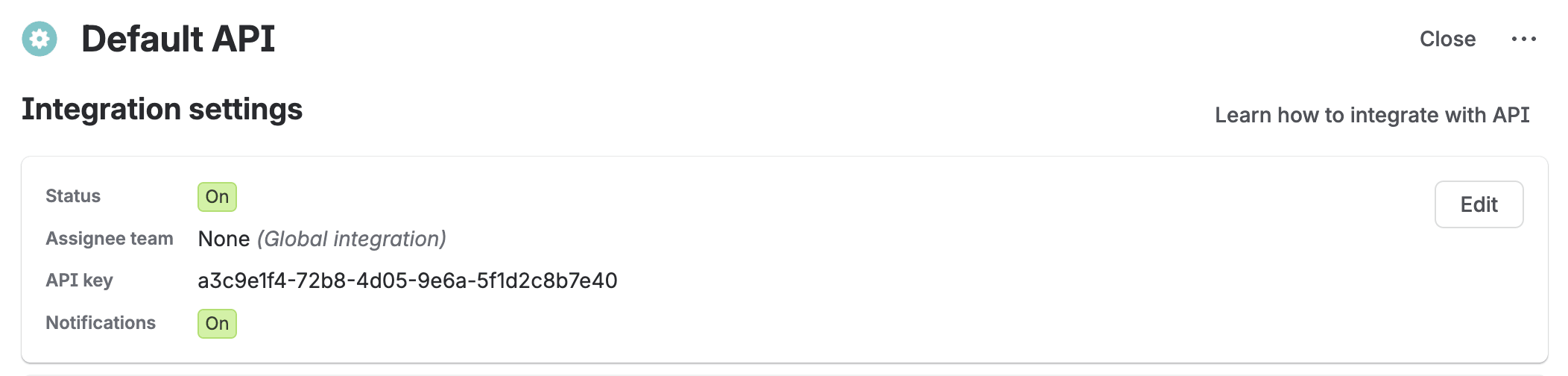
In Jira, go to Settings → Operations → Integrations. Open an API integration, such as Default API, or click Add integration and choose API. Copy its API key.
2. Turn it on
On Settings, under More features, turn it on, choose what to Send, paste the key and save.
| Send | Pages the team for |
|---|---|
| Critical alerts | Critical only |
| Major and above | Critical and Major |
| Moderate and above | Critical, Major and Moderate |
| High-priority alerts | High priority on the NinjaOne condition |
| Every alert that gets a work item | All of them |
| NinjaOne severity | Critical | Major | Moderate | Minor | None |
|---|---|---|---|---|---|
| Operations priority | P1 | P2 | P3 | P4 | P5 |
- It closes when the alert clears, or when the work item is marked done with Reset the NinjaOne alert when its work item is done on.
- A repeat is sent again: Operations counts it, or pages again if the alert was closed.
- If the key stops working, Settings asks for a new one, under Needs attention at the top.
- Patch failures and tickets aren’t sent.
Need help?
If you have a question or need a hand, our support team is here to help.