Finding NinjaOne work items
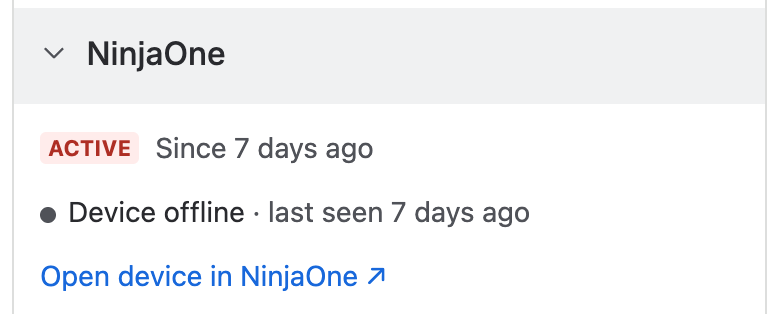
The NinjaOne panel on each work item shows whether the alert is active, whether the device is online, and a link to it.
Use these in searches, filters and dashboards:
| JQL | Finds |
|---|---|
ninjaoneStatus = active | Alerts not cleared yet (cleared once they have) |
ninjaoneDevice = "server-01" | One device’s work items |
ninjaoneSeverity in (CRITICAL, MAJOR) | Work items by severity |
ninjaoneStatus IS NOT EMPTY | Everything the app created |
Who can manage the app
Jira admins always can. To let a non-admin access the app, a Jira admin needs to do the following:
1. Go to Jira’s Global permissions page
In Jira, go to Settings → System → Global permissions.
2. Choose the permission
Under Grant Permission, choose Manage NinjaOne Connector for Jira.
3. Add the group
Choose the group and select Add.
| Members can | Only Jira admins can |
|---|---|
| Connect NinjaOne | Disconnect |
| Change settings for spaces they’re an admin of | Switch to another NinjaOne account |
| Add already active alerts to those spaces | Turn on Assets and JSM Operations alerts |
Members find the app under Apps. To remove access, select Delete beside the group on the same page.
Your data
| What’s stored | Your settings, the encrypted client secret and access tokens, and a small record per alert that links it to its work item. A record is deleted a year after its last activity. |
| Where | In Atlassian’s storage for your site, in the same region as your Jira data. Only this app, on this site, can read it. |
| Who sees the secret | Nobody, not even Jira admins. It’s only ever sent to NinjaOne. |
| Servers | None of ours. The app runs on Atlassian Forge and talks straight to NinjaOne, and to JSM Operations if you use it. |
| Logs | Never contain tokens, secrets or personal data such as technician names. |
| Removing it | Disconnect deletes the secret and tokens. Uninstalling deletes everything the app stored (Atlassian keeps a copy for 28 days in case you reinstall). |
Fix a problem
When something needs you, a Needs attention link appears beside the status at the top of Settings. Click it to see what’s wrong. Nothing is lost if it’s fixed within a day.
| What you see | What to do |
|---|---|
| NinjaOne didn’t accept that client ID and secret | Check both come from the same API Services app with Client credentials ticked. Lost the secret? Generate a new one in NinjaOne. |
| Give the NinjaOne API app the Monitoring and Management scopes | Tick both in NinjaOne, save, and connect again. |
| Jira won’t let the app create work items, or Jira requires … | Fix what Jira’s message names, then save Settings. New alerts wait and arrive in order. |
| One alert listed under Needs attention | Jira refused to create its work item, for example a workflow rule rejected it. The app tries again hourly for 3 days. Retry tries now; Dismiss removes it. |
| Checks were off | The app couldn’t check NinjaOne for over a day, for example while NinjaOne was down, and starts again from now. The note says how many alerts are still active from that time: click Add them in it to create their work items. |
| Catching up | A burst of activity is being worked through. Nothing is skipped. |
| Checks failing | NinjaOne or Jira can’t be reached. The app keeps trying on its own. |
| Subscription not active | Renew the app in Jira’s Manage apps. Checks restart within 5 minutes. |
Disconnecting and reconnecting
- Disconnect deletes the client secret. Replace credentials (also on the Connect tab) switches to another NinjaOne API app without disconnecting.
- Reconnecting the same NinjaOne account catches up on alerts from the time in between, up to a day back.
- Another account starts afresh, and only Jira admins can switch.
Need help?
If you have a question or need a hand, our support team is here to help.