Where should new work items go?
| Setting | What it does |
|---|---|
| Space | The Jira space new work items are created in. |
| Work type | The work type of new work items, for example Task or Bug. |
| Request type | Shown instead of Work type when the space is a Jira Service Management space. Alerts arrive as requests of this type, in its queues. |
| Required by Jira | Shown when Jira requires other fields be set before the work item can be created. The value you choose goes on every work item. Required dates get the alert’s date. |
The app can’t fill user, group or team fields. Make them optional in Jira or give them a default.
Which NinjaOne alerts should create work items?
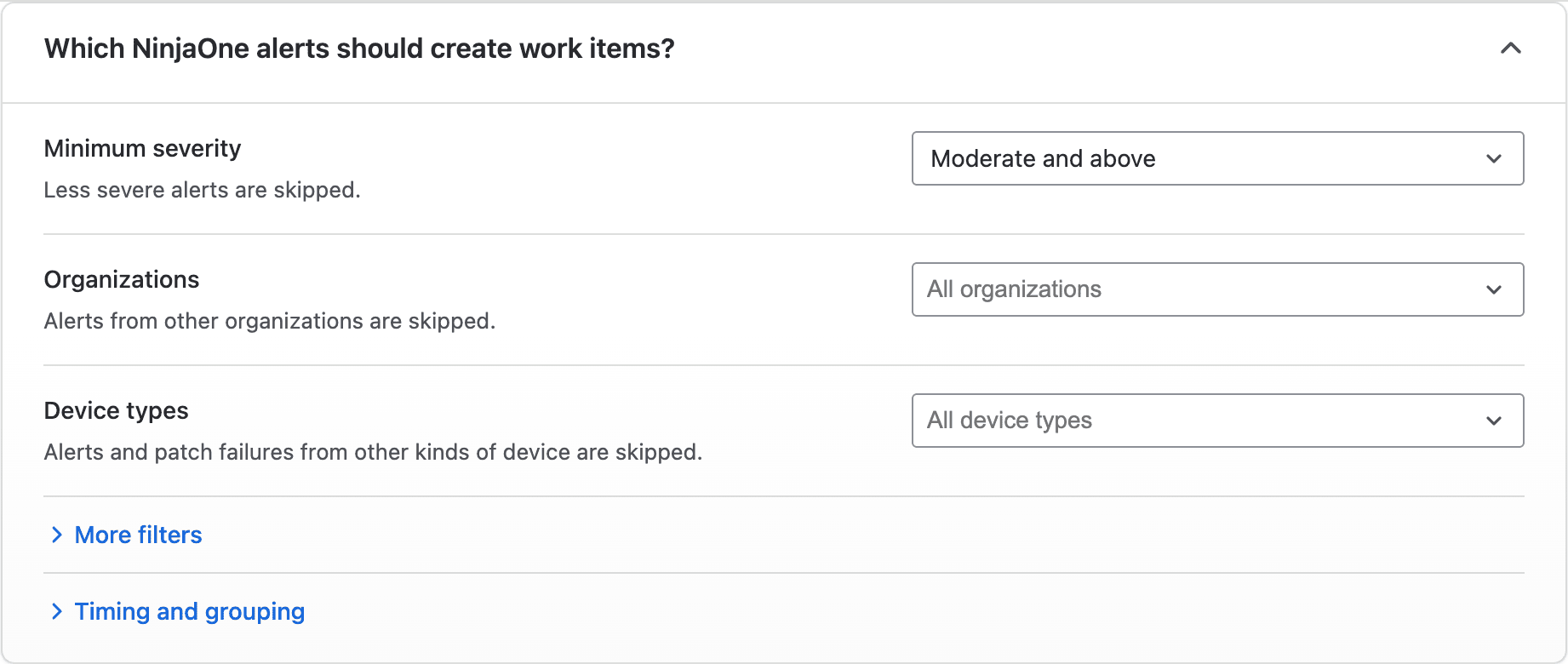
The first three filters are always shown. More filters and Timing and grouping open the rest.
| Setting | What it does |
|---|---|
| Minimum severity | Skips less severe alerts. |
| Minimum priority | Skips alerts with a lower NinjaOne priority. Conditions with no priority count as the lowest. |
| Organizations | Only alerts from these organizations. |
| Device types | Only alerts from these kinds of device. Servers include virtualization hosts. |
| Conditions and alert types | Exclude some… skips the ones you pick. Only these… allows just those. |
| Patch failures | Per device per day, per day for all devices, or off. See below. |
| Wait before creating | Holds new alerts for 5 minutes to 24 hours. One that clears in that time creates nothing. |
| Group alerts from several devices | On by default. When the same alert fires on several devices in one organization within 5 minutes, they get one work item, not one each. |
- Conditions and alert types lists the conditions in your NinjaOne policies by name. It also lists alert types, such as Disk space, which cover every condition of that kind.
- Wait before creating only delays a new work item. If the alert fires again while its work item is open, that’s handled at once, as set under When the same alert happens again.
Grouping alerts from several devices
When the same alert fires on several devices in one organization within 5 minutes, they share one work item instead of getting one each. It’s on by default. To give every device its own work item, turn off Group alerts from several devices under Timing and grouping.

While it’s on:
- The work item is created as soon as the first alert comes in. When a second device joins, the summary says “2+ devices” instead of the device name.
- When devices join or their alerts clear, a comment names them.
- The work item counts as cleared only once every device’s alert has cleared. Then it’s treated like any cleared alert: see When an alert clears.
- If Reset the NinjaOne alert when its work item is done is on, marking it done resets the alert on every device that still has it.
- Cloud monitors are grouped by alert type, for example all the ping monitors that fail together.
- With JSM Operations alerts on, your team is paged once for the group, not once per device.
- A work item holds up to 100 devices. After that, the next device starts a new one.
Patch failures
When a patch fails to install, the app creates a work item for it. Choose how they’re grouped with Patch failures, under More filters.

| Option | What you get |
|---|---|
| One work item per device per day | The default. Each device with a failed patch gets one work item that day. More failures on it that day are added as comments. |
| One work item per day for all devices | One work item a day lists every device’s failed patches. |
| Off | Failed patches don’t create work items. |
Whichever you choose:
- A patch job still running after 6 hours is added to the work item. When it finishes, the result is added as a comment.
- A patch job stopped by the device restarting only counts as failed if it happens twice in a row.
- The work item counts as cleared once the patching that failed (OS or software) works again on the device.
Note: Patch work items get a fixed summary and description. The summary and description templates you write under What should new work items contain? are for alerts only. Of the filters, only Organizations and Device types apply to patch failures, and Wait before creating doesn’t delay them.
Summary and description
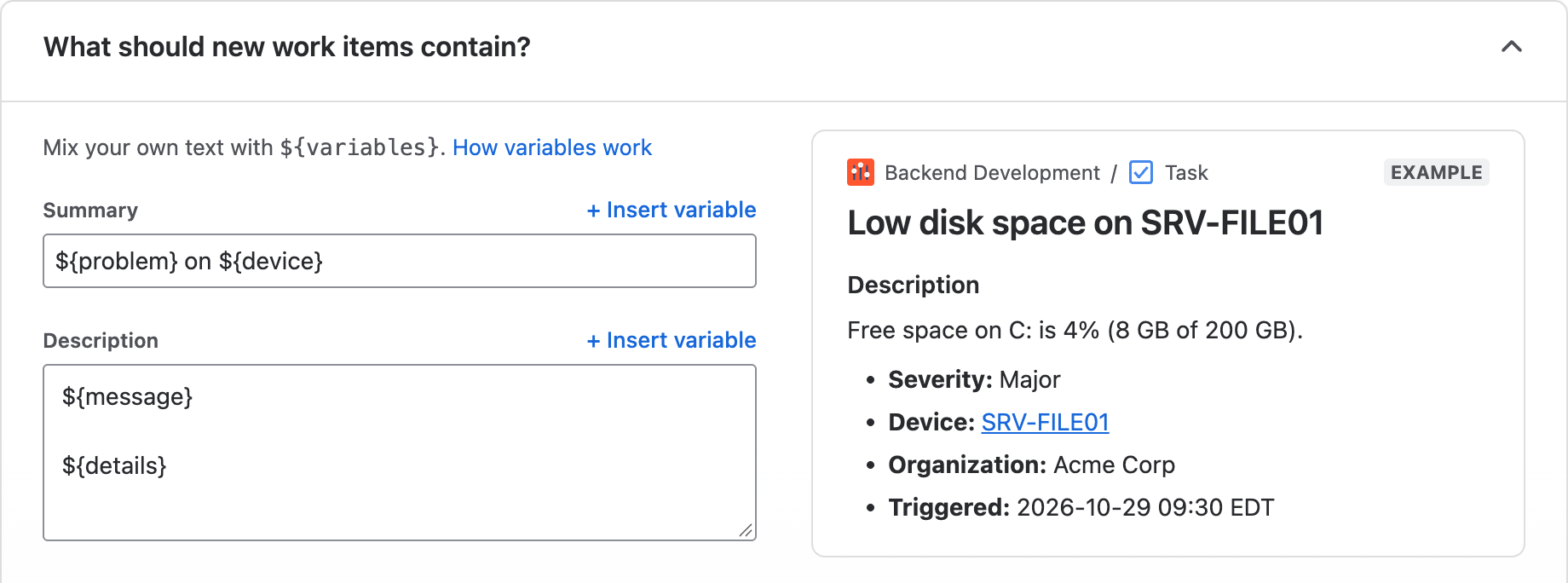
The summary and description are templates: text you write once, with variables like ${device} that each work item fills in from its own alert. The preview shows the result.
| Variable | What it becomes |
|---|---|
${problem} | A short description of the problem, for example “Low disk space (12% free on C:)” |
${device} | The device name |
${severity} | NinjaOne’s severity, for example Major |
${priority} | The condition’s priority, for example High |
${organization} | The NinjaOne organization |
${location} | The NinjaOne location |
${alertType} | The NinjaOne condition’s name |
${message} | NinjaOne’s original alert message |
${date} | When the alert fired, in Jira’s default time zone |
${details} | Description only: severity, device, organization and time as a list |
${deviceLink} | Description only: an “Open in NinjaOne” link to the device |
- The defaults are
${problem} on ${device}, and the message and details for the description. - An empty variable is left out, along with its separator.
- A summary over 255 characters is shortened, marked with “…”.
- Changes apply to new work items only.
Label and priority

| Setting | What it does |
|---|---|
| Add the label ninjaone | Labels each work item ninjaone. |
| Jira priority | Sets the priority from the alert’s severity or NinjaOne priority. Shown when Priority is on the create screen. |
Dates use Jira’s default time zone.
What happens after a work item is created?
When the same alert happens again

| Option | What happens |
|---|---|
| Do nothing | The default. |
| Add a comment | Comments on each repeat. |
| Count them in a field | Counts repeats in a number field. See Counting repeats. |
| Create a new work item | Opens a new one, linked to the last. |
Link to the earlier work item (on by default) links a new work item to the one its alert had before. Followed back, the links give each device a history of its outages and problems.
When an alert clears

- After 15 minutes the app comments. Turn off Comment when an alert clears to skip it.
- To close work items, choose conditions or alert types under When the NinjaOne alert clears, and a Move to status.
- If the workflow has no direct transition to that status, the app moves the work item through up to two in-between statuses and names them in the comment. If there’s no way through, the work item stays where it is, and a note under Move to on Settings explains why.
- Patch work items move only if you also choose Patch failures in that list.
When checks fail creates a work item if NinjaOne or Jira can’t be reached for an hour. When the checks work again, it gets a comment.
Back in NinjaOne

| Setting | What it does |
|---|---|
| Reset the NinjaOne alert when its work item is done | Marking the work item done resets its alert, if it’s still active. |
| Show Jira work items on NinjaOne devices | A device field, Jira work items, lists each device’s open work items. |
Note: Conditions that fire only on a change, like a device going offline, don’t fire again after a reset. Limit who can mark these work items done.
On Jira Service Management requests, the app’s comments are internal notes.
Counting repeats
1. Create the field
In Jira, go to Settings → Work items → Fields, create a NinjaOne alert count field and add it to your space’s field scheme and screens.
2. Choose it
On Settings, set When the same alert happens again to Count them in a field, choose the field and save.
Need help?
If you have a question or need a hand, our support team is here to help.
Email us at support@pallas-apps.com