Set up the app
1. Give a non-admin access (optional)
Jira admins can always set up the app. To let someone else do it, for example your NinjaOne admin, a Jira admin follows the steps in Who can manage the app first.
2. Create an API app in NinjaOne
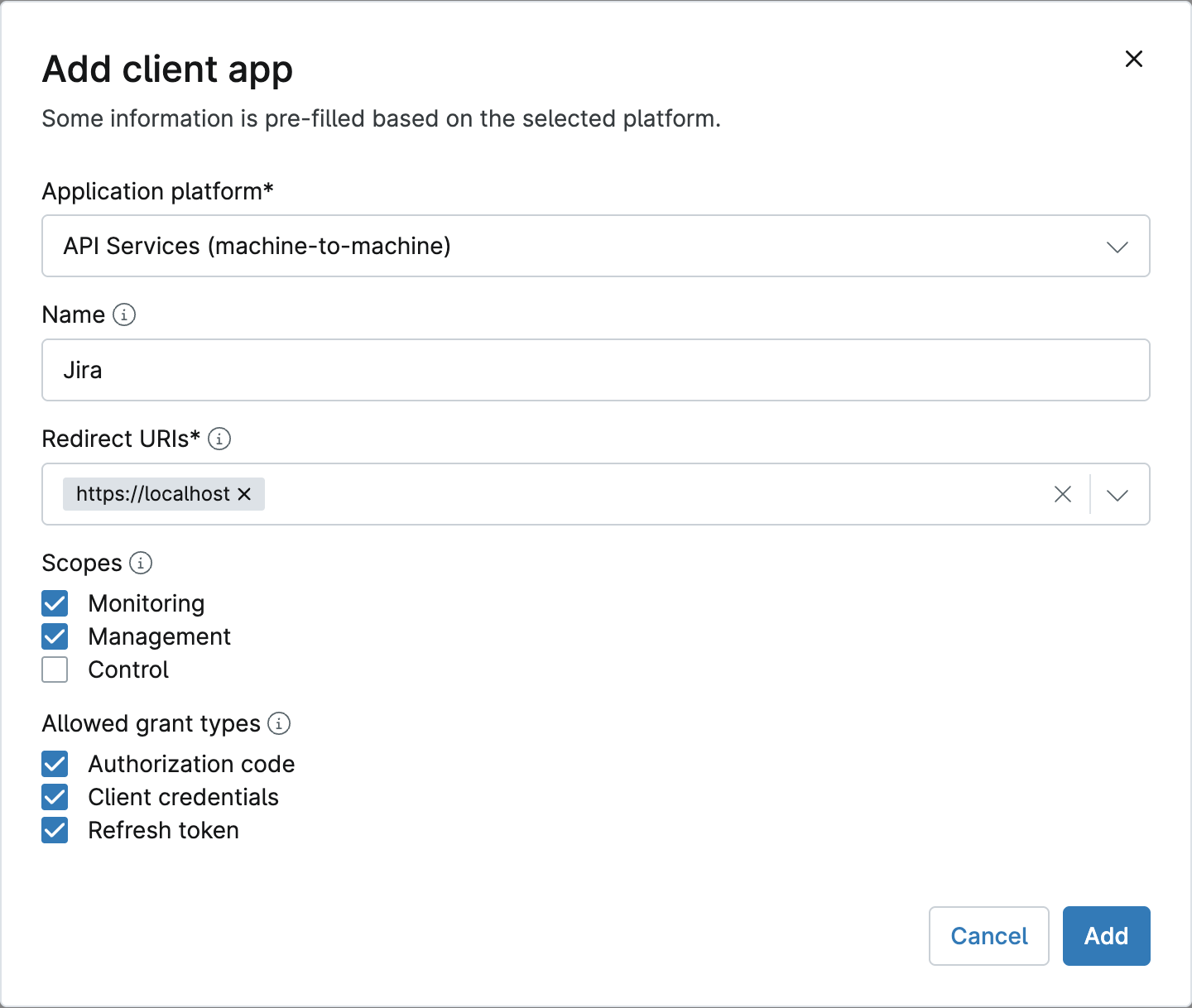
In NinjaOne, go to Administration → Apps → API, click Add client app and fill it in:
- Application platform: API Services
- Name: anything, for example Jira
- Redirect URIs:
https://localhost - Scopes: Monitoring and Management
- Allowed grant types: all three
Click Add. NinjaOne then shows the client ID and secret. Copy both now: the secret is shown only once.
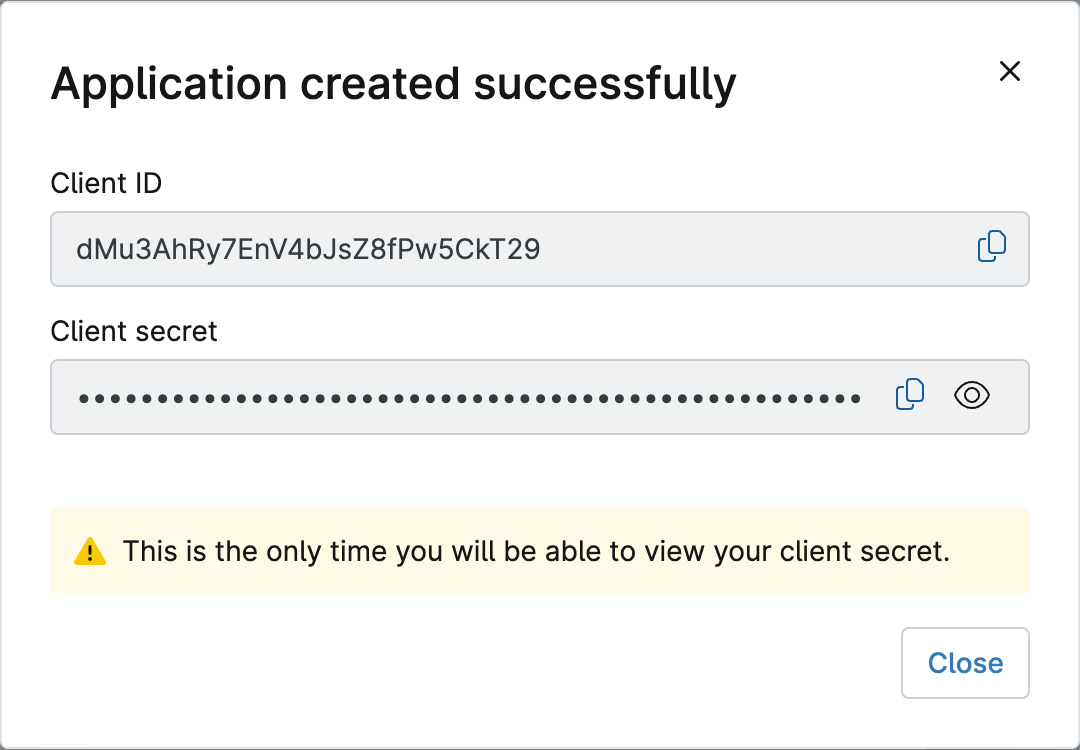
Note: Sometimes NinjaOne creates the app without showing a secret. If that happens, delete it and create it again.
3. Connect
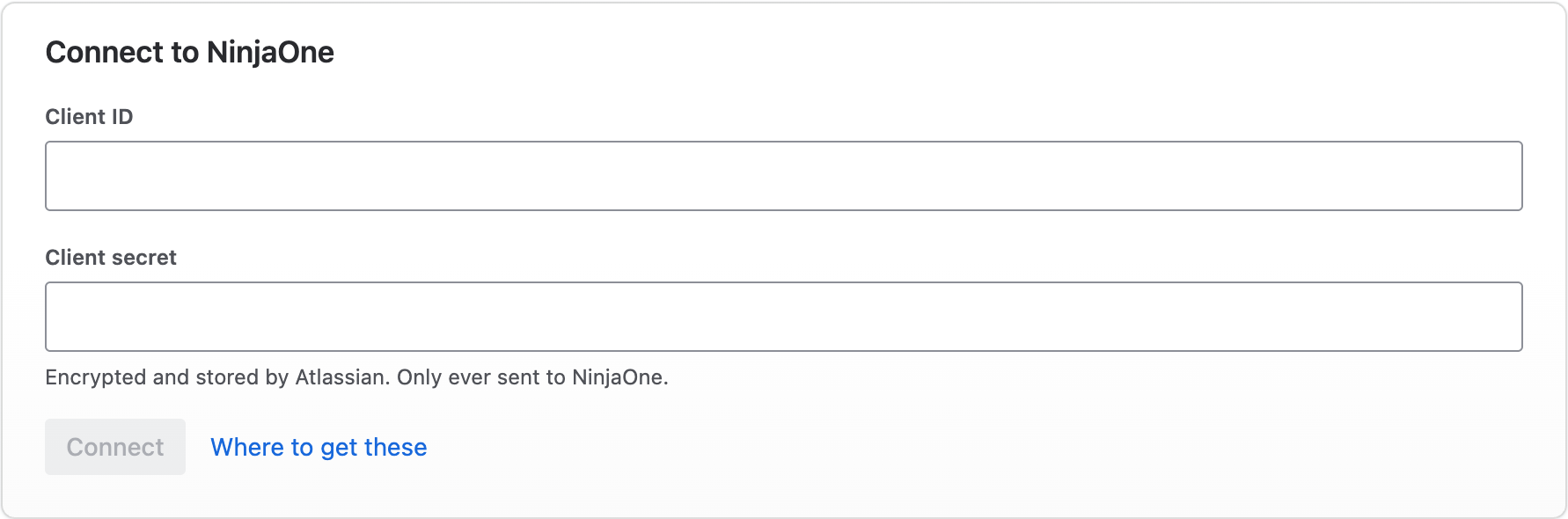
In Jira, open NinjaOne Connector for Jira under Apps. On its Connect tab, paste the client ID and secret and click Connect.
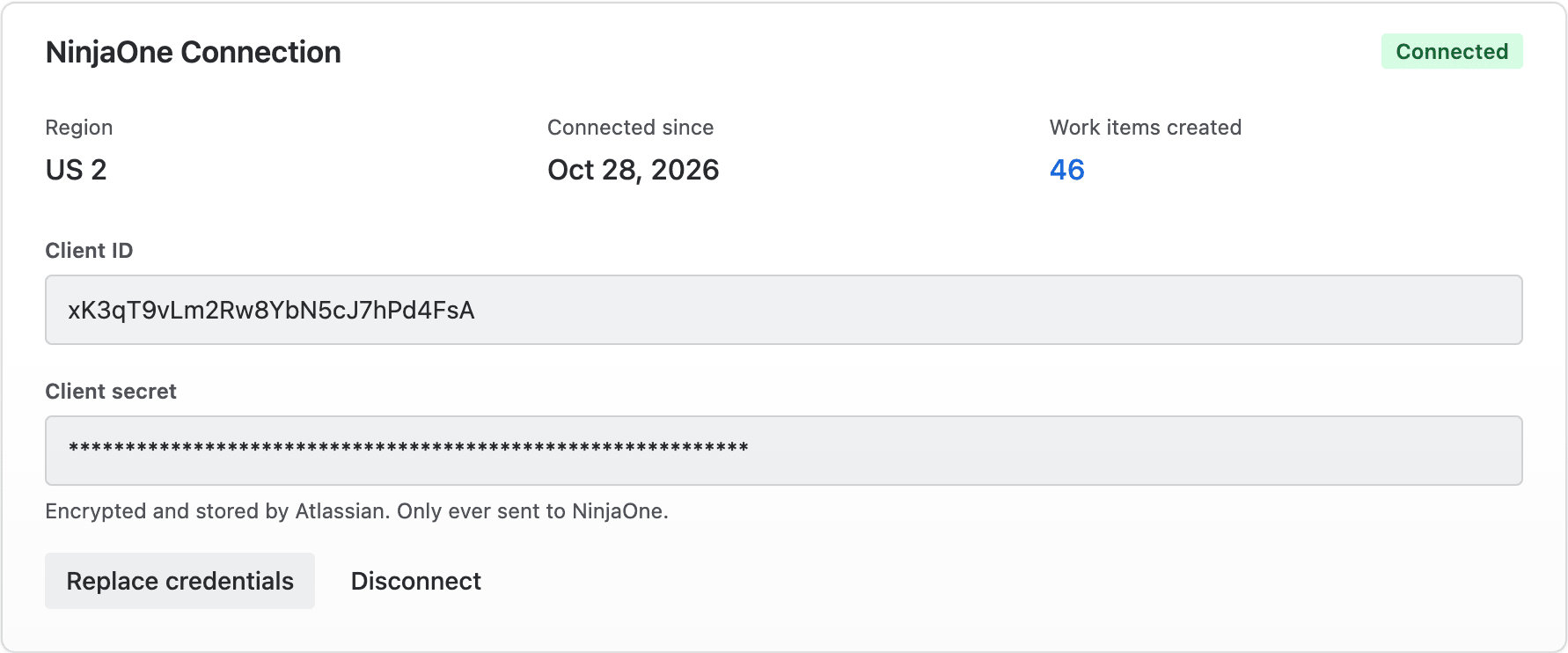
Once connected, the tab shows the connection:
4. Choose where work items go
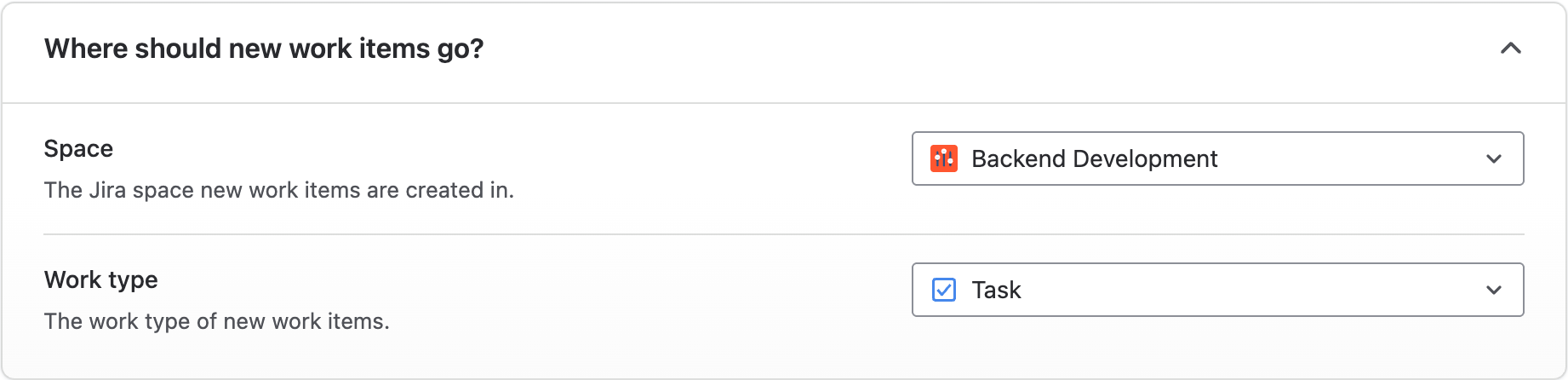
On Settings, open Where should new work items go?, choose a space and work type, and click Save. From then on, each new NinjaOne alert creates a work item within about a minute. Alerts that were already active don’t create work items unless you choose to add them: see Alerts that were already active.
How it works
The app checks NinjaOne about once a minute, and each device and condition gets one work item. What happens after that depends on how you’ve set it up. With the default settings:
| When | By default | Change it under |
|---|---|---|
| An alert fires | A work item is created | Which NinjaOne alerts should create work items? |
| It fires again while the work item is open | Nothing | What happens after a work item is created? |
| It clears | A comment, after 15 minutes | What happens after a work item is created? |
| The work item is marked done | Nothing in NinjaOne | What happens after a work item is created? |
| It fires after the work item was done or deleted | A new work item, linked to the old one | What happens after a work item is created? |
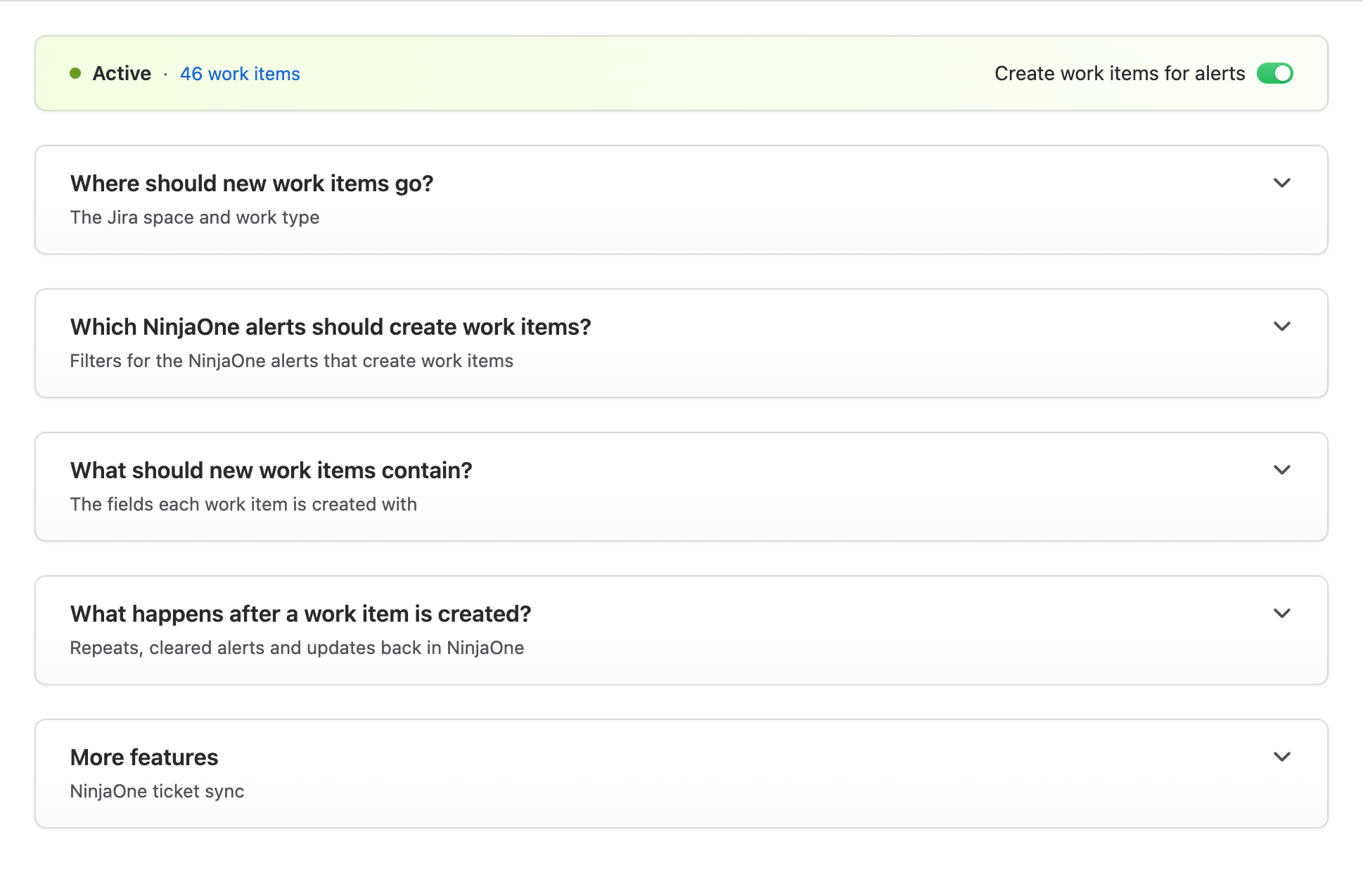
Everything is set on Settings.
Alerts that were already active
Alerts that were already active when you connected don’t create work items on their own. When there are some, a note under the status at the top of Settings says how many. Click Add them in that note to create their work items.
Need help?
If you have a question or need a hand, our support team is here to help.