Behaviours
A behaviour changes how fields act on a work item screen. You can hide a field, make it required, lock it, rename it, or give it a starting value. Behaviours run on the screen itself, as someone fills it in, which makes them the right tool for guiding people as they work rather than correcting things afterwards.
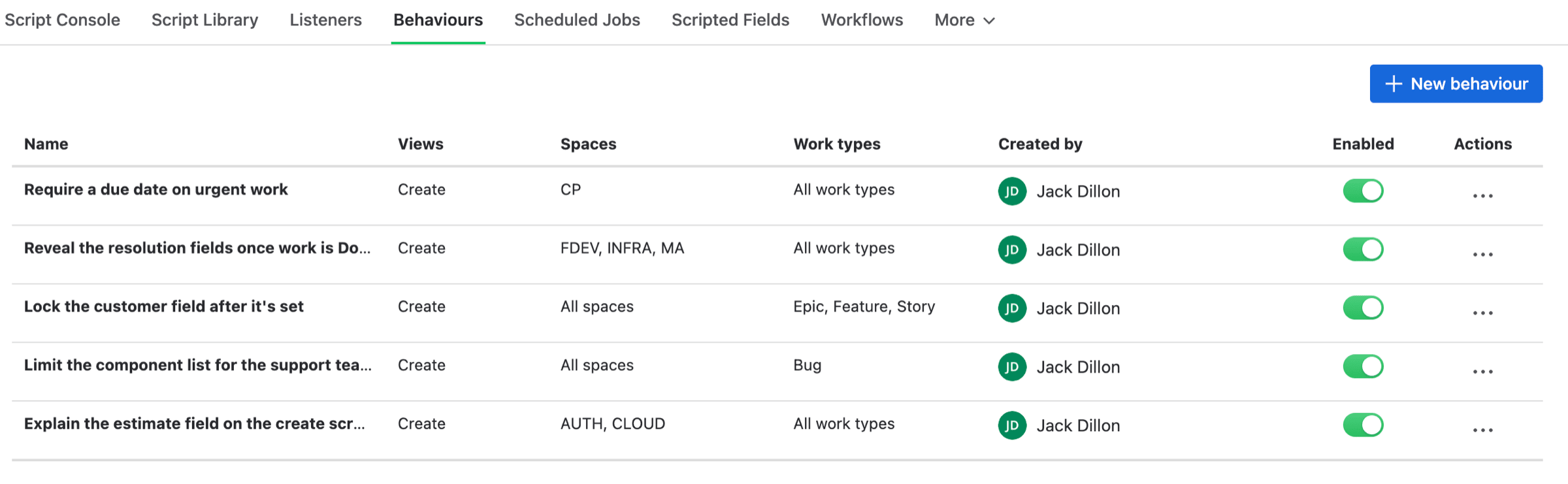
The Behaviours page, with where each one applies
Creating a Behaviour
New behaviour opens the form. You name it, choose where it applies, and write the script that changes the fields.
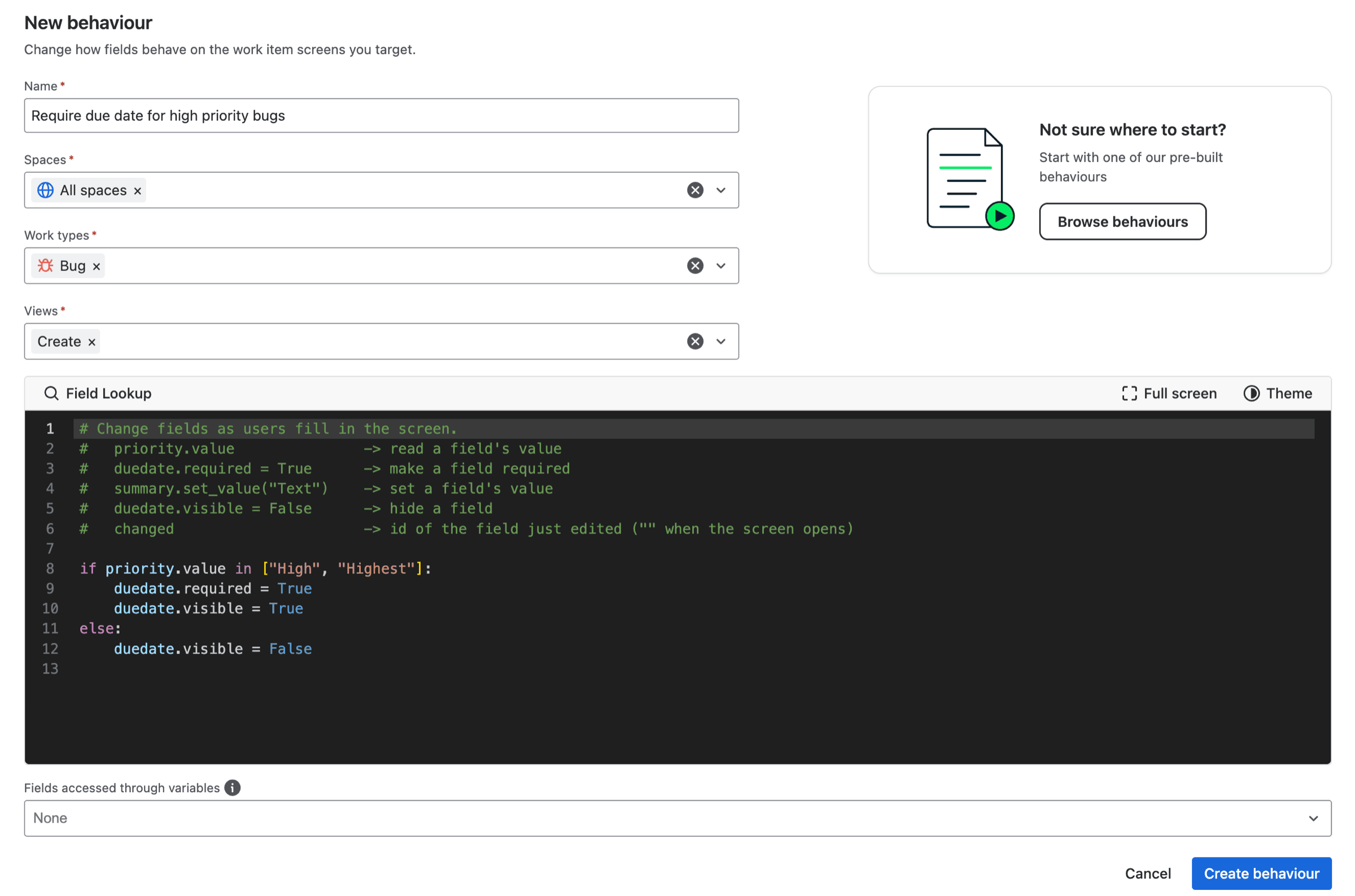
The New behaviour form, with a starter script in the editor
| Field | What it does |
|---|---|
| Name | What you'll recognize it by in the list |
| Spaces | Which spaces it applies in, or all of them |
| Work types | Which work types, or all of them |
| Views | Which screens it runs on |
| Request types | Which portal request forms, when the Portal view is chosen |
| Runs | When the script fires: on screen load, on field edits, or both |
Views is the one worth thinking about. Create is the dialog for making a new work item. View / Edit is the work item page itself. Transition is the dialog that appears when someone moves a work item to a new status. Portal (request create) is the request form your customers fill in on a Jira Service Management help center, and it gets its own section below. A behaviour can run on any combination, and new behaviours default to Create.
Spaces and work types work together to decide where a behaviour applies. You can set either one to everything, but not both at once, so pick the axis you want to be broad and name specific values on the other.
Writing the script
A behaviour is a Python script. You write fields by name and read them with .value. This makes the due date required only for urgent work.
if priority.value in ["High", "Highest"]:
    duedate.required = True
    duedate.visible = True
else:
    duedate.required = False
By default the script runs when the screen opens and again every time someone edits a field, so the form keeps up as they work. changed tells you which field they just touched, and is empty when the screen first opens. The Runs checkboxes narrow that: untick When the screen loads and the script only reacts to edits, untick When a field changes and it only runs as the screen opens. Most behaviours keep both.
| Writing | What it does |
|---|---|
priority.value | Read what's in a field |
duedate.required = True | Make a field required |
duedate.visible = False | Hide a field |
summary.readonly = True | Lock a field |
summary.set_value("Text") | Put a value in a field |
summary.set_name("Title") | Rename a field |
A behaviour runs in the browser, on the screen itself, so by default it works with what's in front of it and sends nothing anywhere. That's what keeps the screen responsive. A script can call Jira when it genuinely needs data the screen doesn't have, which we cover further down. You get the everyday parts of Python: conditions, loops, comprehensions, string and date handling, and the common built-in functions. Anything the editor won't accept is flagged with a line number when you save, rather than failing silently later.
Fields accessed through variables
When you save, PyRunner notes every field the script uses, so Jira can have them ready on the screen. It finds them by looking inside each field(...) call for a name or id written in quotes. Most scripts do that, and there's nothing more to do.
This one is found automatically:
field("Risk score").required = TrueThis one isn't, because field(f) passes a variable. A variable must hold the field id:
for f in ["customfield_10810", "customfield_10815"]:
    field(f).visible = False
The behaviour still saves, but nothing happens to those two fields on the screen. Jira only lets a behaviour touch fields it was told about up front, and a variable is only read once the script is already running. Name them under Fields accessed through variables and they work:

The two fields the loop touches, named by hand
Note: a name works in field() when only one field carries it. We turn it into an id when you save, so a later rename still finds the right field. A shared or unknown name is refused at save, with the line to fix. Field Lookup has the ids.
Service Management Portals
The Portal (request create) view runs behaviours on the request forms of your Jira Service Management help center, the screens your customers see. Everything works the way it does on Create: you read fields, set values, hide, require and rename, and a value you set fills in the form for the customer to finish. It's the right place to shape what a request looks like before it ever reaches an agent.
Choose Portal (request create) under Views and a Request types picker appears. Leave it on All request types and the behaviour covers every request form your spaces and work types reach. Pick specific request types and the behaviour runs on exactly those forms. A specific selection takes over from the work types for the Portal view, so a form you picked always counts, and any other views on the same behaviour keep the work-type scope.
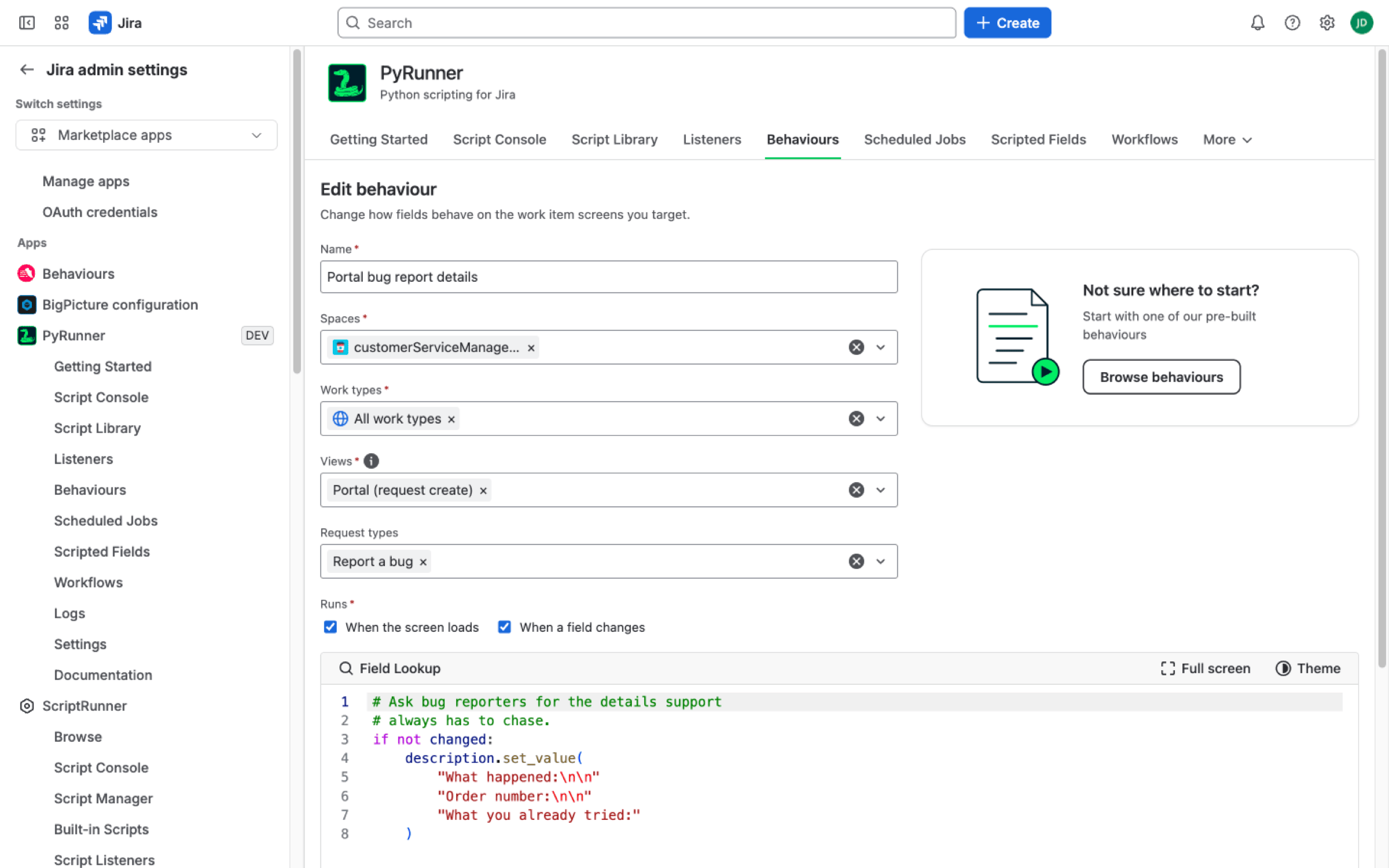
A portal behaviour scoped to one request form
Two context keys tell you where you are. portal_id and request_type_id carry the portal and the request form the customer has open, and context["view"] reads "portal". Jira doesn't supply the space on this screen, so project_key and its siblings read None there.
The portal runs behaviours for logged-in customers, including unlicensed ones. Anonymous portals are the one gap: Jira doesn't run any app's screen logic for visitors who aren't signed in.
Note: JSM's agent screens, the queues an agent works from, don't run behaviours yet. Atlassian is rolling out support, and we already register your Create, View / Edit and Transition behaviours for those screens, so on most sites they start working the moment yours gets it. If a behaviour saved before the rollout doesn't, saving it again picks the screens up.
Example: a template for bug reports
Support teams answer half their bug reports with the same first reply: what happened, which order, what did you try. This behaviour puts those questions in the description before the customer starts typing. Scope it to the Report a bug request type, and the description arrives as the template on the right.
# Ask bug reporters for the details
# support always has to chase.
if not changed:
    description.set_value(
        "What happened:\n\n"
        "Order number:\n\n"
        "What you already tried:"
    )
The script
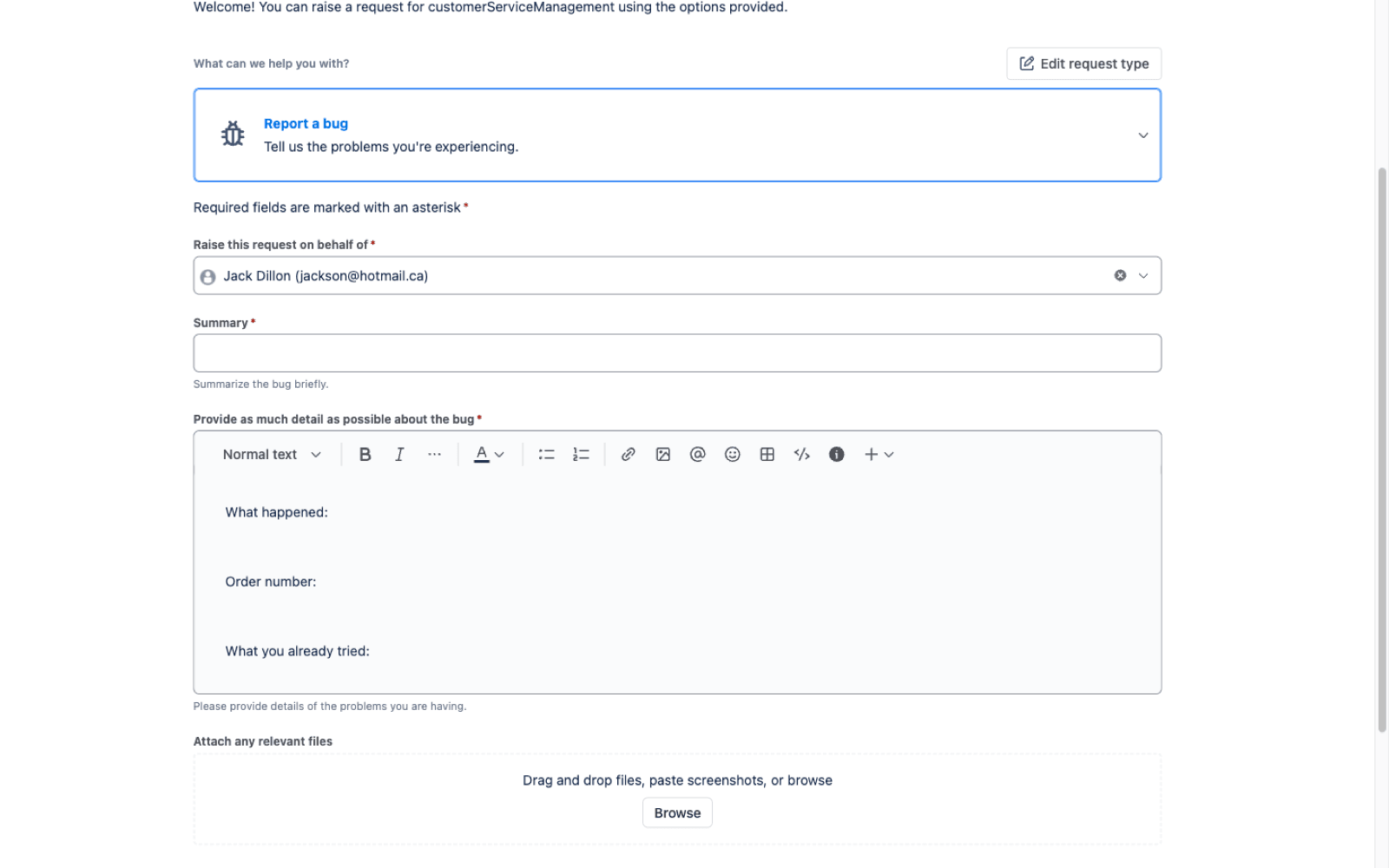
What the customer sees on the help center
The if not changed: guard means the template lands once, as the form opens, and never fights the customer while they type over it. Each \n starts a new line in the description.
Calling Jira
Most behaviours only need the fields in front of them. Some need something the screen doesn't hold: the space's unreleased versions, how many similar work items already exist, who's filling in the form. A script can ask Jira for that.
jira.get, jira.post, jira.put and jira.delete call Jira's REST API and hand you the parsed response. They run as the person on the screen, with that person's permissions, so a script can't show someone data they couldn't already see. Call them on their own line, either as a statement or as the whole right side of an assignment. Anything nested, like putting the call inside an if or a loop body's expression, is refused when you save.
versions = jira.get("/rest/api/3/project/PROJ/versions")
planned = [v for v in versions if not v.get("released", False)]
fixVersions.required = len(planned) > 0
A failed call raises an error you can catch, naming the method, the path and the status. Each call is given ten seconds before it gives up.
Note: a behaviour re-runs on every field edit, so an unguarded call fires each time. Put fetches behind if not changed: and they run once, when the screen opens.
Knowing where you are
context is a dictionary of facts about the screen. It carries the space and work type being used, which view the script is running on, who's looking at it, and their timezone and locale. On the View / Edit and Transition screens it also carries the work item. Read from it like any dictionary, and expect None for anything the current screen doesn't have.
| Key | Example | Key | Example |
|---|---|---|---|
view | "create" | project_key | "PROJ" |
project_id | "10011" | project_type | "software" |
work_type | "Story" | work_type_id | "10044" |
work_item_key | "PROJ-123" | work_item_id | "10500" |
account_id | "5fb405a7cbead50069dd9b63" | timezone | "Europe/London" |
locale | "en_GB" | portal_id | "2" |
request_type_id | "9" |
Logs
A behaviour runs on someone else's screen, which makes "it didn't work" hard to chase. log.info, log.warn, log.error and log.debug take the same arguments print would and keep a short history on the behaviour itself. Open it from View logs in the row's menu on the Behaviours page.
log.info("opened by", context["account_id"], "in", context["project_key"])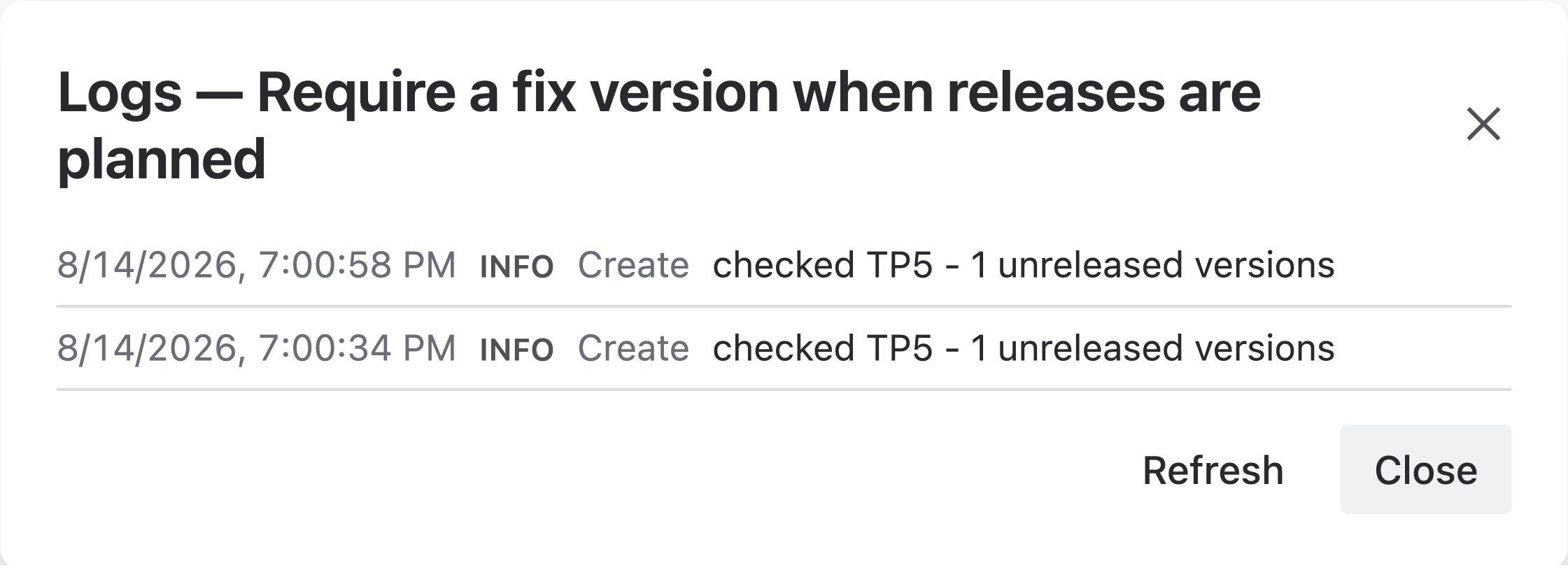
Two runs of the same behaviour, newest first
Lines also appear in your browser's developer console, which is quicker to check while you're still writing the script. Anything you log is stored, so keep sensitive values out of the message.
What Works on Which Screen
Jira allows different things on different screens, and those limits are Jira's rather than ours. Setting a value works on every screen; the thing to know is that on View / Edit it changes the work item itself the moment the behaviour runs, while Create, Transition and Portal only fill in the form. Defaults never overwrite a value that's already there. Hiding, locking and renaming work everywhere. Requiring works on Create, Transition and Portal, which are forms someone submits, but not on View / Edit.
| What you want | Where it works |
|---|---|
| Set a value | Every screen (on View / Edit it changes the work item itself) |
| Hide, lock, rename | Every screen |
| Make required | Create, Transition and Portal, not View / Edit |
| Change Status | Not on View / Edit |
You don't have to memorize this. If you save something that won't run on a screen you've chosen, we tell you which part won't work and let you decide whether to go ahead or change the views. The full field-by-field tables for each screen are at the end of this page. See every supported field →
Screen tabs
Where a screen is split into tabs, a behaviour can hide one, show it, or bring it to the front. screen_tabs() gives you the ids on the current screen and screen_tab("id") gives you one to work with. On a view with no tabs these do nothing rather than failing, so a behaviour covering several views is safe.
if priority.value == "Highest":
    screen_tab("10100").visible = True
    screen_tab("10100").focus()
Two screens have requirements worth knowing before you rely on them. View / Edit runs on Jira Software projects only. Transition needs Jira's new transition experience; without it, a transition behaviour will not run. Most Jira sites already have this. If you do not, please follow these steps.
Limitations
Behaviours are built on Jira's UI Modifications API, and the limits here belong to that API rather than to us. Every behaviours product on Jira Cloud works within the same ones.
Behaviours run in Jira and Jira Work Management spaces, and on Jira Service Management portals through the Portal view. JSM's agent screens are the one gap: Jira doesn't run any app's screen logic there yet. Atlassian is rolling out support, and we already register your behaviours for those screens, so they start working when your site gets it. Team-managed spaces don't support the Transition view, and Jira Work Management supports Create only. See where behaviours run →
Jira supports a fixed set of field types on each screen, and it goes by the field's exact type. The built-in Labels field can be changed; a custom field of the labels type looks the same but can't. You don't need to memorize any of this: if a script touches a field Jira can't change on a screen you've chosen, the save warns you and names the field. See every supported field →
Three numbers to know. A site holds up to 3,000 behaviours. Each behaviour can register up to 1,000 contexts, where a context is one combination of space, work type and view. Choosing all spaces or all work types counts as a single wildcard, so the limit only comes into play when you name many specific spaces and work types together. And a behaviour's compiled script has to fit in 50,000 characters, which only a very long script approaches. One that compiles over the limit fails to save with a message naming the size.
A behaviour runs in the browser every time a field changes, so a heavy script can make the screen feel slow.
Example
Teams often want urgent work to come with a date attached, but making the due date required for everything is heavy handed. This behaviour asks for one only when it matters.
Set Views to Create and choose the spaces and work types it should cover. Someone raising a Medium priority work item sees the normal form, but the moment they change the priority to High, the due date and description become required. Set the priority back and the form relaxes again.
# Urgent work needs a due date
# and a description.
if priority.value in ["High", "Highest"]:
    duedate.required = True
    description.required = True
else:
    duedate.required = False
    description.required = False
The script
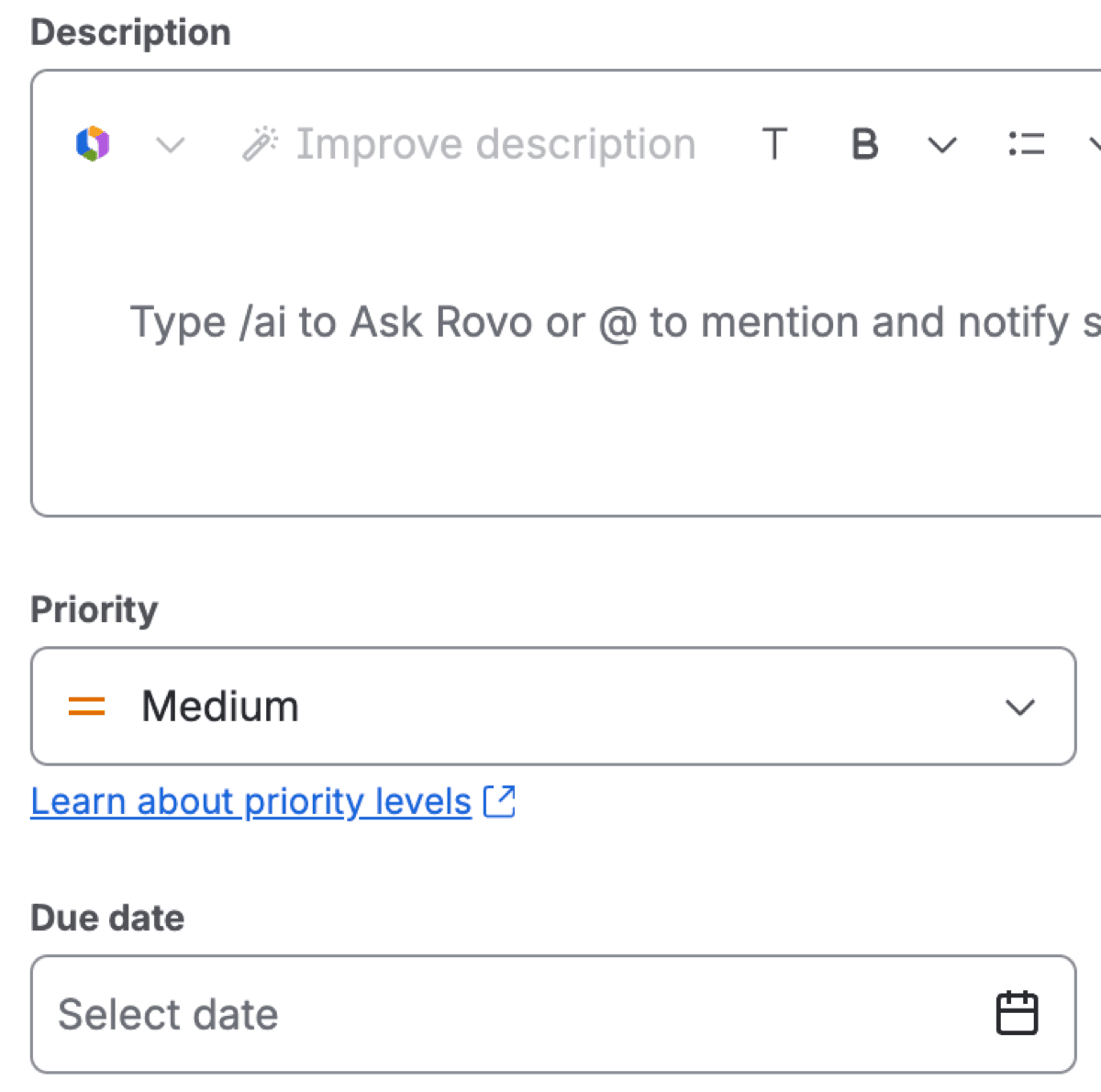
Medium: nothing required
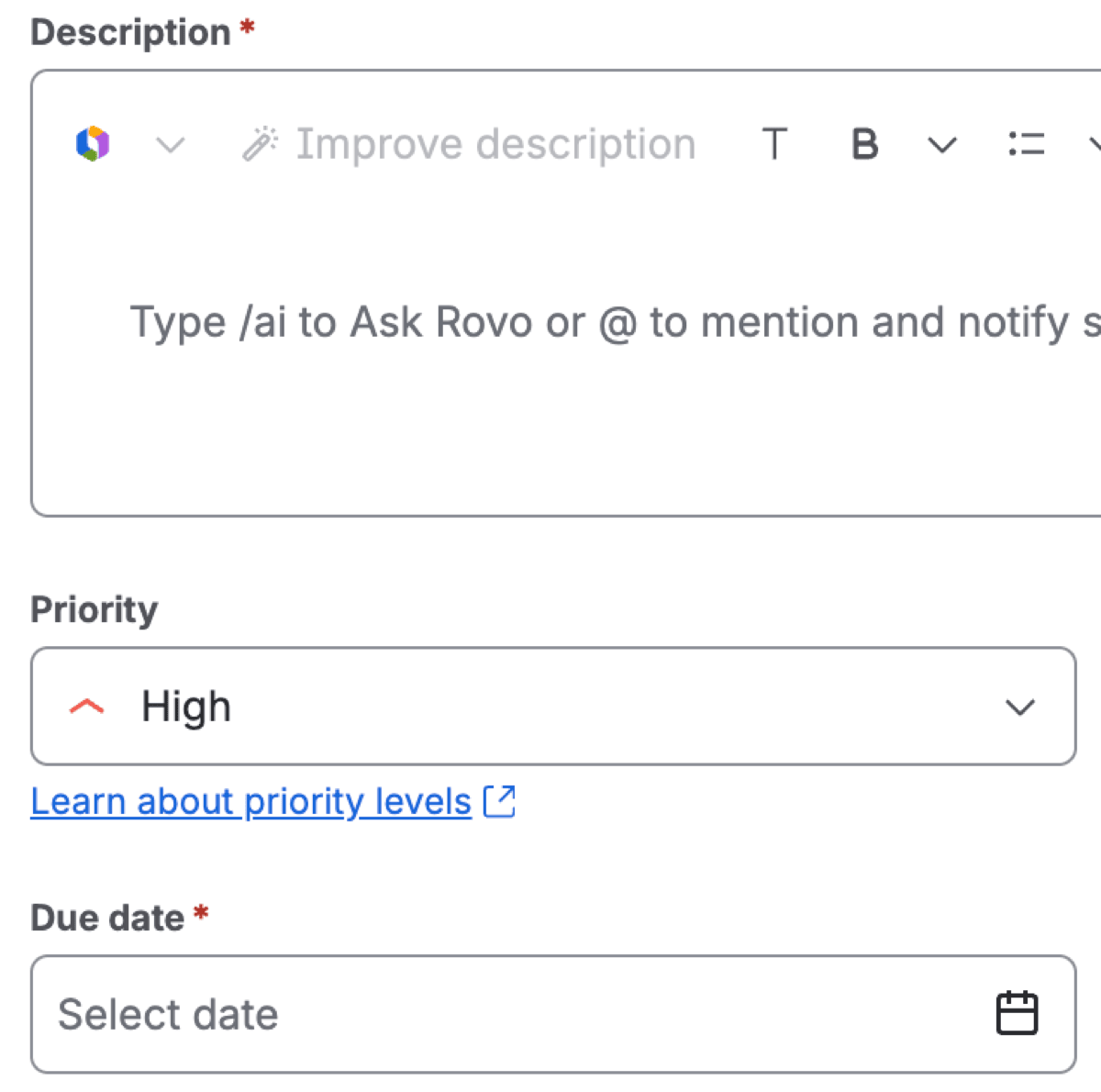
High: both required
Supported Fields
Behaviours change fields through Jira's UI Modifications API, and that API supports a fixed set of fields on each screen. The tables below list every field type and what you can do with it on the Create, View / Edit, Transition and Portal screens. A green tick means the change works there. A grey cross means Jira ignores it on that screen, no matter which app asks. These limits belong to the API itself, so they are the same for every behaviours product built on it.
Where behaviours run
Behaviours run in Jira and Jira Work Management spaces, and on the request forms of Jira Service Management portals.
| Space type | Create | View / Edit | Transition | Portal |
|---|---|---|---|---|
| Jira, company-managed | ||||
| Jira, team-managed | ||||
| Jira Work Management, company-managed | ||||
| Jira Service Management |
The Portal column applies to service spaces only: their help-center request forms run the Portal view, while their agent screens wait on Atlassian's rollout, as covered under Limitations.
Reading the tables
Each column is one thing a script can do to a field, and it covers both setting the value and reading it back. A tick under Set value means both summary.set_value("Text") and summary.value work on that screen. Options is the exception: show_options and hide_options only set what a select-style field offers, and can't read it back.
| Setting | Table column |
|---|---|
summary.set_name("Title") | Rename |
duedate.set_description("Help text") | Description |
duedate.visible = False | Show / hide |
labels.set_value(["triaged"]) | Set value |
summary.readonly = True | Read only |
duedate.required = True | Required |
priority.show_options(["1", "2"]) | Options |
A tick in the System field column means the row is the built-in Jira field with that name. The rest are custom field types you've added to your site. The distinction matters when a built-in field and a custom type share a look: the built-in Labels field follows its row, but a custom field of the labels type isn't in the tables and won't respond.
A field that doesn't appear in a table can't be changed on that screen at all. Due date is the one people go looking for: Jira supports it on Create, but not on View / Edit or Transition.
Three fields are missing from these tables that people reasonably expect to find, because they look like fields that are supported. Environment is rich text like Description, but Description is supported and Environment isn't. Story point estimate, the estimation field in team-managed spaces, is a number but isn't the Number type in these tables, so it doesn't respond either. The Story Points field in company-managed spaces is an ordinary Number field and does work. Affected services ignores everything as well. On all three, both requiring and hiding are ignored, and Jira gives no error. We checked each of these on a real Create screen rather than reading it off Jira's documentation.
Create
The Create dialog supports the widest set. Values you set here fill in the form, and nothing lands until the person creates the work item. The two rows that stand out are Summary, which Jira always requires so a behaviour can't make it optional, and Work type, which is the dialog's type picker and only takes a value or a restricted options list.
| Field | System field | Rename | Description | Show / hide | Set value | Read only | Required | Options |
|---|---|---|---|---|---|---|---|---|
| Affects versions | ||||||||
| Assignee | ||||||||
| Cascading select | ||||||||
| Checkboxes | ||||||||
| Components | ||||||||
| Date picker | ||||||||
| Date time picker | ||||||||
| Description | ||||||||
| Due date | ||||||||
| Fix versions | ||||||||
| Labels | ||||||||
| Multi select | ||||||||
| Multi user picker | ||||||||
| Number | ||||||||
| Paragraph | ||||||||
| Parent | ||||||||
| People | ||||||||
| Priority | ||||||||
| Project | ||||||||
| Radio buttons | ||||||||
| Reporter | ||||||||
| Single select | ||||||||
| Summary | ||||||||
| Target end | ||||||||
| Target start | ||||||||
| Text field | ||||||||
| URL | ||||||||
| User picker | ||||||||
| Work type |
View / Edit
On View / Edit a set changes the work item itself the moment the behaviour runs, so treat Set value with the care you'd give any edit. Defaults only fill empty fields, and a set whose value already matches the field is skipped rather than applied again. Required has no ticks on this screen because Jira only enforces required fields on forms, and the work item page isn't one.
| Field | System field | Rename | Description | Show / hide | Set value | Read only | Required | Options |
|---|---|---|---|---|---|---|---|---|
| Affects versions | ||||||||
| Assignee | ||||||||
| Cascading select | ||||||||
| Checkboxes | ||||||||
| Components | ||||||||
| Date picker | ||||||||
| Date time picker | ||||||||
| Description | ||||||||
| Fix versions | ||||||||
| Labels | ||||||||
| Multi select | ||||||||
| Multi user picker | ||||||||
| Number | ||||||||
| Original estimate | ||||||||
| Paragraph | ||||||||
| Parent | ||||||||
| People | ||||||||
| Priority | ||||||||
| Project | ||||||||
| Radio buttons | ||||||||
| Reporter | ||||||||
| Single select | ||||||||
| Status | ||||||||
| Summary | ||||||||
| Text field | ||||||||
| URL | ||||||||
| User picker |
Note: On the View / Edit screen, Jira hides an empty field that's been made read-only. That's Jira's own rule for fields you can't edit, not a missing tick. Story Points is also special on this screen: Jira manages it directly and doesn't reliably enforce read-only on it.
Transition
The Transition dialog behaves like Create: what you set fills in the form and lands when the person completes the transition. Resolution appears here and nowhere else, because the transition dialog is the only screen that asks for it.
| Field | System field | Rename | Description | Show / hide | Set value | Read only | Required | Options |
|---|---|---|---|---|---|---|---|---|
| Affects versions | ||||||||
| Assignee | ||||||||
| Cascading select | ||||||||
| Checkboxes | ||||||||
| Date picker | ||||||||
| Date time picker | ||||||||
| Description | ||||||||
| Fix versions | ||||||||
| Labels | ||||||||
| Multi select | ||||||||
| Multi user picker | ||||||||
| Number | ||||||||
| Original estimate | ||||||||
| Paragraph | ||||||||
| Parent | ||||||||
| Priority | ||||||||
| Project | ||||||||
| Radio buttons | ||||||||
| Reporter | ||||||||
| Resolution | ||||||||
| Single select | ||||||||
| Summary | ||||||||
| Text field | ||||||||
| URL | ||||||||
| User picker | ||||||||
| Work type |
Portal (request create)
The portal request form supports most of what Create does, on a shorter field list, because a request form only carries the fields the request type asks for. Values you set fill in the form and land when the customer sends the request. Summary and Description can't be made required here, and the fields that shape a work item rather than describe it, such as due date, reporter and versions, aren't on the portal form at all.
| Field | System field | Rename | Description | Show / hide | Set value | Read only | Required | Options |
|---|---|---|---|---|---|---|---|---|
| Assignee | ||||||||
| Cascading select | ||||||||
| Checkboxes | ||||||||
| Date picker | ||||||||
| Date time picker | ||||||||
| Description | ||||||||
| Labels | ||||||||
| Multi select | ||||||||
| Multi user picker | ||||||||
| Number | ||||||||
| Paragraph | ||||||||
| Priority | ||||||||
| Radio buttons | ||||||||
| Single select | ||||||||
| Summary | ||||||||
| Text field | ||||||||
| URL | ||||||||
| User picker |
Need Additional Help?
If you have any questions or need assistance, our support team is here to help