Scheduled Jobs
A scheduled job runs a script on a repeating schedule. A report every Monday morning, a nightly tidy-up of stale work items, etc.
Where a listener reacts to something happening in Jira, a scheduled job runs whether anything happened or not. That makes it the right choice for summaries, sweeps and anything that should land at a predictable time.
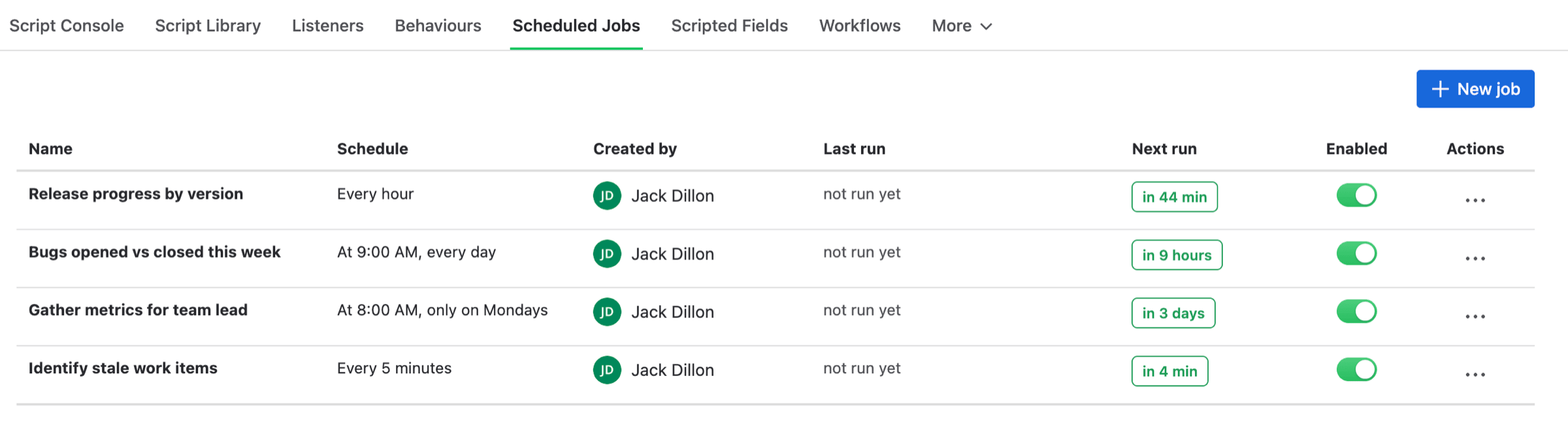
Scheduled jobs, with a countdown to each next run
Creating a Scheduled Job
New job on the Scheduled Jobs page opens the form.
| Field | What it does |
|---|---|
| Name | What you'll recognise it by in the list and the logs |
| Schedule | A cron expression saying when to run |
| Script | Written here, or picked from your Script Library |
| Run as | Whose permissions the script uses. Defaults to you |
Script offers a choice on a new job. Pick Write new to type one here, or Saved script to run something from your Script Library. A saved script is copied into the job, so later edits to the original don't affect it. Editing the job edits its own copy.
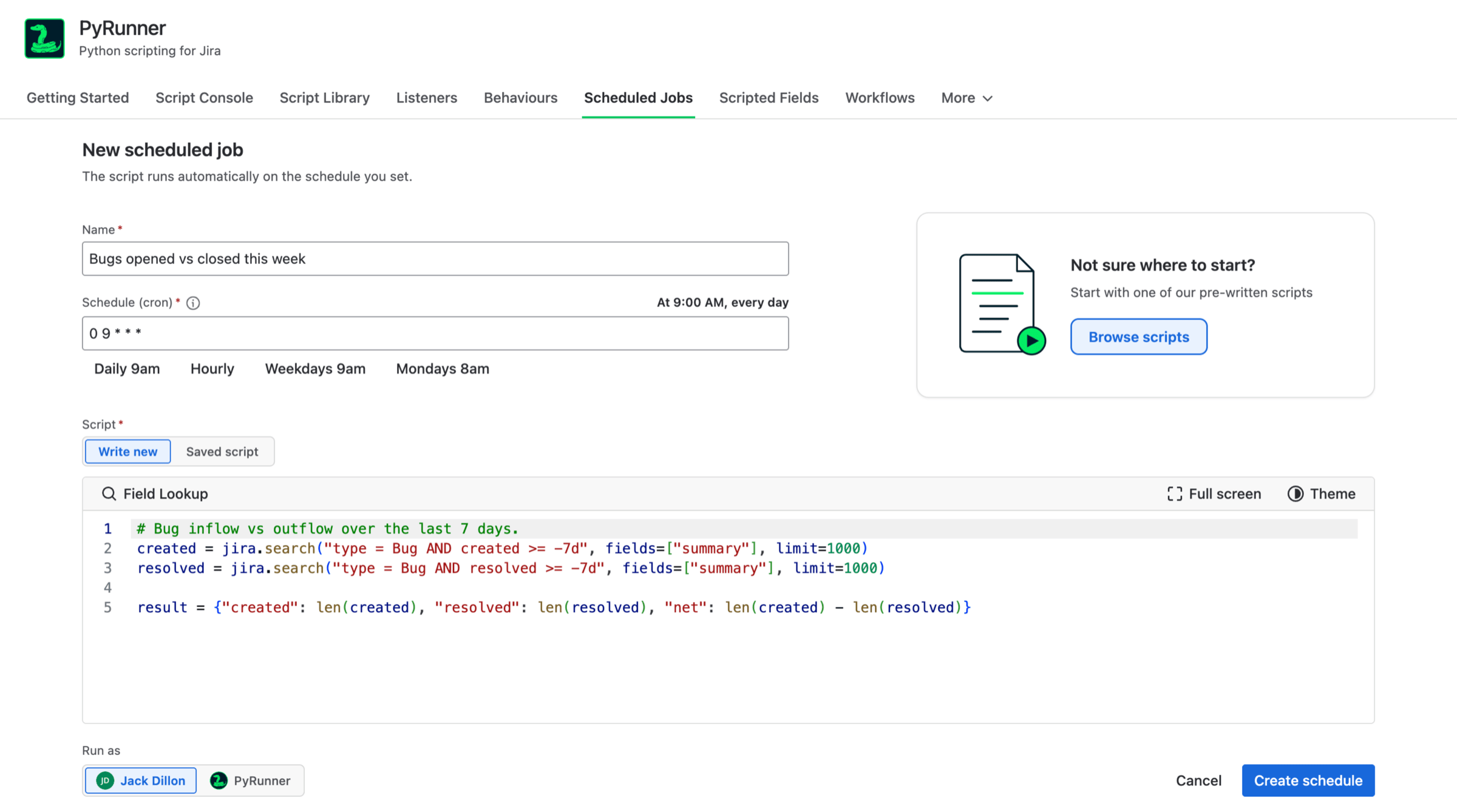
A bug inflow report, set to run each morning
Starting from a template
Browse scripts opens a set of pre-written jobs, such as a standup digest or a sweep for work that has gone quiet. Choosing one fills in the script, and leaves the schedule to you, since when a report should land depends on how your team works.
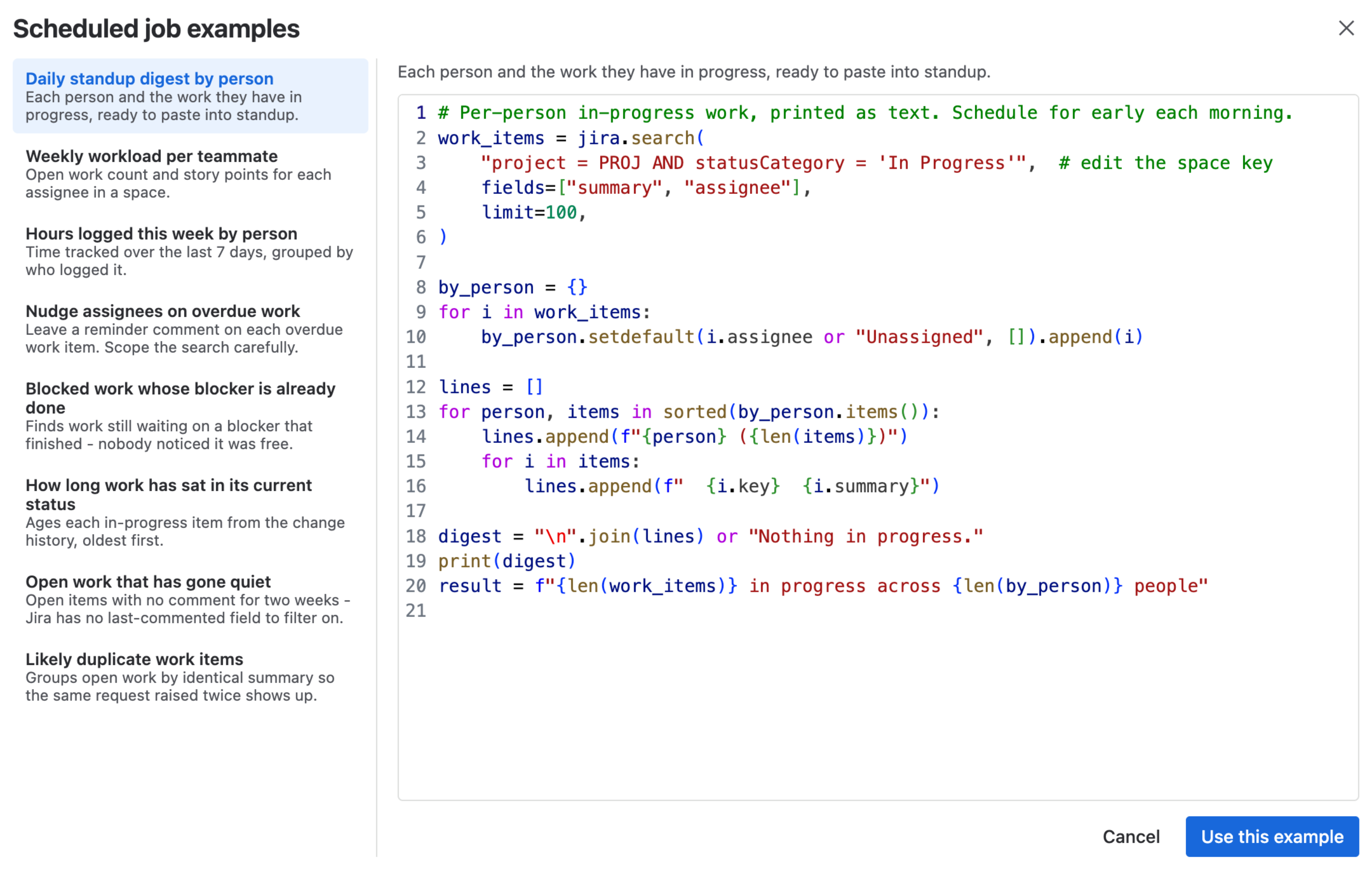
Pre-written jobs to start from
Setting the Schedule
The schedule is a cron expression. That's five values separated by spaces, saying minute, hour, day of the month, month, and day of the week, in that order. A * means every.
So 0 9 * * * is minute 0 of hour 9, every day of the month, every month, every day of the week. Nine in the morning, daily.
| Expression | When it runs |
|---|---|
0 9 * * * | Every day at 9:00am |
0 * * * * | Every hour, on the hour |
0 9 * * 1-5 | Weekdays at 9:00am |
0 8 * * 1 | Mondays at 8:00am |
*/15 * * * * | Every 15 minutes |
0 8 1 * * | The 1st of each month at 8:00am |
You don't have to remember any of this. The form has buttons for the four most common schedules, and as you type it shows what your expression means in plain English, so you can check it says what you intended before saving.
Note: Jobs can run at most once every 5 minutes. Anything more frequent is refused when you save, with a message saying so.
Timezone
Every scheduled job on your site runs in the same timezone. You set it once under Settings, in the More menu, and it applies to all of them. There's no timezone on the job itself.
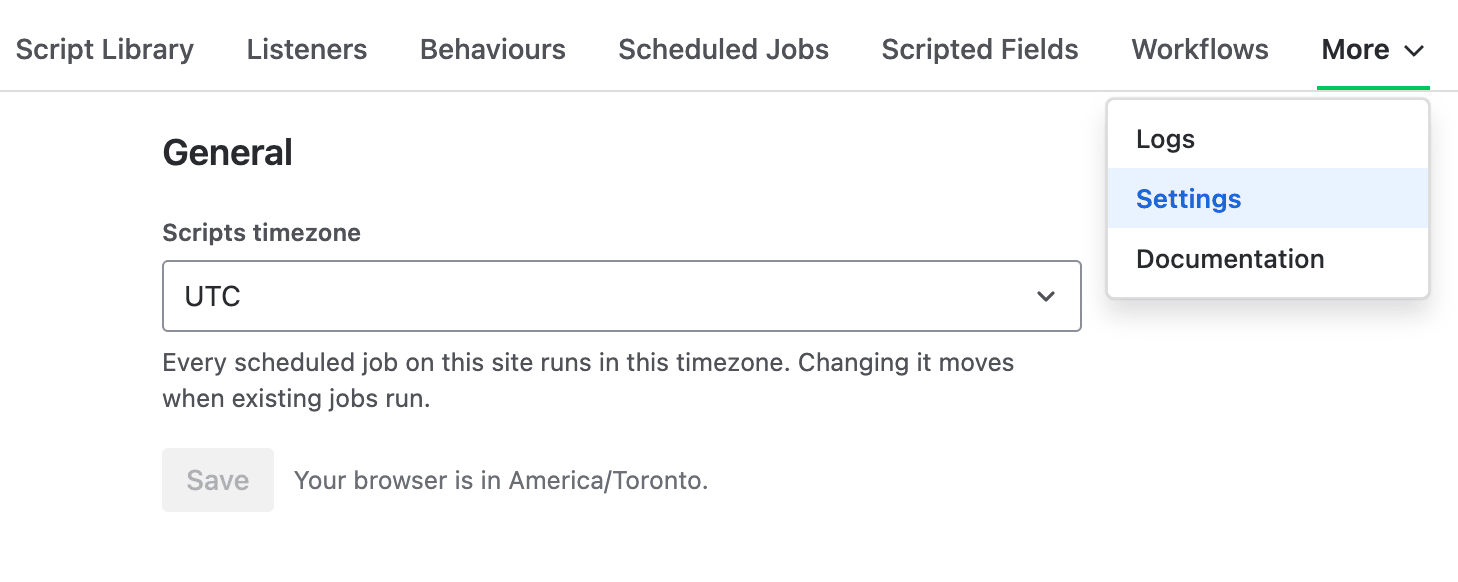
One timezone for every scheduled job
The default is UTC. If your team works to a particular timezone, set it before you build many jobs, because 0 9 * * * means nine in the morning in whichever zone is configured. Changing it later moves every existing job to match.
The picker searches on more than the formal name. Typing a city, an abbreviation like EST, or an offset will find the right zone.
Managing Jobs
The list page shows each job's schedule in plain English, when it Last run, and a Next run countdown that tells you how long until it fires again. A failed last run gets a red marker, so a job that's quietly breaking every night is visible without opening anything.
The Enabled toggle stops a job without deleting it, which is what you want while you're investigating something. Each row's ⋯ menu has Edit, Run now, Disable, Logs and Delete. Logs stays greyed out until the job has actually run.
Running a job by hand
Run now runs the job immediately, which is how you test one without waiting for its schedule. It doesn't affect the timing of the next scheduled run, it uses the same identity the job normally would, and the row updates with the verdict when the run finishes.
How long a job can run
Every scheduled run gets around fourteen minutes, with no handover partway through and nothing to plan around. Run nowworks the same way, so a test run behaves exactly like the real thing.
Who the job runs as
A job set to run as you keeps using your account long after you've closed the browser, so its changes are attributed to you and it sees exactly what you can see. If that ever becomes impossible, the run fails rather than quietly running as PyRunner instead.
Example
Work that's been sitting untouched tends to go unnoticed. This job posts a comment on anything in progress that nobody has touched in two weeks, so it resurfaces on whatever schedule you choose.
# Nudge in-progress work that has gone quiet for two weeks.
stale = jira.search(
    jql='statusCategory = "In Progress" AND updated <= -14d',
    fields=["summary", "assignee", "updated"],
)

nudged = []
for item in stale:
    item.comment("No updates in two weeks. Is this still moving?")
    nudged.append({
        "key": item.key,
        "summary": item.summary,
        "assignee": item.assignee or "Unassigned",
    })

result = pd.DataFrame(nudged)
If the script fails partway, none of the comments are posted, so a broken run doesn't leave half the work items commented on.
Once it's run, Logs in the job's ⋯ menu shows just that job's runs. Each one records how long it took and what it changed, with the first few changes listed and the rest behind Show more.

One run, with what it changed
Setting result to a table is what makes the run reviewable afterwards. View output opens it, so you can see every work item the job touched rather than just the count.
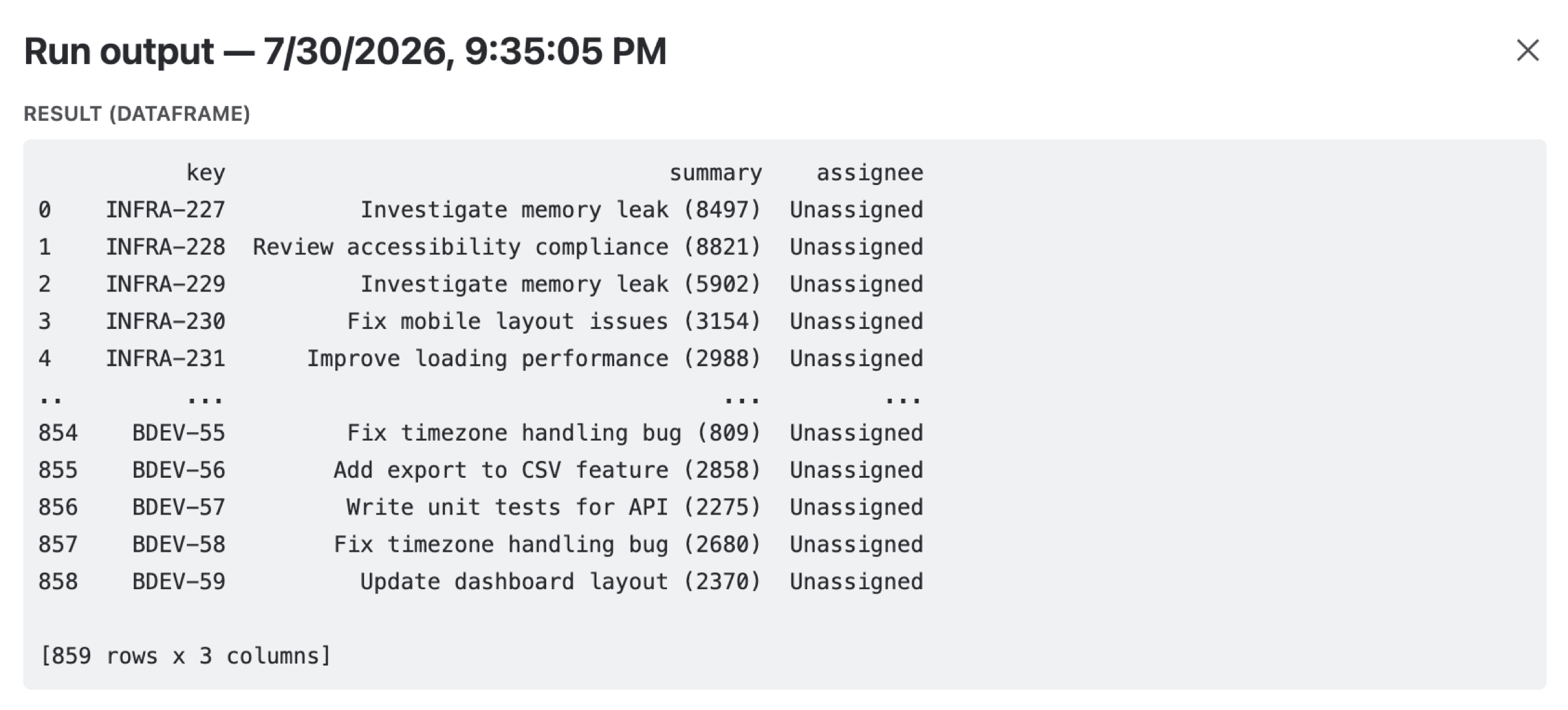
Every work item the job commented on
Need Additional Help?
If you have any questions or need assistance, our support team is here to help