Listeners
A listener runs a script automatically when something happens in Jira. A work item is created, a comment is added, a sprint starts. You choose which events to listen for and which spaces to watch, and the script runs each time one of them happens. Rather than running a script yourself, you describe when it should run and Jira triggers it for you.
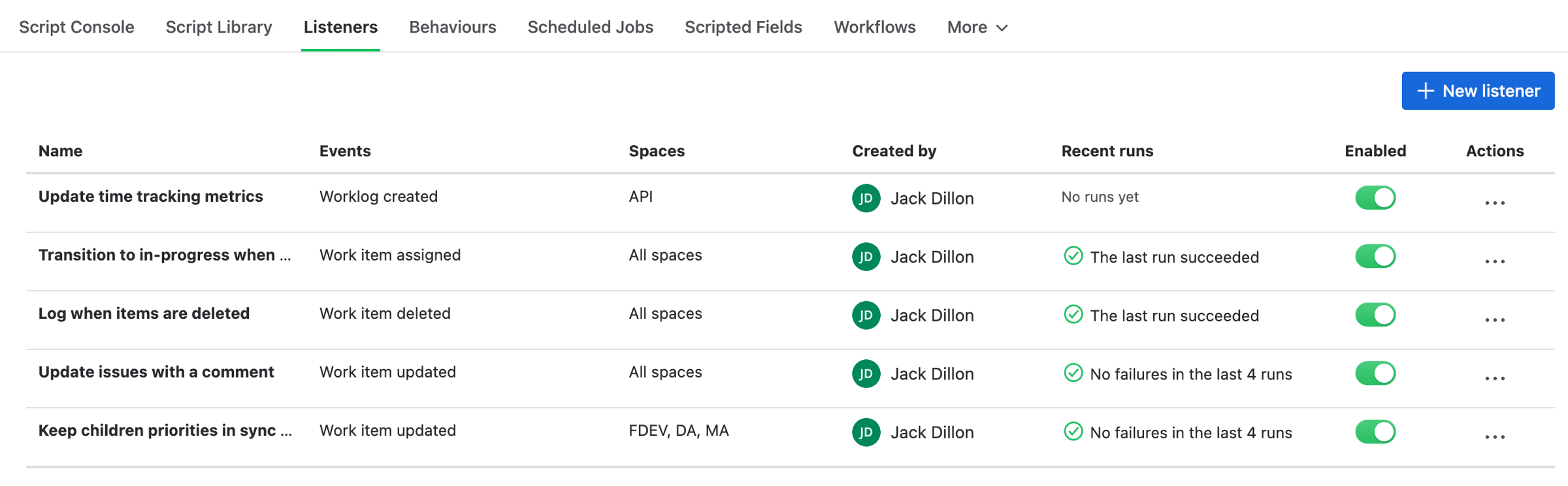
The Listeners page, with each listener's recent run health
Creating a Listener
New listener on the Listeners page opens the form. There are five things to fill in.
| Field | What it does |
|---|---|
| Name | What you'll recognise it by in the list and the logs |
| Events | Which events trigger the script. Pick as many as you like |
| Spaces | Which spaces to watch, or all of them |
| Script | The Python that runs each time an event fires |
| Run as | Whose permissions the script uses. Defaults to you |
Events is a grouped picker. Select as many as you want and the script runs when any one of them happens, so a listener that reacts to both a work item being created and updated is one listener, not two. The script can tell which one fired.
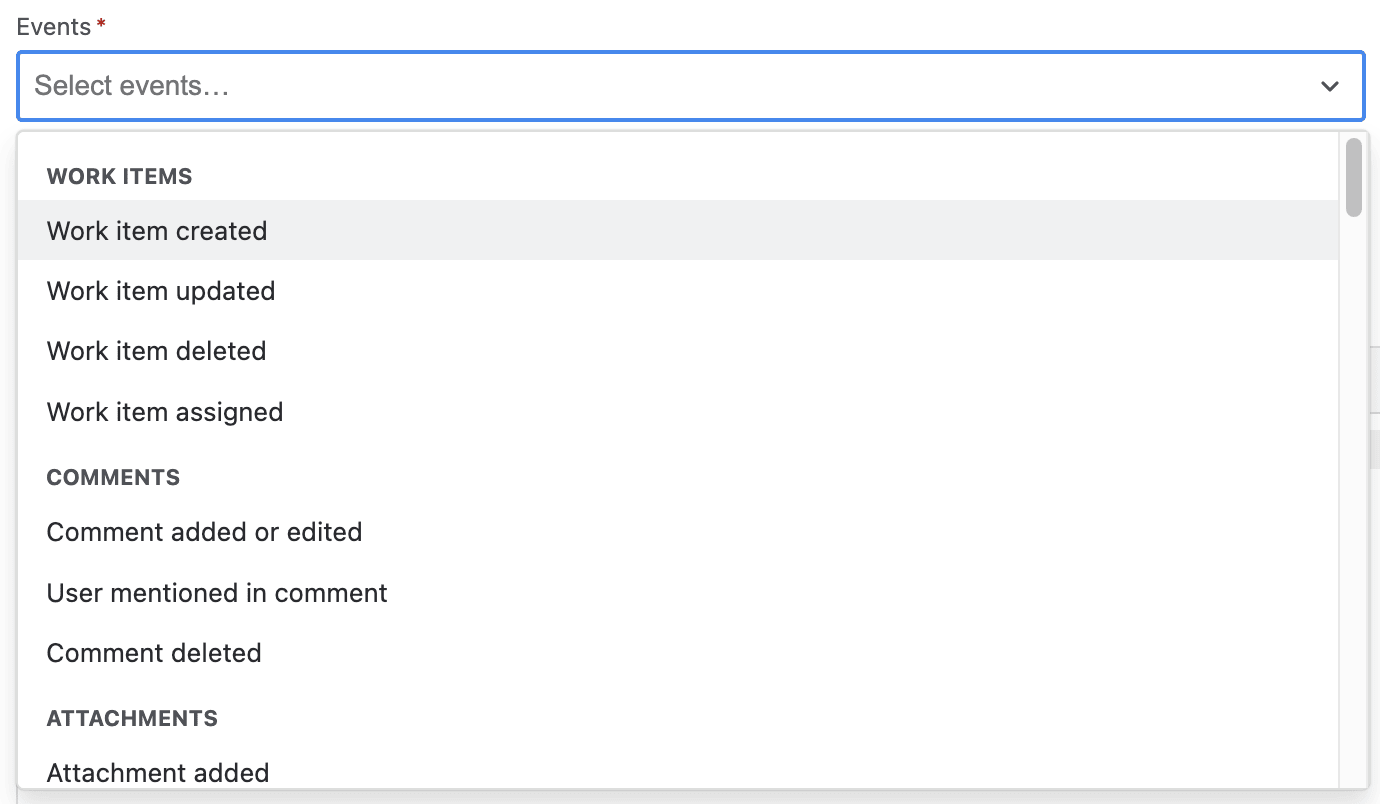
The events a listener can react to, in groups
Spaces defaults to nothing selected. Choose All spaces, or name the ones you want. The picker also has an ≠ excludes option, which watches everywhere except the spaces you name. That's the easier choice when you want most of your site but not one noisy space.
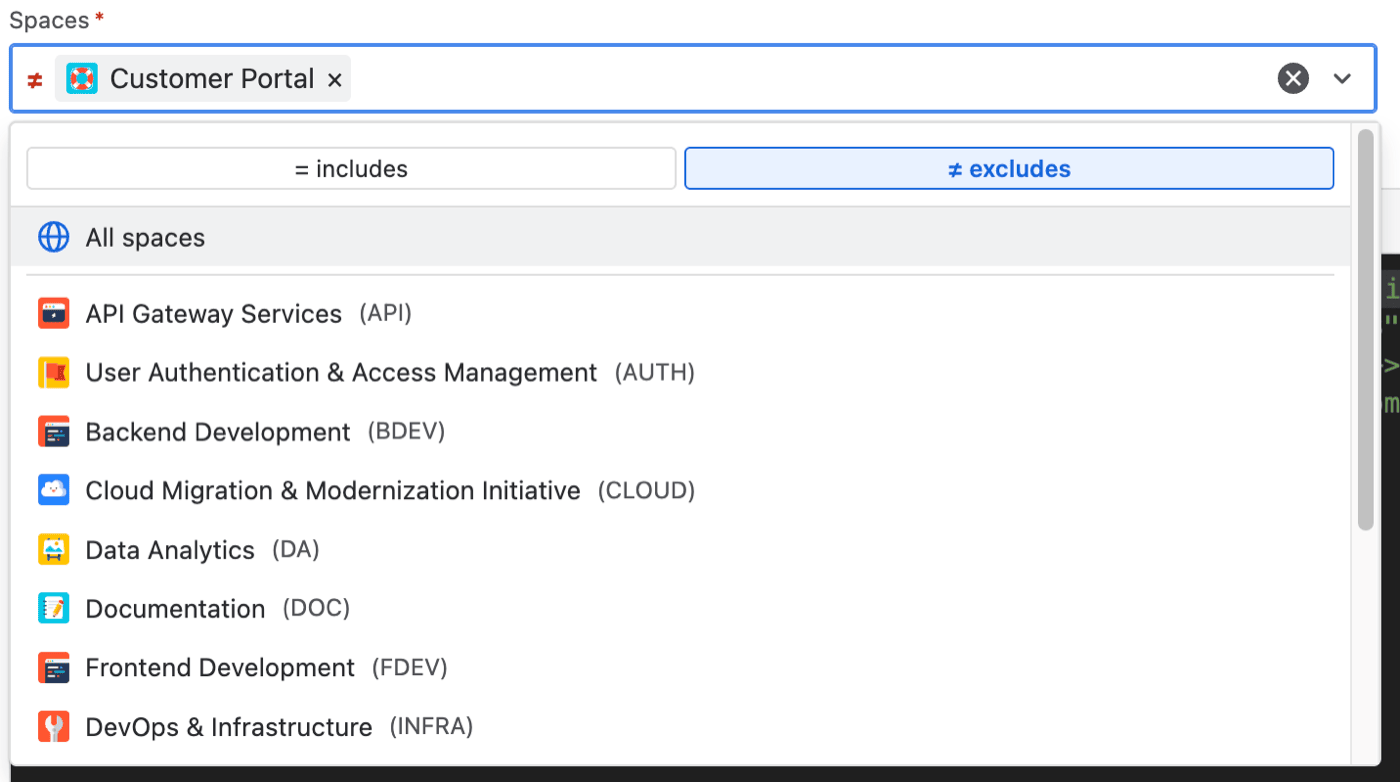
Running everywhere except one space
A finished listener looks like this.
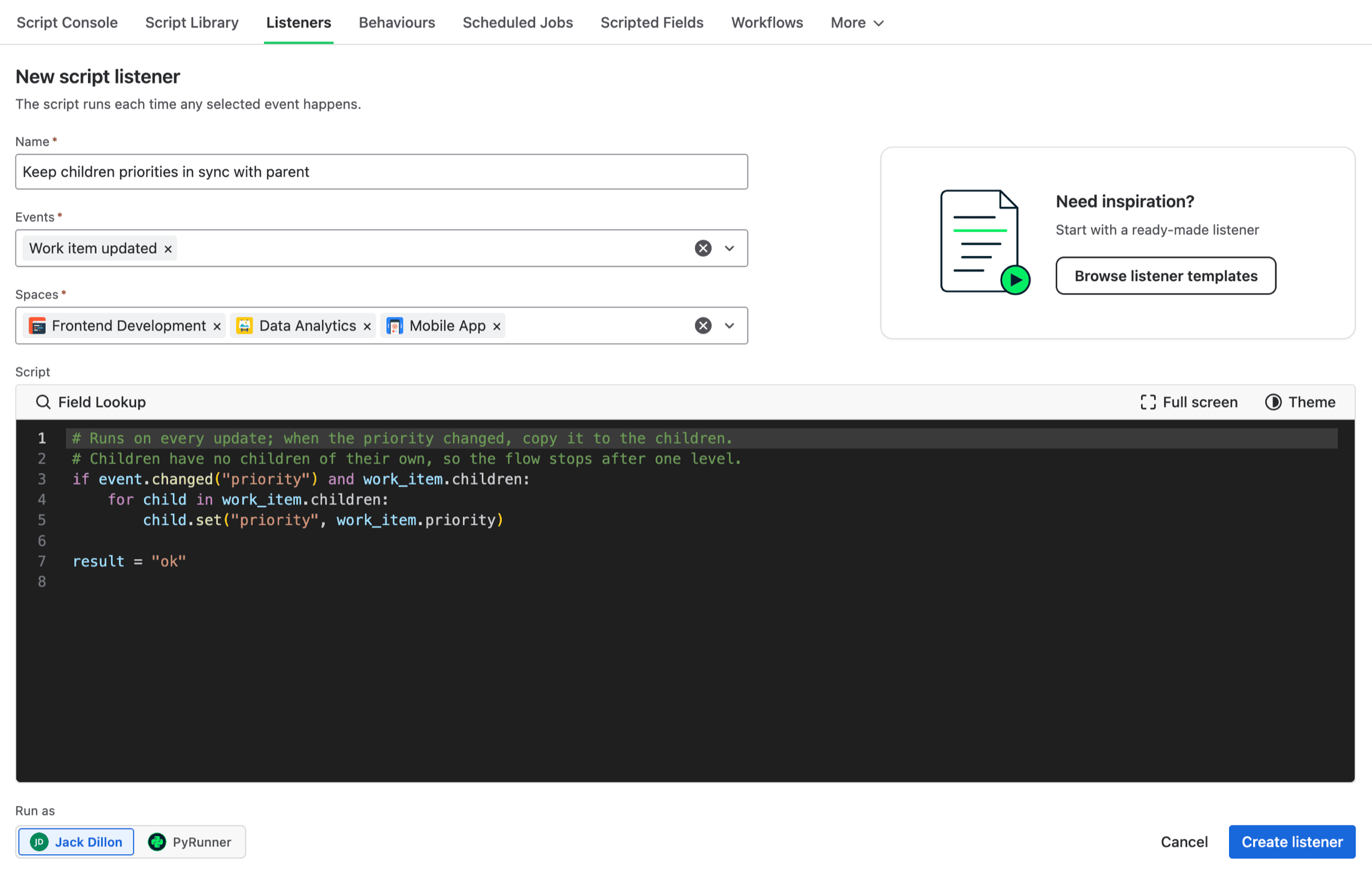
A listener that keeps children in step with their parent's priority
Starting from a template
Browse listener templates on the form opens a set of ready-made listeners, such as closing a parent when its last child closes. Choosing one fills in the script and selects the events it needs, so a template that reacts to updates arrives with Work item updated already chosen.
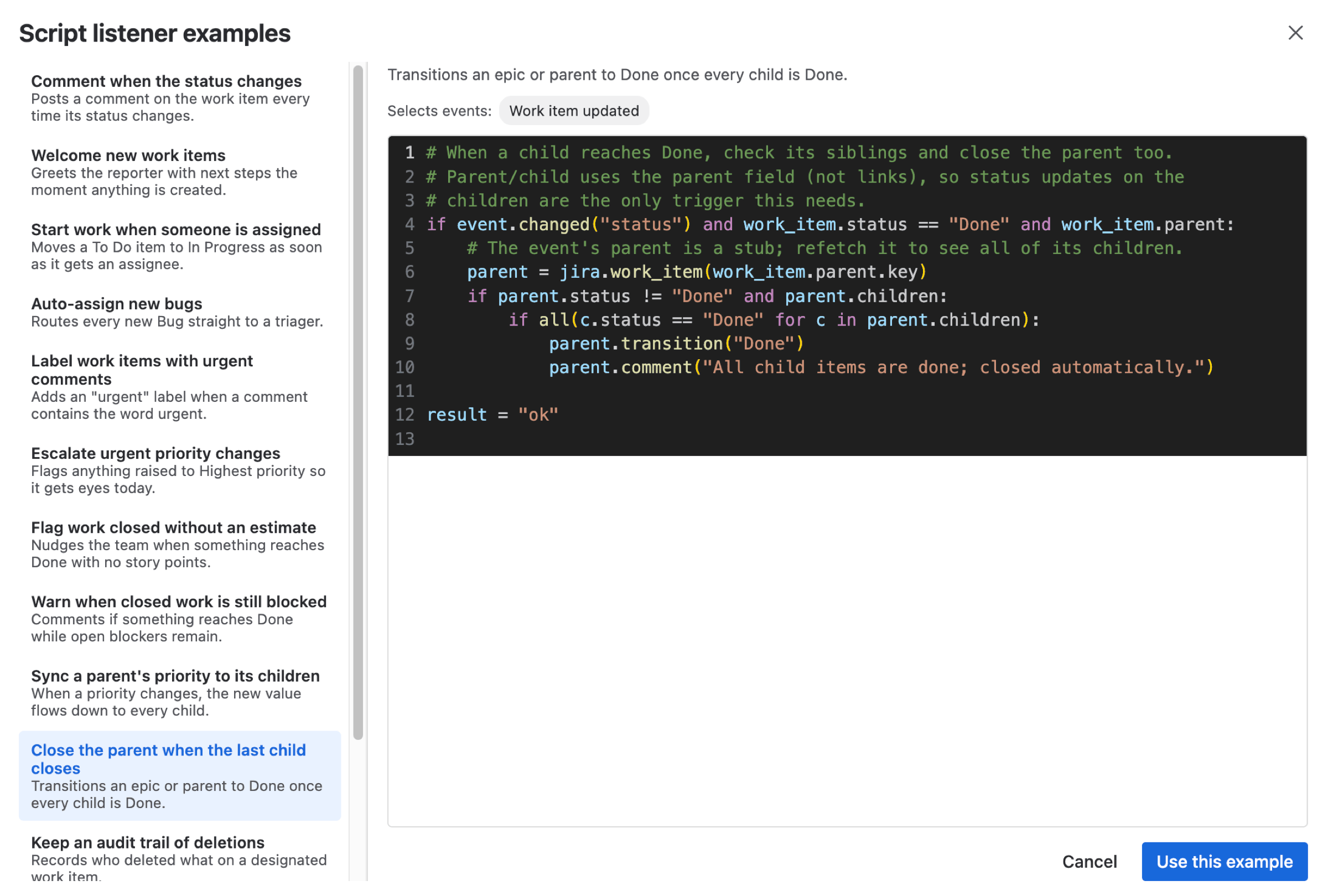
Templates arrive with their events already selected
Note: There's no limit on how many listeners a site can have, and each one can watch as many events as you like, up to the whole catalogue.
Available Events
There are 63 events across 15 groups. Rather than list them all, here's what each group covers and how many events it has.
| Group | Covers | Group | Covers |
|---|---|---|---|
| Work items | Created, updated, assigned, deleted | Comments | Added or edited, mentioned, deleted |
| Attachments | Added, deleted | Work logs | Created, updated, deleted |
| Links | Created, deleted | Versions | Released, archived, merged and six more |
| Boards | Created, updated, deleted, reconfigured | Sprints | Created, started, updated, closed, deleted |
| Spaces | Created, archived, trashed, restored | Components | Created, updated, deleted |
| Users | Created, updated, deleted | Work types | Created, updated, deleted |
| Custom fields | Field and context changes, trash and restore | Filters | Created, updated, deleted |
| Administration | Global config, time tracking, expression failures |
What your script receives
Every listener script gets an event object describing what happened. The most useful parts are event.type, which tells you which event fired when a listener watches several, event.work_item_key, event.actor_id for who did it, and event.changes for what was edited. event.changed("status") answers the common question directly.
# Which event fired, and who caused it.
if event.type == "avi:jira:updated:issue" and event.changed("status"):
    actor = jira.user(event.actor_id)["display_name"]
    result = f"{event.work_item_key} moved by {actor}"
When you also get the work item
Events about a work item also give you a ready-to-use work_item, so you can read its fields without fetching it. That covers the Work items, Comments, Attachments, Work logs and Links groups, with one exception: a deleted work item can't be loaded, so Work item deleted gives you the key on event and nothing more.
Everything else is about something that isn't a work item, like a sprint or a version, so there's no work_item to give you. In those scripts work_item is None, and reading a field from it fails at the point you use it. Read event instead, or fetch what you need with jira.
Note: Viewing a work item is deliberately not available as an event. It fires thousands of times a day on an active site, which would swamp your listeners for very little benefit.
Execution History
A listener runs without you watching, so there are three places to check what it's been doing.
The Recent runs column on the list page is the quick health check. It summarises the last few runs in a sentence, like "The last run succeeded" or "3 of the last 10 runs failed, including the latest". Clicking it opens the logs for that listener alone.
Execution history sits at the bottom of the edit page and lists that listener's recent runs, each with the event that fired, the work item involved and how long the script took. View opens a run in full, with the output and any error on one tab and the details of the event that triggered it on another. Those details are the fastest way to work out why a run did something unexpected.

Recent runs for one listener
The Logs page has every run from every source. Learn more about reading the Logs page →
Note: Run history is kept for about 7 days, and the oldest entries can be removed sooner to save storage space.
Things to Know
Listeners can't trigger themselves
A listener that watches for updates and then updates a work item would, in principle, trigger itself forever. It doesn't. Changes your own scripts make don't come back as events, so a listener can't set itself off. You can write one that edits the thing it just reacted to without worrying about it.
Slow scripts keep going
A listener has 60 seconds. A script that needs longer isn't cancelled, it keeps going until it finishes, and the run shows up in the logs as normal. There's nothing to configure.
Events can arrive late
Jira delivers events reliably, but not instantly. Most arrive in under a second. Treat a listener as something that runs shortly after the event, not the instant it happens. If your script needs the very latest state, read the work item rather than trusting values carried on the event.
You can't mention yourself
Mentioning yourself in a comment doesn't fire the mention event, because Jira doesn't notify you about your own mentions. That's Jira's behaviour, not something PyRunner can change, and it's worth knowing if you're testing a mention listener on your own account.
Example
A common ask is that urgent bugs shouldn't sit unnoticed. This listener watches for new work items, and when a high priority bug arrives with nobody assigned, it labels it so the whole set stays easy to find.
Set Events to Work item created, Spaces to the spaces your bugs land in, and paste this as the script.
# Flag urgent unassigned bugs as they arrive.
if work_item.work_type == "Bug" and work_item.priority in ("Highest", "High"):
    if not work_item.assignee:
        reporter = work_item.reporter
        work_item.add_label("needs-triage")
        work_item.comment(f"Urgent bug from {reporter}, nobody assigned yet.")
        result = f"Flagged {work_item.key}"
    else:
        result = f"{work_item.key} already assigned"
else:
    result = "Not an urgent bug"
Imagine someone raises a bug with Highest priority and leaves it unassigned.
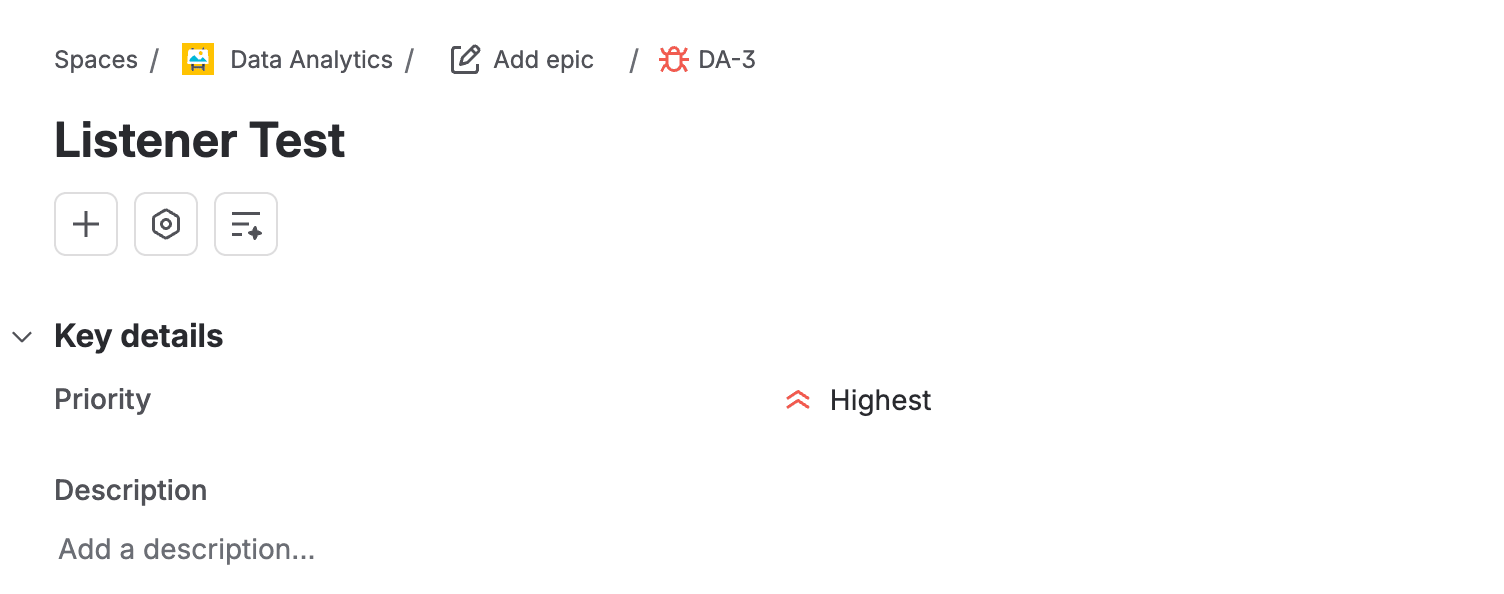
The bug someone just raised
Moments later the listener has labelled it and left a comment. The label is what makes this useful. Searching labels = "needs-triage" gives you every urgent bug nobody has picked up, across every space, in one list.
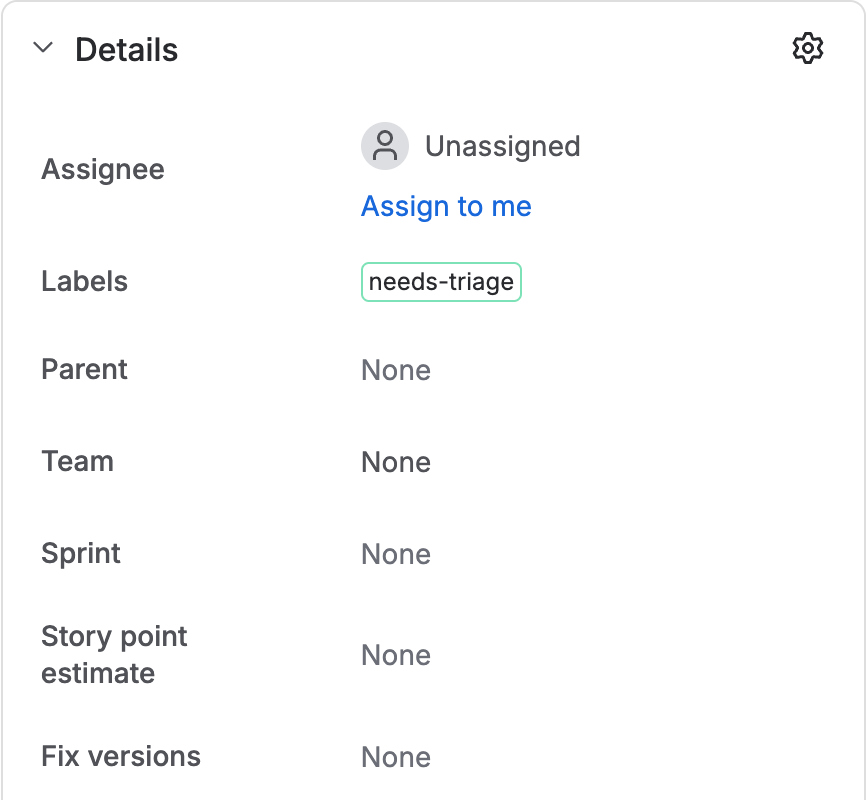
The label the script added
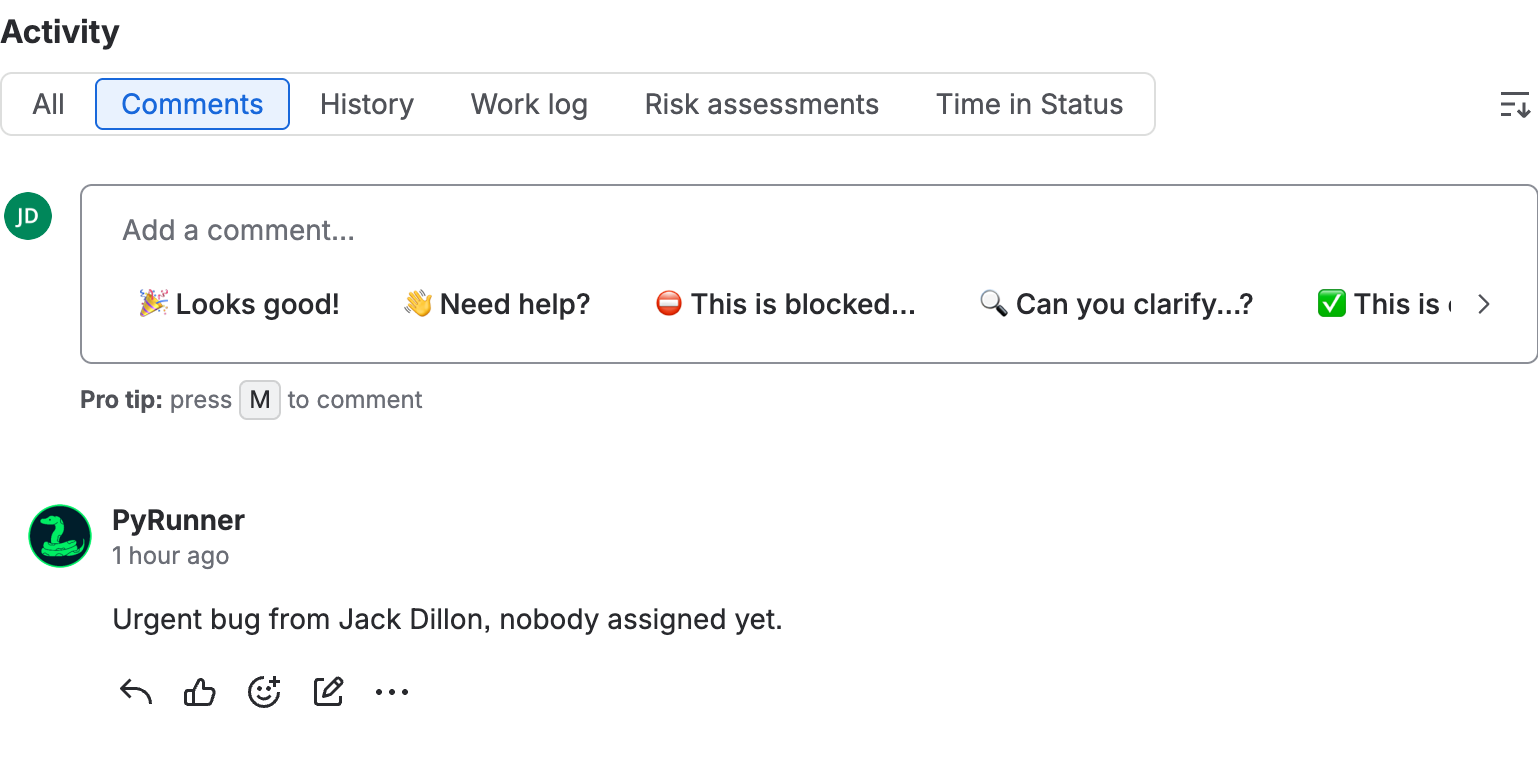
The comment, posted as PyRunner
Two things worth noticing. The script uses work_item directly, because a work item event hands it over ready to read. And it sets result on every path, including the ones that do nothing, so the logs tell you why a run made no changes rather than leaving you guessing.
The comment is posted by PyRunner here because this listener was set to run as the app. Had it been set to run as you, the comment would carry your name instead.
The label and the comment are both applied only if the script finishes without an error, so a listener that fails partway leaves the work item untouched.
Need Additional Help?
If you have any questions or need assistance, our support team is here to help