Workflows
Workflow rules put Python into a transition. You can hide a transition until the work item is ready for it, block it with a message explaining what's missing, or run a script once it's happened.
Rules live inside the workflow, so they're added and removed in Jira's own workflow settings. The Workflows page here is where you edit, enable, and check up on the ones you've added.
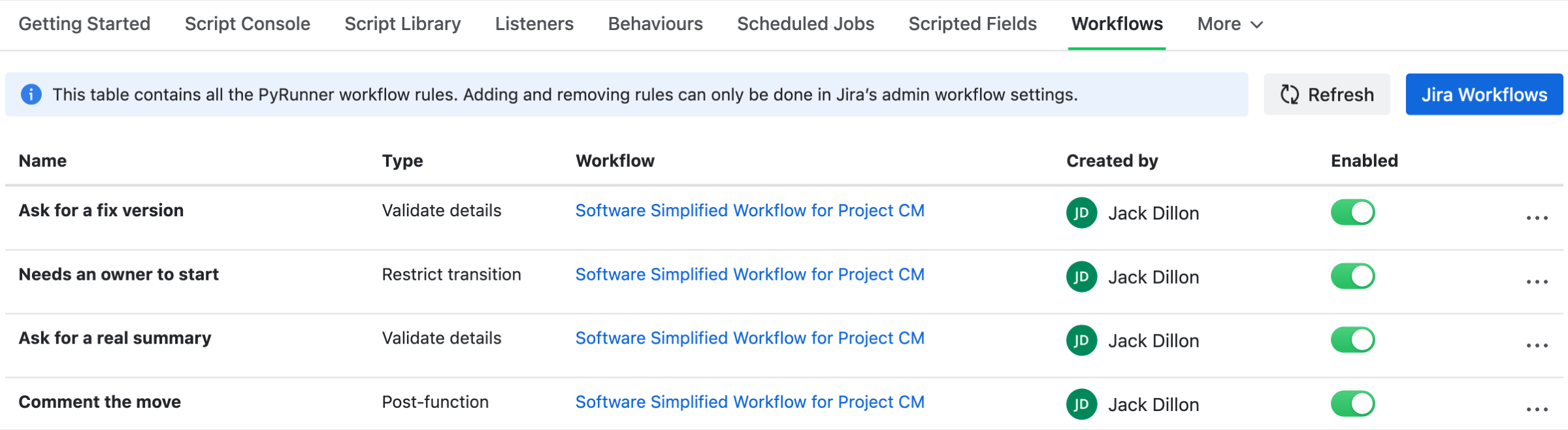
Every rule of all three types, on the same workflow
Adding a Rule in Jira
Open the workflow you want to change in Jira's admin settings, select the transition, and add a rule to it. Selecting a transition opens a panel listing the kinds of rule it can carry.
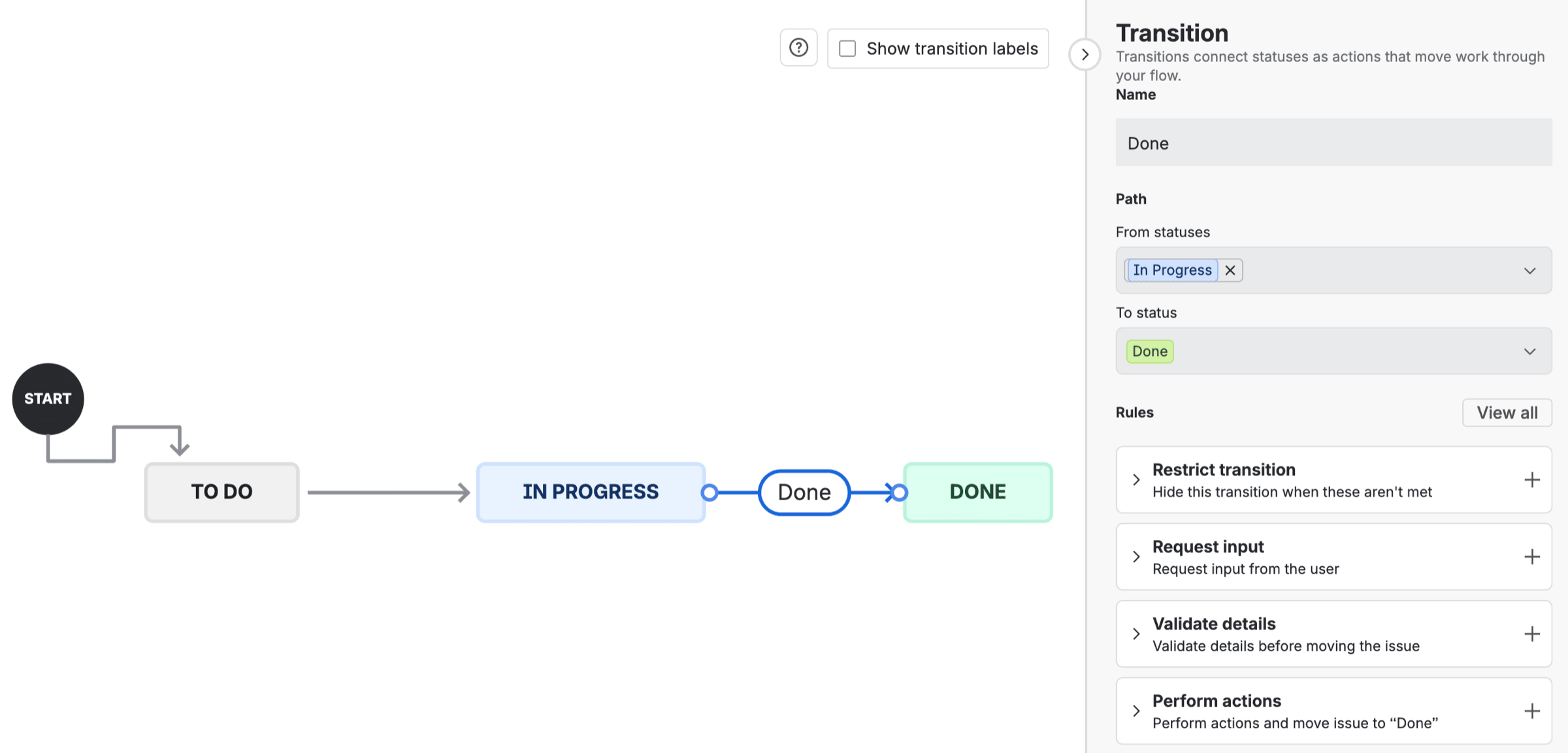
Selecting the transition a rule should apply to
You'll find three PyRunner options among Jira's own.
| Under Jira's rule type | Choose |
|---|---|
| Restrict transition | PyRunner: Restrict transition with Python |
| Validate details | PyRunner: Validate details with Python |
| Perform actions | PyRunner: Post-function with Python |
Picking PyRunner under Jira's marketplace rules shows all three together, whichever type you're after.
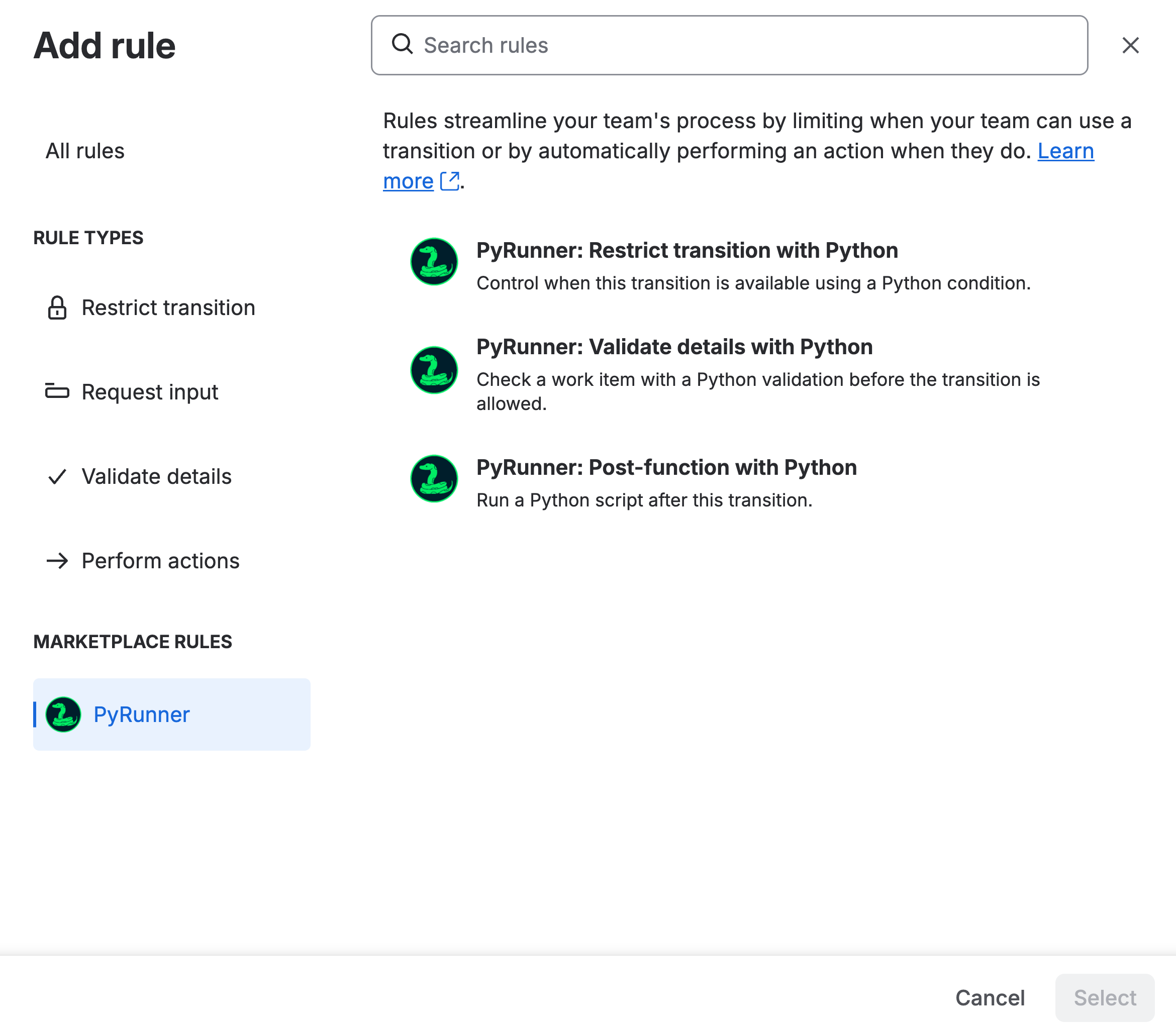
The three options, in Jira's own rule picker
Choosing one opens a panel where you name the rule and say what it should do. Restrict and validate rules are written as Python. Perform actions rules can be too, or you can fill in one of the ready-made templates and write nothing at all. The transition it applies to is shown at the top, so you can confirm you're on the right one.
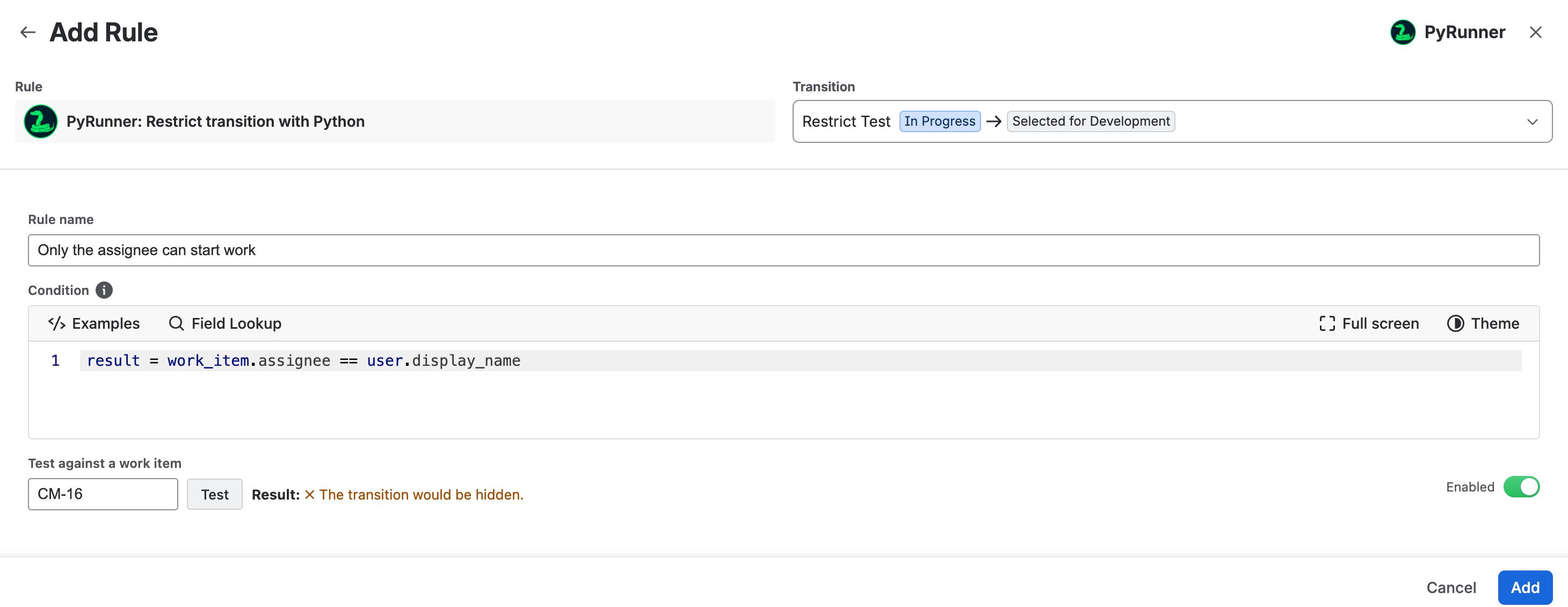
Writing a restrict rule against the Done transition
Save it with Jira's Add button, then publish the workflow. Both steps are needed, and a rule that's been added but not published is the most common reason a new rule seems to do nothing.
Once published, the rule appears on the Workflows page in PyRunner, where you can edit or disable it without going back into Jira.
The Three Rule Types
Each type answers a different question, so the one you want depends on when you need to act.
| Type | What it decides |
|---|---|
| Restrict transition | Whether the button is offered at all |
| Validate details | Whether the move is allowed, with a reason if not |
| Perform actions (post-function) | What happens once the move is done |
Restrict transition
A restrict rule decides whether someone sees the transition. Your script returns True to offer it and False to hide it. This one hides Start Progress until the work item has an owner.
work_item.assignee is not NoneUse this when the transition simply doesn't apply yet. Because the button is hidden rather than refused, nobody gets an error, so it's the gentler option of the two guards.
Validate details
A validate rule lets the transition be offered, then checks it when someone tries. Return True to allow it, or call fail() with a message to block it and tell them why.
len(work_item.summary) > 20 or fail("Write a summary that describes the work (at least 20 characters).")Use this when someone can fix the problem. The message goes on screen, so it should say what to do rather than what went wrong. Validators also get original, the work item as it was before this change, which lets you check what somebody just edited.
Note: Check text fields with len(...) > 0, not is not None. Jira treats an empty Description as empty text rather than nothing, so a None check passes on a blank field. PyRunner refuses that comparison at save.
Perform actions (post-function)
This one runs after the transition has happened. It can't stop anything, but it's the only type that can make changes, and it's full Python with the jira object available. This comments on the work item recording where it went.
work_item.comment(f"Moved to {transition.to_status} via '{transition.name}'.")It runs just after the transition rather than as part of it, so the person moving the work item doesn't wait for your script. A slow script delays the comment appearing, not the transition itself.
Restrict and validate rules are evaluated by Jira itself at the moment of the transition, which is what makes them instant and keeps them working even when PyRunner isn't reachable. It also limits them. They see only the work item in front of them, can't use the jira object, and don't appear on the Logs page. Script rules run in the sandbox like any other script, and are logged normally.
Note: treat these as guardrails, not security. A restrict rule that fails to evaluate lets the transition through; a validator that fails blocks it, showing Jira's error rather than your message.
Templates, With No Python
Most of what people want from a post-function is the same handful of jobs. Perform actions rules can be built from a form instead of a script, so you can assign a work item, clone it, or email the reporter without writing any Python. Choose Browse templates in the rule panel to see the eight.
Picking one swaps the editor for its form. Here's Send notification, which emails the people you tick about the transition that just happened. {key} and {summary} stand in for the work item's key and summary wherever text is accepted.
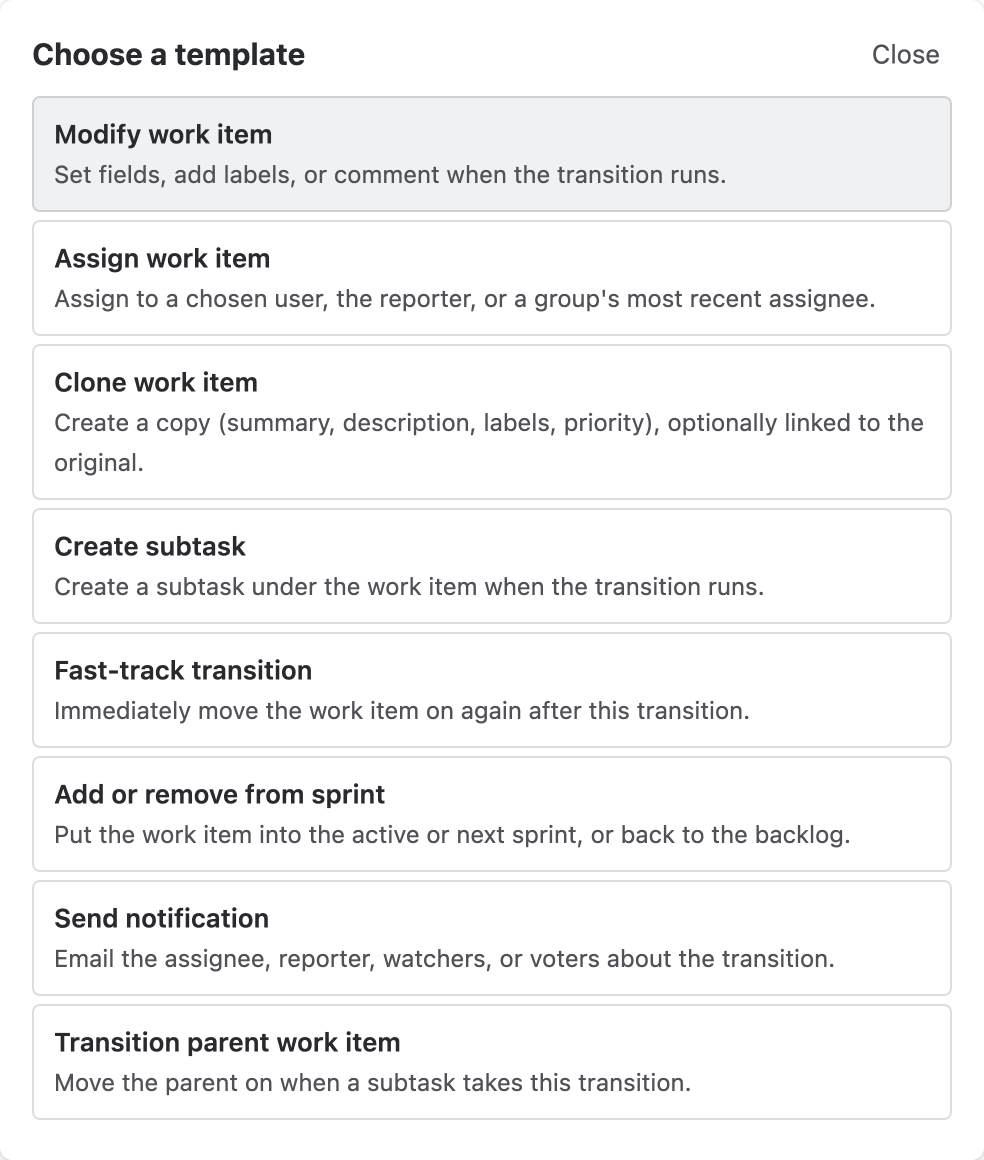
The eight templates
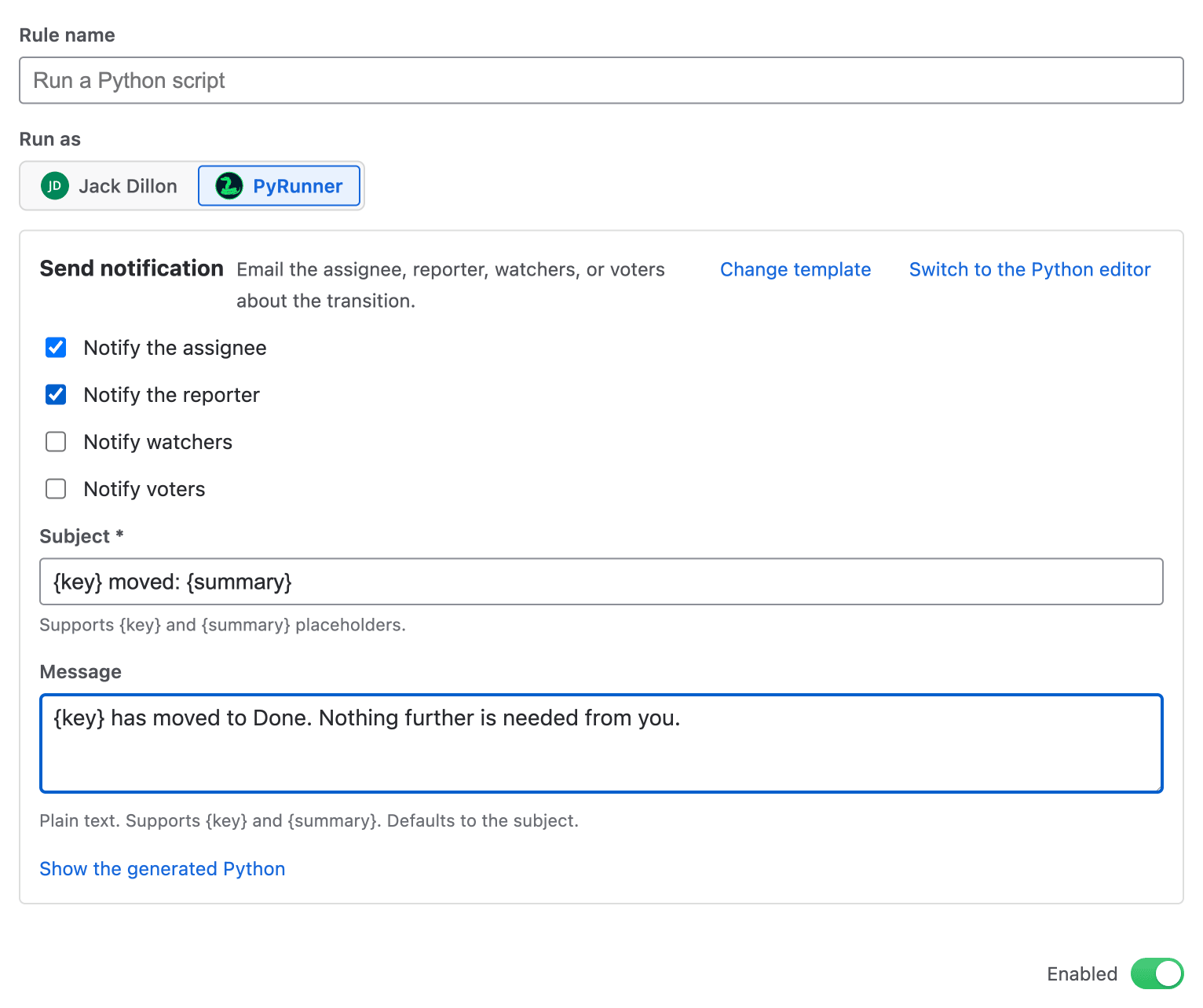
Filling one in, rather than writing a script
A template isn't a separate kind of rule. When you save, we generate ordinary PyRunner Python from what you filled in and store that as the rule's script, so it runs down the same path a hand-written rule does and gets the same history and the same wall. Nothing about the form survives into the run.
Show the generated Python proves it. That's the whole script the notification form above produces:
# Generated by the "Send notification" template. This is ordinary PyRunner
# Python - edit it freely (the rule then keeps your version).
# Email the chosen people when this work item takes this transition.
subject = "{key} moved: {summary}".replace("{key}", work_item.key).replace("{summary}", work_item.summary or "")
text = "{key} has moved to Done. Nothing further is needed from you.".replace("{key}", work_item.key).replace("{summary}", work_item.summary or "")
jira.post("/rest/api/3/issue/" + work_item.key + "/notify", {
    "subject": subject,
    "textBody": text,
    "to": {
        "assignee": True,
        "reporter": True,
        "watchers": False,
        "voters": False,
    },
})
Switch to the Python editor hands you that script to edit. It's a one-way door: the rule becomes a script rule and the form is gone, because there's no way to read arbitrary edits back into a set of form fields. Templates stay available on new rules and on rules still built from one.
Note: the templates cover modifying a work item, assigning it, cloning it, creating a subtask, fast-tracking another transition, moving it in or out of a sprint, sending a notification, and transitioning its parent. Anything else is a script.
Editing and Testing a Rule
The rule editor gives each rule a name, an enabled toggle and its script. Script rules also get a Run as setting, deciding whose permissions the script uses and whose name lands on the changes it makes.
Starting from an example
You don't have to start with an empty editor. Examples opens a gallery of ready-made rules, seven for each of the three types, and Use this example drops the script straight into the editor for you to edit. Each one names the transition it was written for, since a rule that makes sense on Done rarely makes sense everywhere.
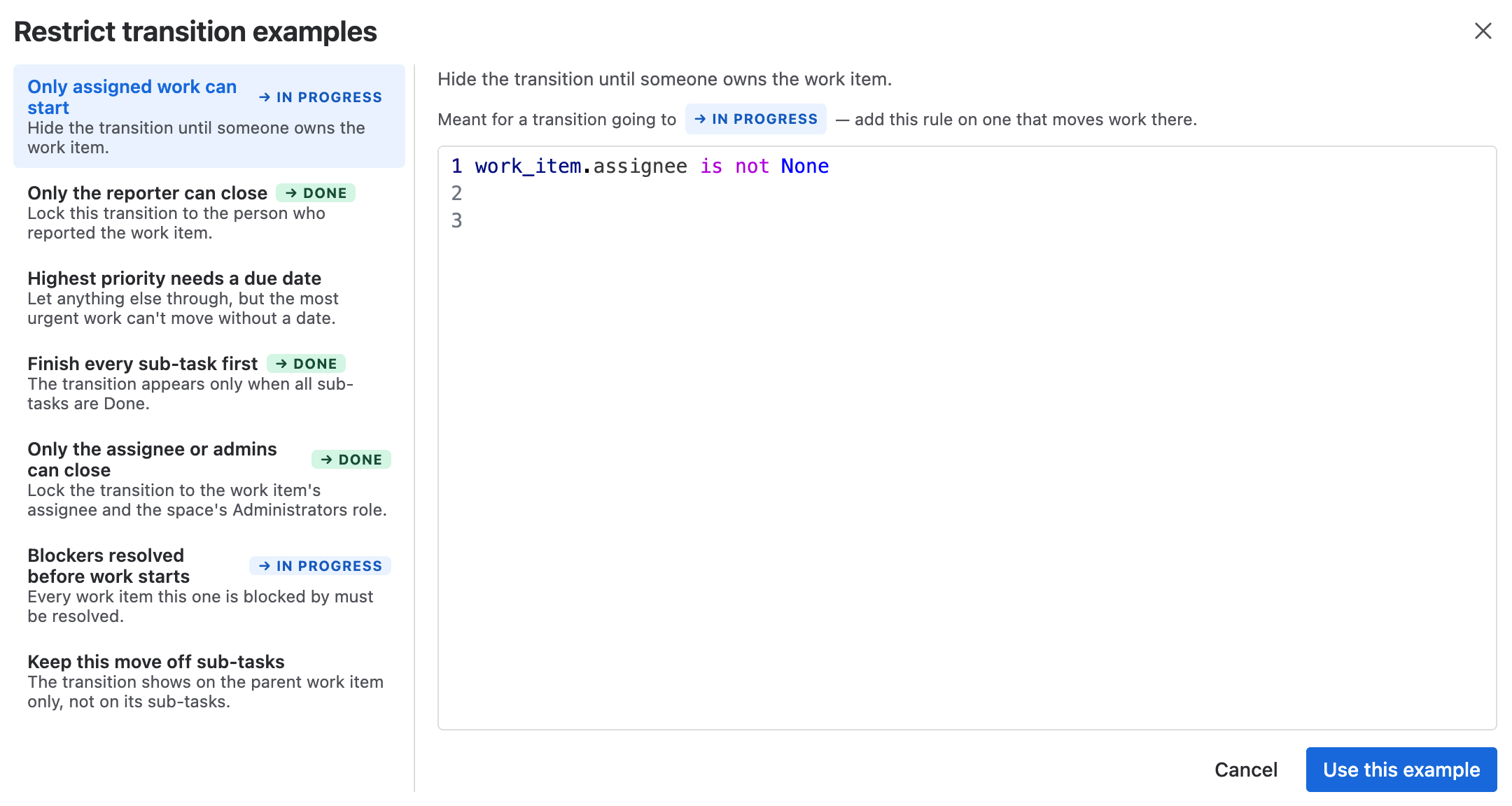
Ready-made rules, with the transition each is meant for
Restrict and validate rules have a Test against a work item box. Give it a work item key and it tells you what would happen: whether the transition would be available or hidden, allowed or blocked, and for a validator it shows the message someone would see. These rules never reach the Logs page, so this is the way to check one is doing what you meant before you publish it. Once it's live, the Health column on the Workflows page tells you if it's failing to evaluate.
A rule that doesn't compile can't be saved. If your script uses something a restrict or validate rule can't do, you'll be told which line when you try, rather than finding out at the moment somebody tries to move a work item.
Here's the summary validator tested against a work item called Fix login, which is too short to pass, so the test shows the message that would stop the transition.
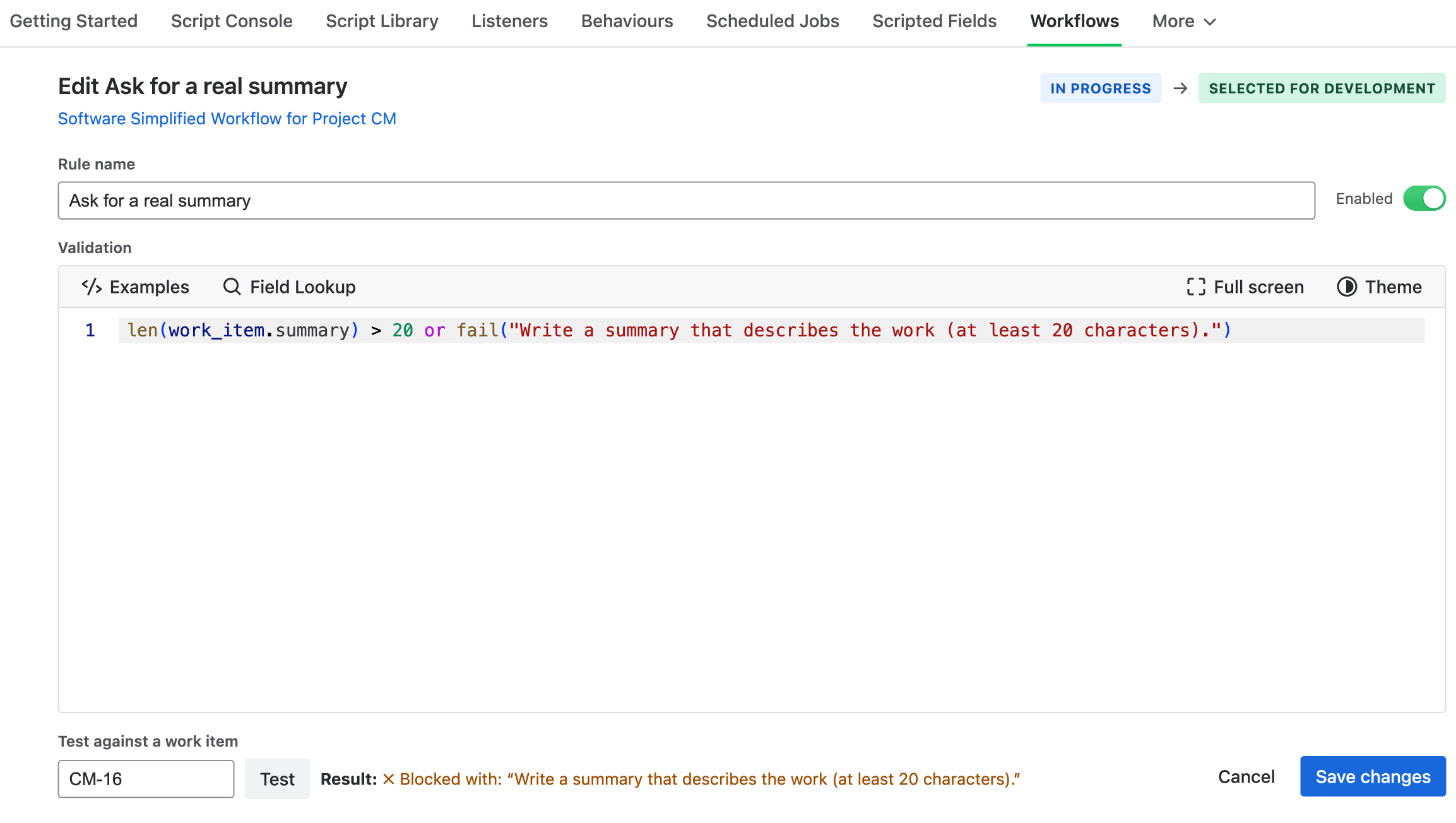
Testing a validator before anyone hits it
Knowing a Rule Is Failing
A workflow rule fails quietly. The Health column on the Workflows page is where that shows up.

A validator that's failing to evaluate, among rules that are fine
Restrict and validate rules are evaluated by Jira, not by us, so what we can see is Jira telling us an expression failed. The column counts those and shows the most recent message when you hover. Action rules have run history instead, so theirs reads as a share of recent runs, like "2 of last 10 runs failed".
The fix for an expression error is usually to open the rule and save it again, which recompiles it from the Python you wrote. A rule with nothing to report says No recent errors. Errors are forgotten after a month, so a burst you've already fixed stops following the rule around.
Example
Teams often want work to be reviewed before it's called done, and the three types can work together on one transition.
Add a restrict rule to the Done transition so it only appears once every sub-task is finished.
all(s.status == "Done" for s in work_item.subtasks)Add a validator so anything shipped has a version recorded against it.
len(work_item.fix_versions) > 0 or fail("Add a fix version first.")Then a script rule to hand the work item back to whoever asked for it, so they can confirm it's what they wanted.
work_item.set("assignee", work_item.reporter_id)The validator, end to end
Here's that middle rule the whole way through. In Jira, select the transition, add a Validate details rule, and choose PyRunner: Validate details with Python. Name it, paste the script, and check it against a real work item before it goes anywhere near your team.
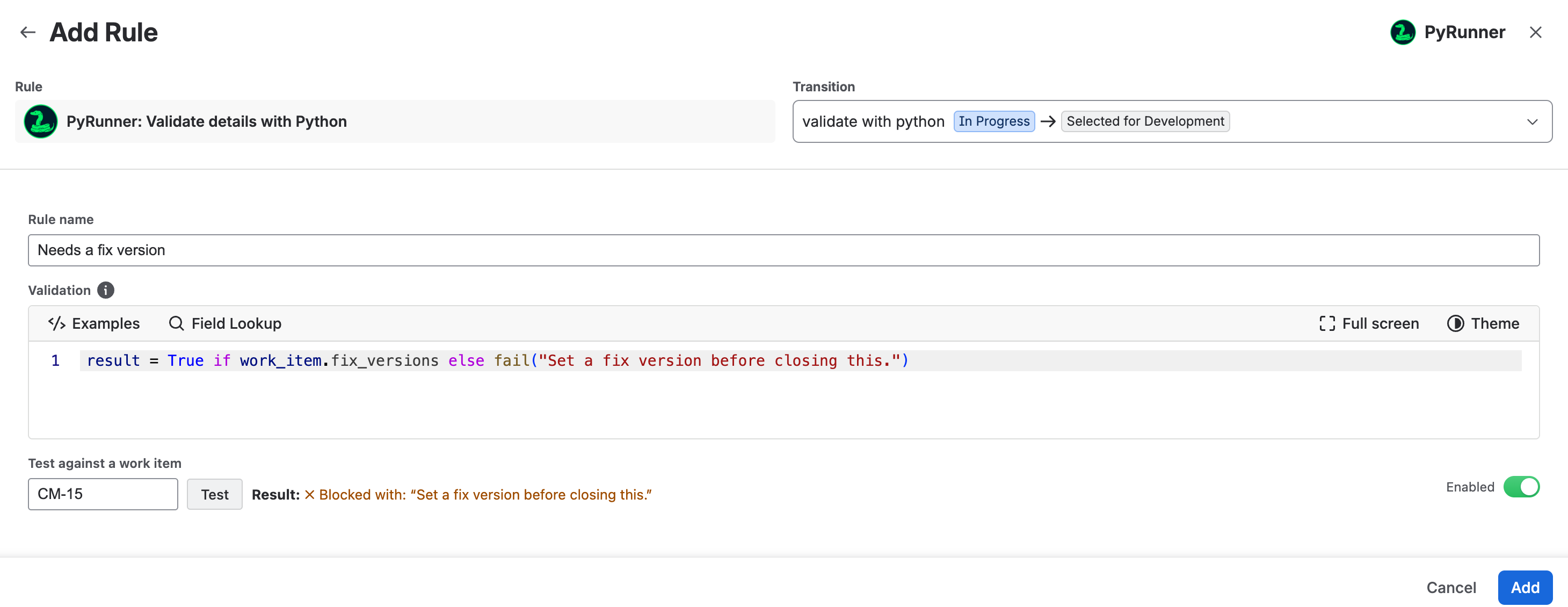
Writing the rule, and testing it, without leaving Jira
Add attaches the rule, then Update workflow publishes it. Until you publish, the rule exists but does nothing.
Now anyone moving a work item that has no fix version gets stopped, and the message they see is the one you wrote.

The message from fail(), as the person moving the work item sees it
Need Additional Help?
If you have any questions or need assistance, our support team is here to help